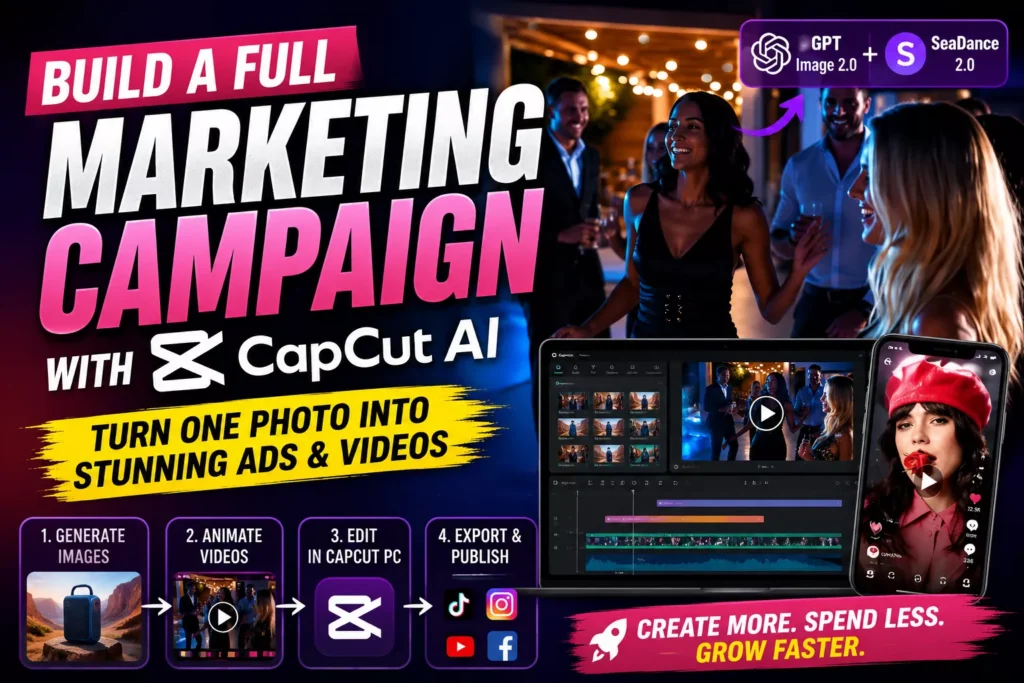
Why spend hours creating every single ad by hand? You can now take one product photo and turn it into a whole set of images and videos in minutes. This removes the grind of manual content creation.
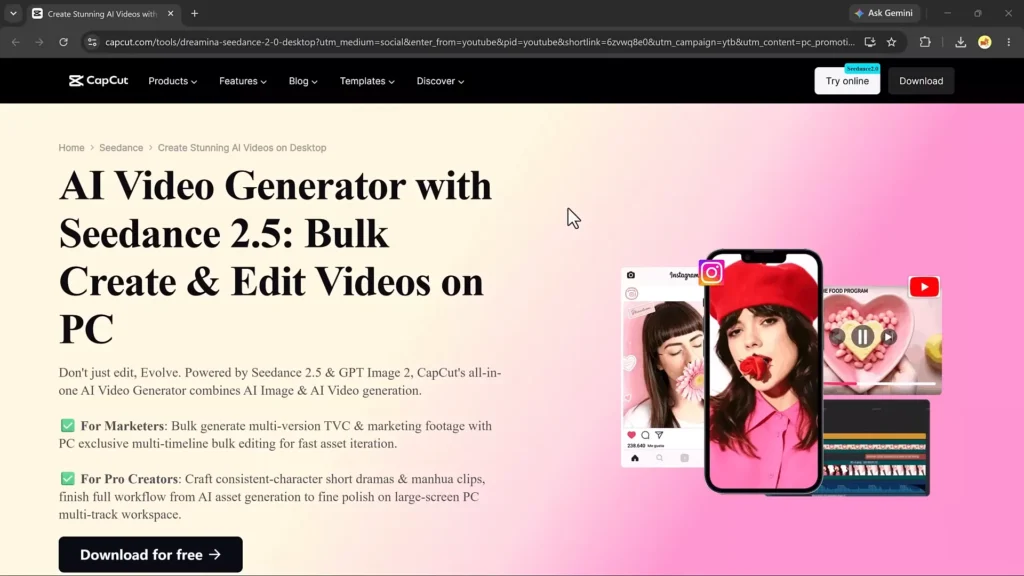
CapCut PC combines GPT Image 2.0 and SeeDance 2.5 to handle the heavy lifting. You can make a batch of photos, turn those photos into cinematic clips, and edit them all in one place. This workflow lets you move from a basic idea to a finished campaign without leaving the app.
Create Multiple Product Visuals with GPT Image 2.0
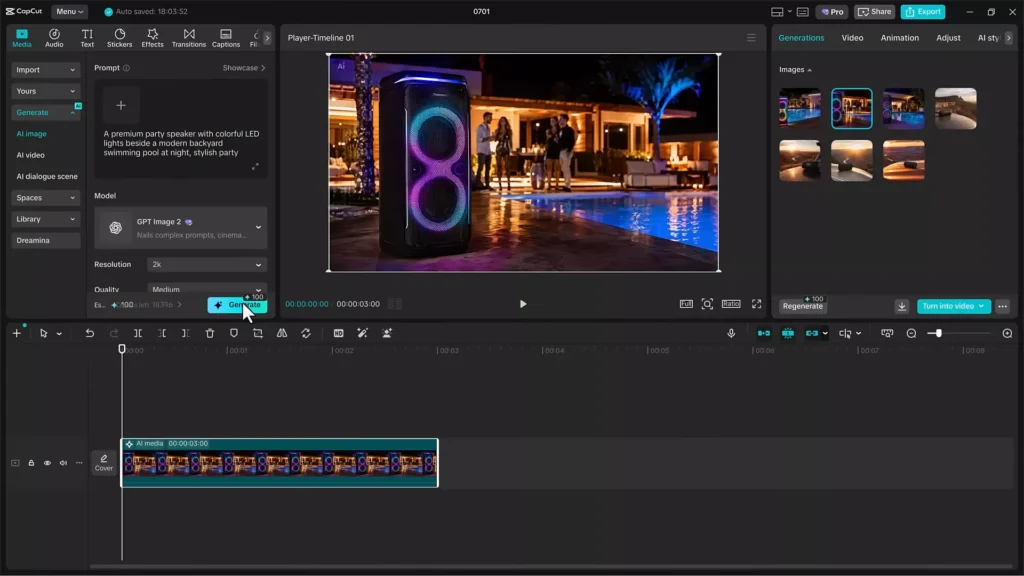
The first step is getting your visual assets ready. Instead of taking a hundred different photos in a studio, you use AI to place your product in any setting you want. This is where GPT Image 2.0 comes in.
Use Prompts to Generate Unique Scenes
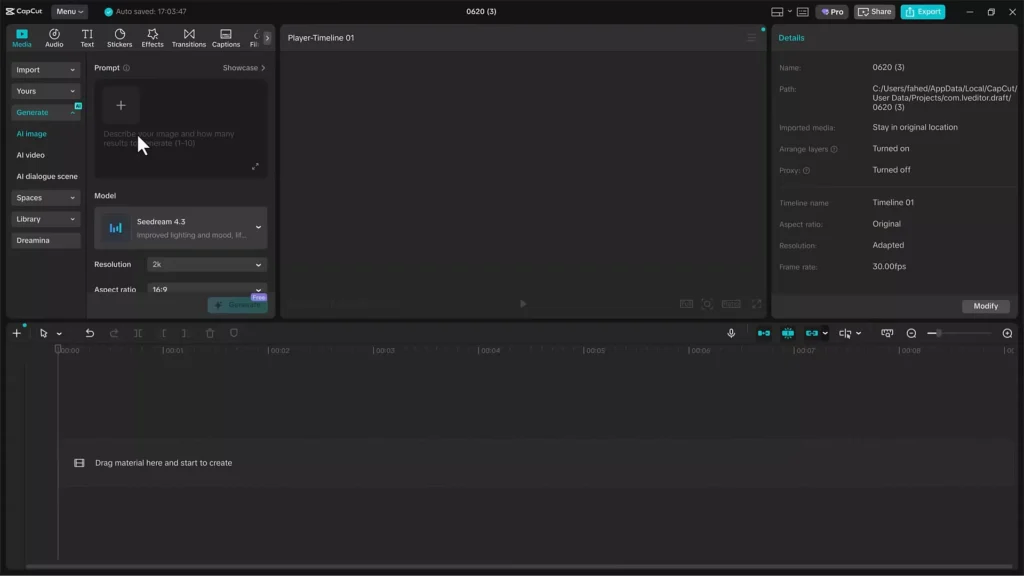
You start by typing a description of where you want your product to be. The more detail you give, the better the result. For example, if you sell a Bluetooth speaker, you don’t need a truck and a canyon in your backyard.
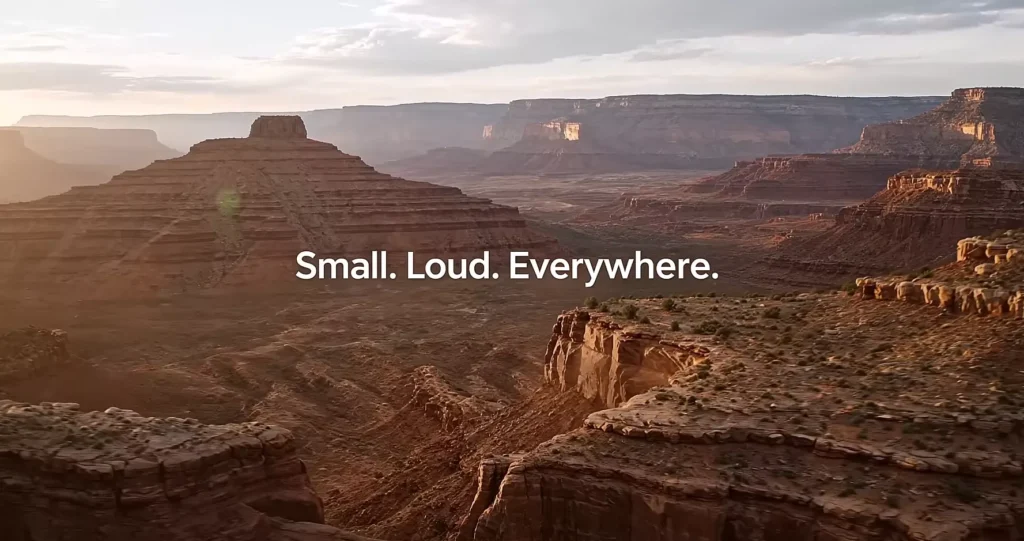
You can just tell the AI to place a “smart portable Bluetooth speaker on the hood of a pickup truck overlooking a massive American canyon at golden hour.”
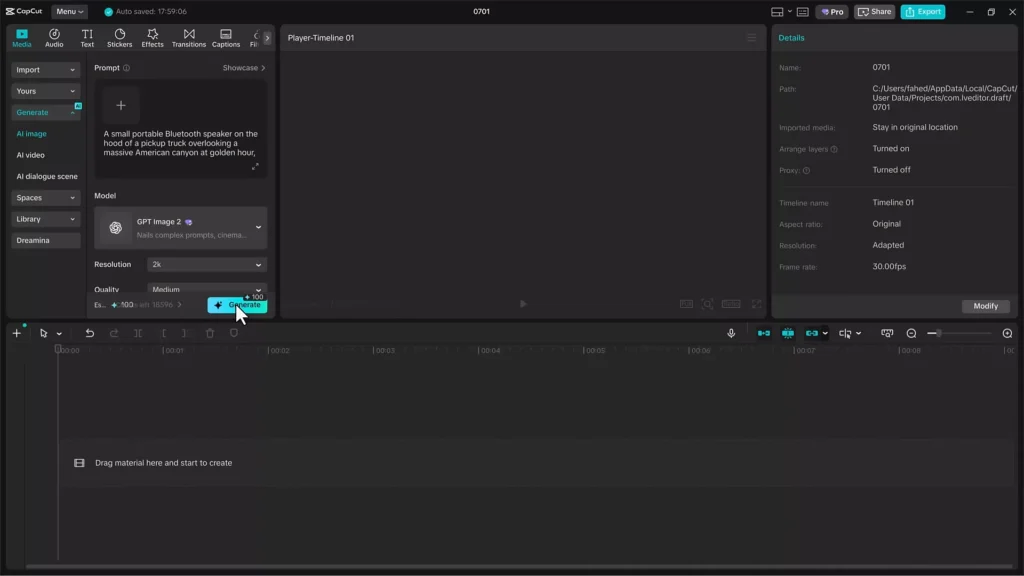
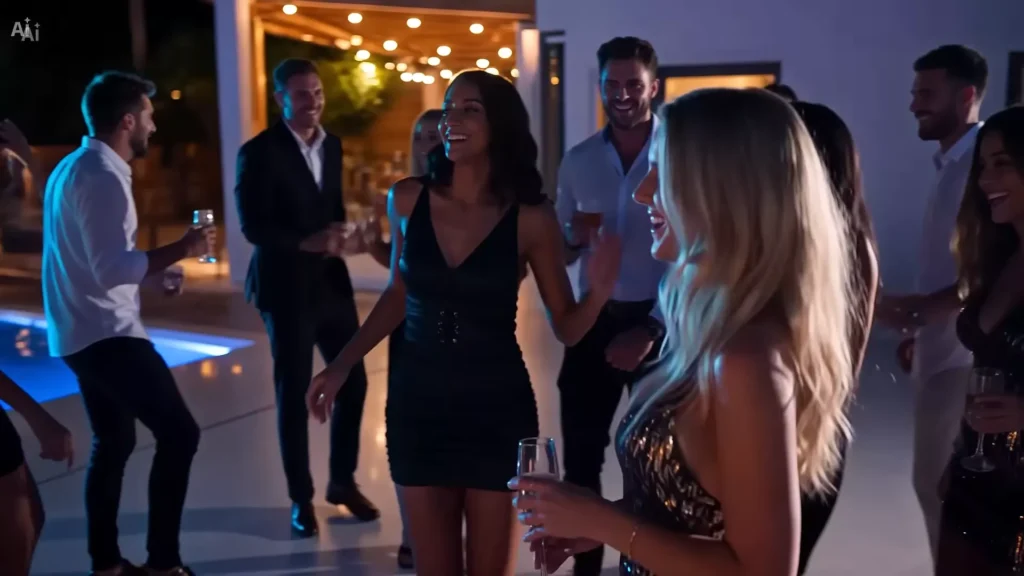
Once you hit generate, the AI builds the scene. You can then switch styles completely for the next image. Try something like a “premium party speaker with colorful LED lights beside a modern backyard swimming pool at night.” This gives you a variety of moods and settings for different target audiences.
Set the Right Quality and Size
Different platforms need different shapes. A square photo works for Instagram, but a vertical one is better for TikTok or Stories. Within GPT Image 2.0, you can pick your resolution and aspect ratio before you generate.
- Select the quality level to ensure the image looks professional.
- Choose the aspect ratio based on where you will post the ad.
- Download the images to your local drive for easy access.
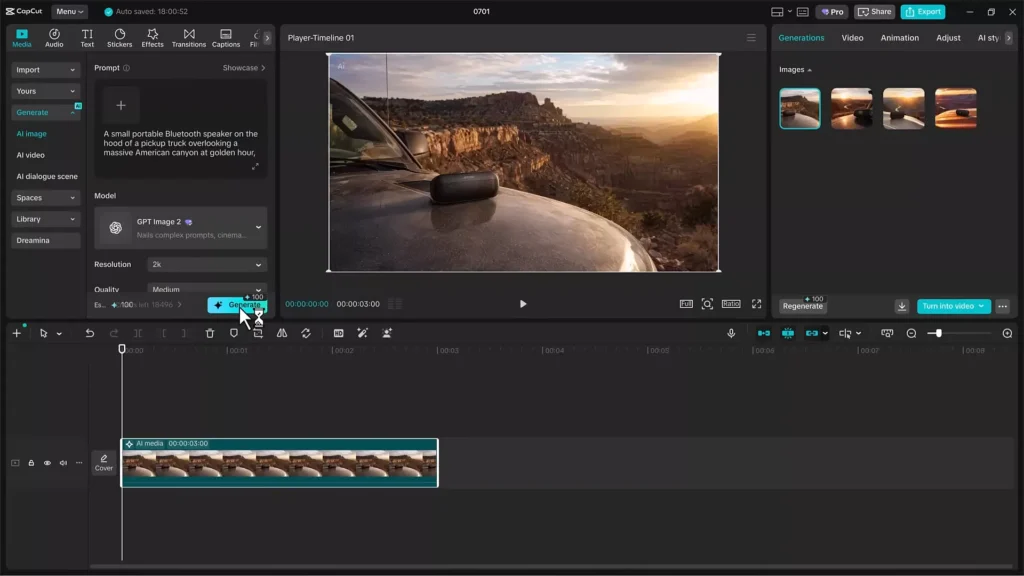
Turn Still Photos into Videos with SeeDance 2.5
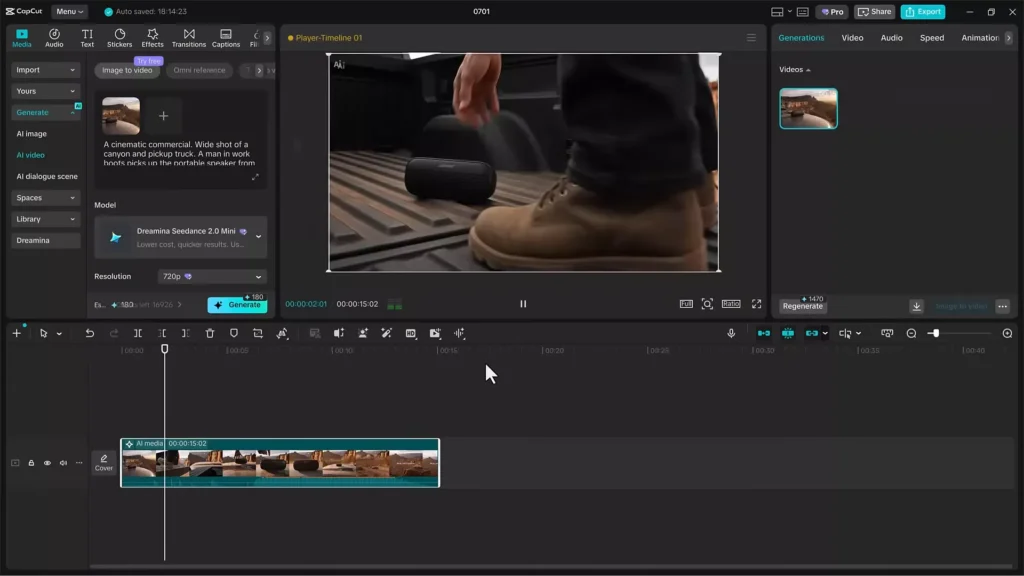
Static images are great, but video usually gets more clicks. You can animate the images you just made using SeeDance 2.5. This tool adds motion to your product photos without needing a camera crew.
Create Cinematic Motion from a Photo
To start, upload your generated image into the SeeDance 2.5 tool. You then provide a video prompt that tells the AI how to move the camera or the objects in the scene. This turns a flat photo into a smooth, cinematic clip.
The AI keeps the product as the main focus while adding natural movement to the background. This makes the product look like it was filmed on a high-end set. You can choose the video duration and resolution to fit your needs.
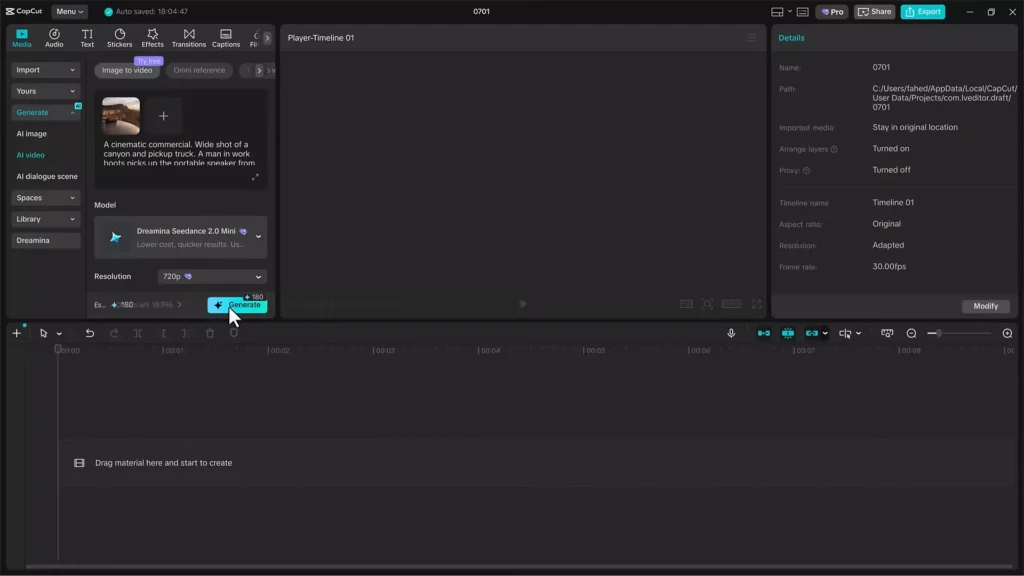
Build a Library of Video Variations
Don’t stop at one video. You can repeat this process for every image you generated. If you have a “canyon” shot and a “pool party” shot, you now have two different video ads.
This allows you to test which environment performs better. You might find that your audience likes the outdoor adventure vibe more than the party vibe. Since the process is fast, you can create ten variations in the time it used to take to make one.
Manage Your Workflow in CapCut PC
The real power comes from having these tools in one app. You don’t have to jump between five different websites to get your work done. Everything stays in one project.
Produce Assets in Batches
Traditional content creation is slow because you do things one by one. You take a photo, edit it, then move to the next. With AI, you work in batches. You generate five images, then animate five videos, then edit them all together.
This speed lets you react to trends faster. If a new trend hits social media on Tuesday, you can have a full campaign ready by Tuesday afternoon. You spend less time on the technical side and more time on the creative strategy.
Organize Content with Multi-Track Editing
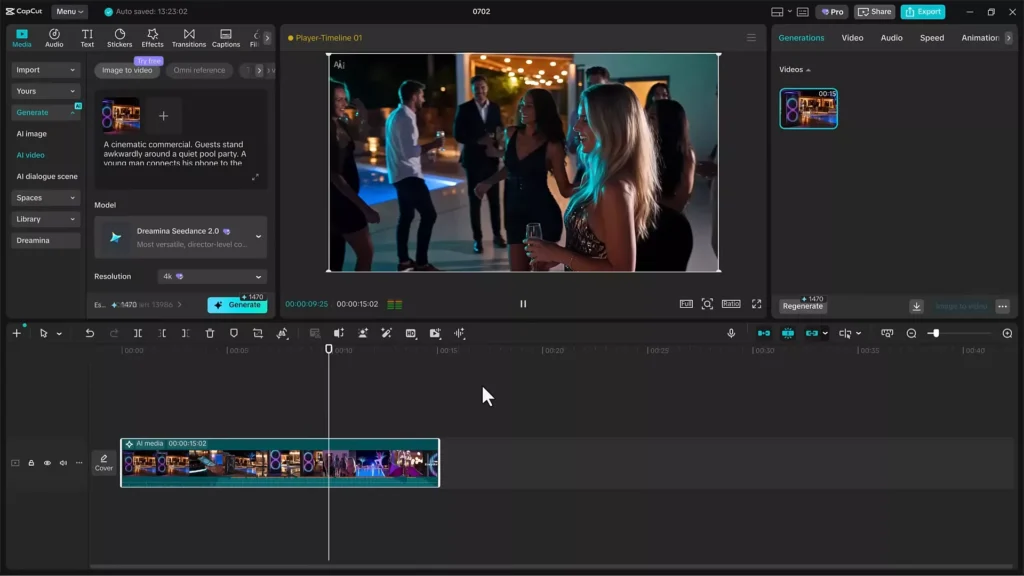
Once you have your clips and images, you use the multi-track editor in CapCut PC. This is where you stack your assets to build the final ad.
- Drop your AI videos onto the timeline.
- Add text overlays to highlight product features.
- Layer in background music to set the mood.
- Add transitions between the different scenes.
This allows you to build a cohesive story. You can mix the high-energy pool party clip with the calm canyon clip to show the versatility of your product.
Grow Your Brand with AI Content
Using AI isn’t just about speed. It changes how you approach your marketing strategy. You can be more aggressive with your testing and more creative with your visuals.
Cut Down on Production Costs
Professional photo shoots are expensive. You have to pay for locations, lighting, and photographers. AI removes those costs. You can put your product in a luxury penthouse or on a mountain top for free.
This saves a huge amount of money and time. Small businesses can now produce ads that look like they came from a big agency. You can spend your budget on ads instead of production.
Test More Ideas Quickly
When you can make content fast, you can take more risks. You can try weird colors, strange locations, or different messaging. If an ad fails, you didn’t lose much time or money.
This agility helps you find what actually sells. You can tweak a prompt and generate a new version of an ad in seconds. This constant iteration leads to better conversion rates and a stronger brand presence.
Best Prompt Writing Tips for GPT Image 2.0
The quality of your AI-generated images depends heavily on the prompts you provide. A detailed prompt helps GPT Image 2.0 understand exactly how you want your product to appear, resulting in more realistic and visually appealing marketing assets.
When writing prompts, include details such as:
- Product: Clearly describe the item you want to showcase.
- Environment: Specify where the product should appear, such as a beach, office, kitchen, or mountain trail.
- Lighting: Mention lighting conditions like golden hour, natural daylight, studio lighting, or neon lights.
- Camera Angle: Describe the perspective, such as close-up, overhead, wide-angle, or eye level.
- Photography Style: Include styles like commercial product photography, lifestyle photography, luxury branding, or minimalist design.
- Mood: Set the atmosphere with words like energetic, elegant, cozy, futuristic, or adventurous.
For example, instead of writing:
“A coffee mug”
Use a more descriptive prompt:
“A premium ceramic coffee mug placed on a rustic wooden table beside a window during sunrise, soft natural lighting, shallow depth of field, commercial product photography, warm color tones.”
The more context you provide, the easier it is for the AI to generate images that match your brand identity.
Best Video Prompts for SeeDance 2.5
Once you’ve created your product images, SeeDance 2.5 can transform them into engaging promotional videos. Just like image generation, well-written prompts produce more natural and cinematic animations.
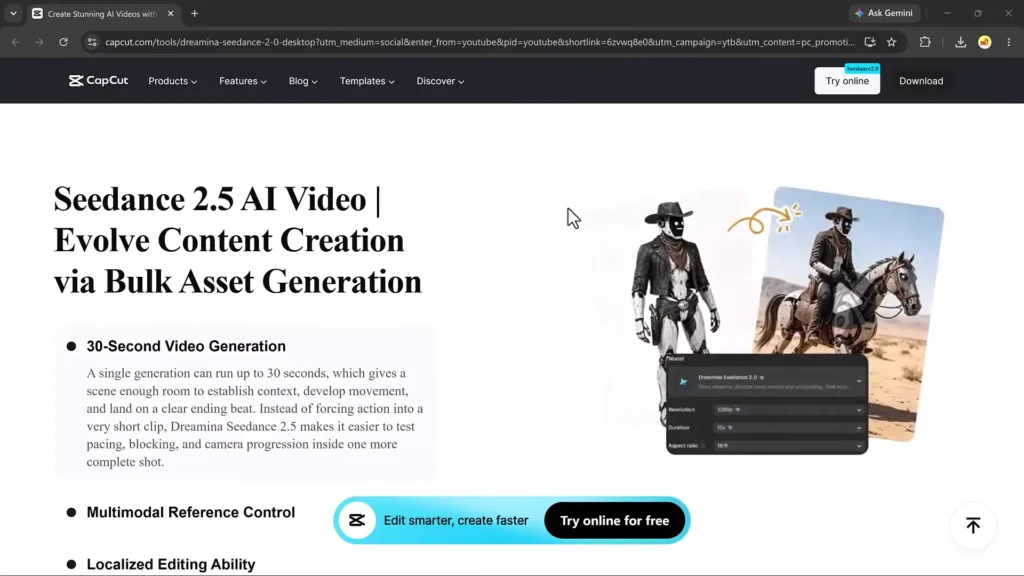
Here are a few prompt ideas for different marketing styles:
Cinematic Product Reveal
Slowly orbit around the product while soft sunlight reflects off its surface, creating a premium commercial look with subtle background movement.
Lifestyle Advertisement
Smooth camera pan across the scene as people naturally interact with the product in a bright outdoor environment with realistic lighting.
Social Media Promo
Dynamic zoom-in effect with energetic camera movement, vibrant lighting, and smooth transitions to create an engaging short-form advertisement.
Luxury Brand Showcase
Slow dolly-in camera movement with elegant lighting, shallow depth of field, and gentle background motion to emphasize the premium quality of the product.
Creating multiple video variations allows you to test different visual styles and discover which one resonates most with your audience.
Example Workflow: From One Product Photo to a Complete Campaign
To better understand how these AI tools work together, here’s a practical example.
Imagine you’re promoting a portable Bluetooth speaker.
Step 1: Generate Product Images
Use GPT Image 2.0 to create several unique scenes featuring your product:
- Speaker on a mountain trail during sunrise
- Speaker beside a luxury swimming pool at night
- Speaker on a modern office desk
- Speaker at a beach picnic during sunset
Step 2: Animate Each Image
Upload every generated image into SeeDance 2.5 and create short cinematic videos with different camera movements and animation styles.
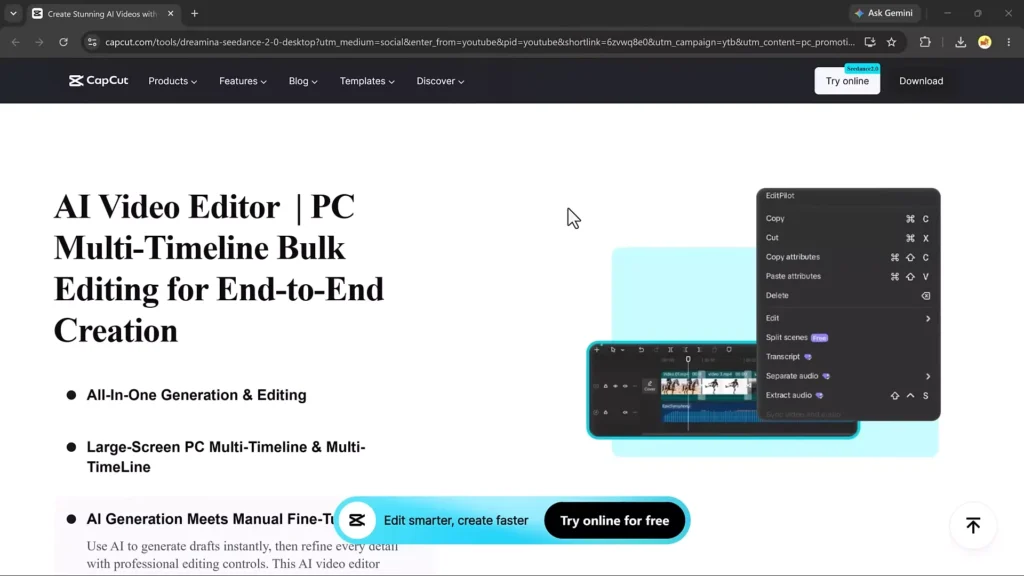
Step 3: Edit Everything in CapCut PC
Import your AI-generated videos into CapCut PC and:
- Arrange clips on the timeline
- Add product feature callouts
- Insert brand colors and logo
- Include royalty-free background music
- Add smooth transitions
Step 4: Export for Different Platforms
Create multiple versions of your campaign for:
- Instagram Reels
- TikTok
- Facebook Ads
- YouTube Shorts
- Website landing pages
With this workflow, a single product photo becomes an entire library of marketing assets suitable for multiple channels.
Common Mistakes to Avoid
Although AI can significantly speed up content creation, avoiding a few common mistakes will help you achieve more professional results.
Using Low-Quality Source Images
AI performs best when your original product photo is sharp, well-lit, and free from distracting backgrounds.
Writing Vague Prompts
Simple prompts often produce generic results. Include details about the environment, lighting, style, and mood to generate more realistic visuals.
Ignoring Platform Requirements
Always choose the correct aspect ratio before generating images or exporting videos. Vertical videos perform best on TikTok and Instagram Reels, while square images are ideal for Instagram posts.
Inconsistent Branding
Keep your brand colors, fonts, messaging, and overall visual style consistent across every image and video to strengthen brand recognition.
Creating Only One Version
One of AI’s biggest advantages is speed. Instead of settling for a single design, generate multiple versions with different backgrounds, lighting, and camera angles so you can identify the highest-performing creative.
Export Settings for Different Marketing Platforms
Optimizing your content for each platform helps ensure the best viewing experience and improves engagement.
| Platform | Recommended Resolution | Aspect Ratio |
|---|---|---|
| TikTok | 1080 × 1920 | 9:16 |
| Instagram Reels | 1080 × 1920 | 9:16 |
| YouTube Shorts | 1080 × 1920 | 9:16 |
| Instagram Feed | 1080 × 1080 | 1:1 |
| Facebook Feed | 1080 × 1350 | 4:5 |
| LinkedIn Posts | 1200 × 1200 | 1:1 |
| Website Banner | 1920 × 1080 | 16:9 |
Creating platform-specific exports ensures your marketing assets look professional wherever they’re published.
Read Also:
- Seedance 2.0 AI in CapCut: Create Viral Videos in seconds
- CapCut AI Voice Tutorial: Convert Your Voice into Realistic AI Speech
- How to use CapCut’s Free AI Video Maker for Quick Video Content
- I Turned One Idea Into 3 Videos in Minutes using CapCut AI
Frequently Asked Questions (FAQ)
Can CapCut AI create product images from text prompts?
Yes. GPT Image 2.0 allows you to generate high-quality product visuals simply by describing the scene, lighting, style, and composition you want.
What is SeeDance 2.5 used for?
SeeDance 2.5 converts static images into animated videos by applying realistic camera movements and motion effects, making product photos feel like professionally filmed commercials.
Do I need professional design experience?
No. CapCut PC is designed for both beginners and experienced marketers. The AI tools automate much of the creative process, making it easy to produce professional-looking marketing assets.
Can I create content for multiple social media platforms?
Yes. You can generate and export images and videos in different aspect ratios and resolutions for platforms such as Instagram, TikTok, Facebook, YouTube Shorts, and LinkedIn.
Why create multiple AI-generated versions of the same product?
Generating multiple variations lets you test different backgrounds, lighting, messaging, and visual styles. This makes it easier to identify which creatives drive the highest engagement and conversions while continuously improving your marketing campaigns.
Final Thoughts
Turning one photo into a full campaign is now a simple process. By combining GPT Image 2.0 and SeeDance 2.5 inside CapCut PC, you remove the bottlenecks of content creation. You can generate high-quality images, animate them into videos, and edit them into professional ads all in one workflow.
This approach gives you more creative options and saves you hours of manual work. Whether you are making social media clips or full product commercials, these tools let you produce more content with less effort. Download CapCut PC and start building your AI-powered marketing assets today.