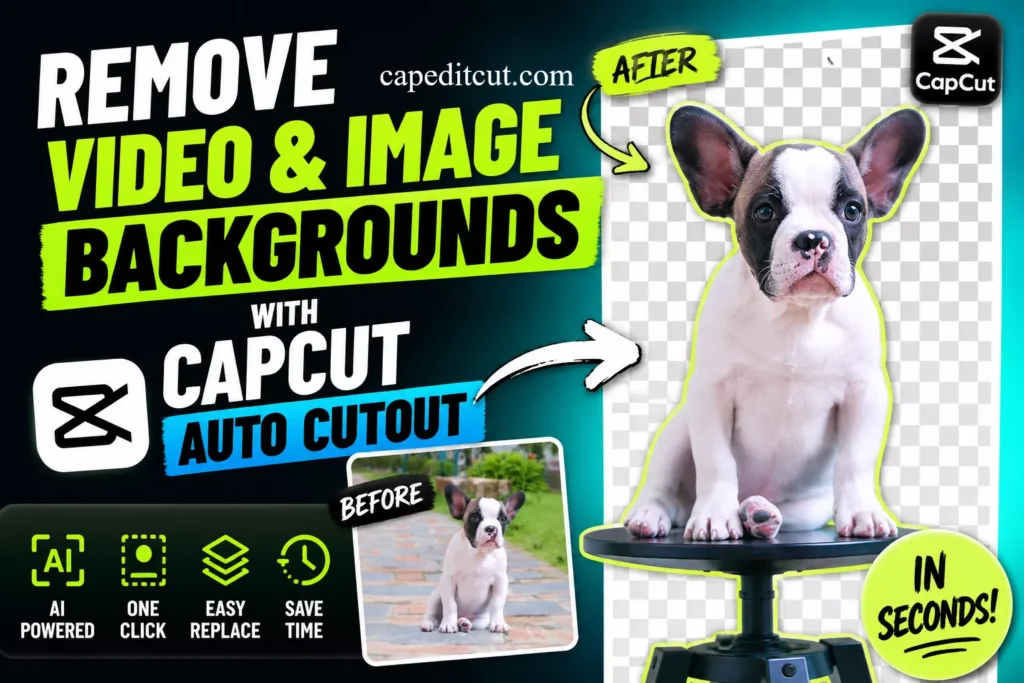
You can now strip the background from a video or photo in less than 5 seconds without knowing how to use complex software. CapCut has a tool called Auto Cutout that does the hard work for you.
It finds the subject and deletes everything else automatically. This means you can place yourself in a new location or create a clean product shot without a professional studio.
Most people think you need a green screen or a degree in Photoshop to get these results. That isn’t true anymore. With a few clicks, you can isolate a person, a pet, or an object. This process saves hours of manual masking and tedious clicking.
This guide shows you exactly how to use this tool in CapCut Pro. We will look at how to handle photos, how to process video clips, and where the tool works best.
Get Started with CapCut Auto Cutout
CapCut is a free video editor available on desktop and mobile. The Auto Cutout feature is the heart of its background removal system. It uses AI to detect the edges of a person or object and separates them from the backdrop.
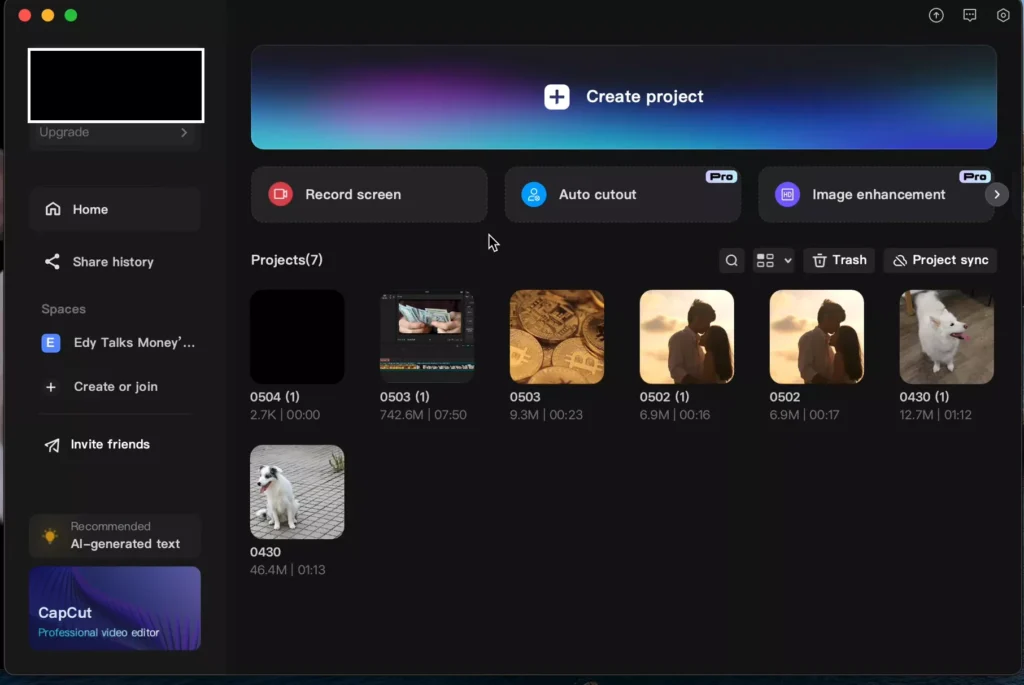
Some of these advanced features may require a Pro subscription. You can check if Auto Cutout is free for your account by trying to export your project. If it asks for a payment, you’ll need to upgrade or look for a free alternative.
To begin, download and install CapCut on your device. Once you open the app, you can start a new project or look for the specific cutout tools in the menu.
Remove Backgrounds from Images
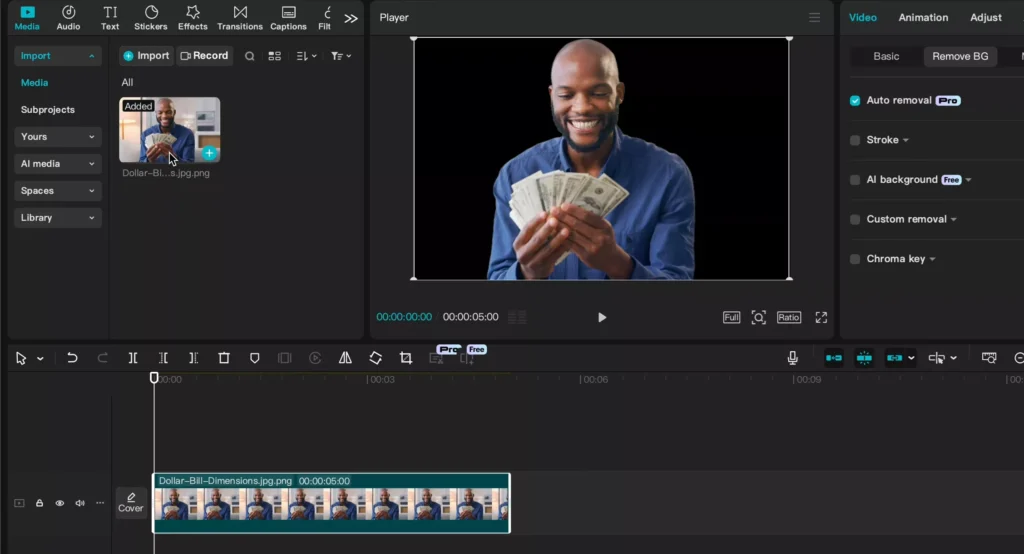
Removing a background from a photo is the fastest way to use this tool. It is almost always perfect because the image is static.
How to Process Your Photo
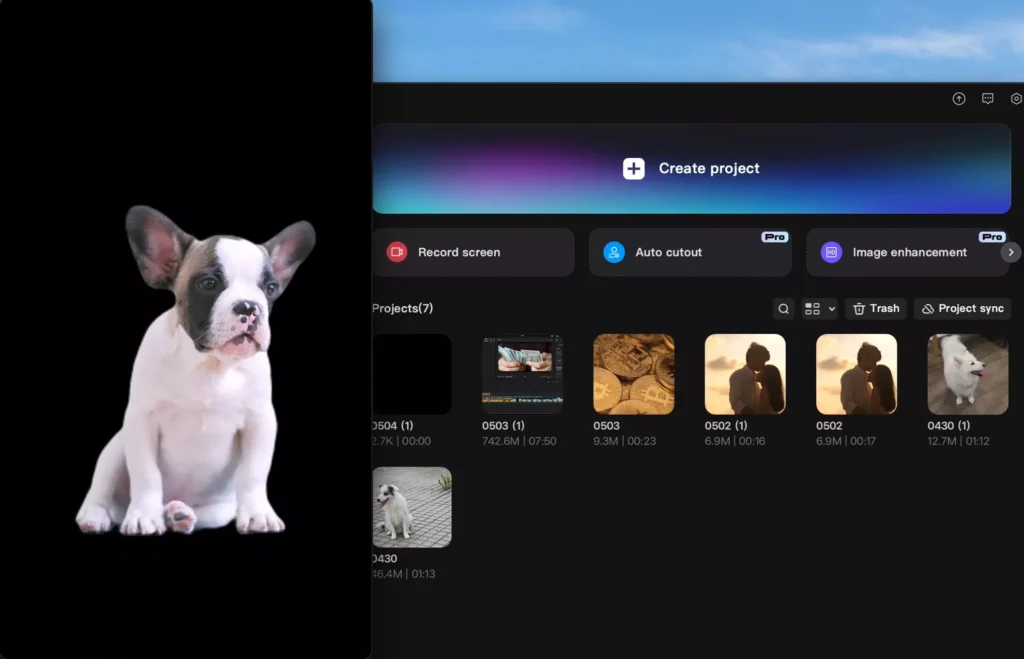
First, import your image into the CapCut workspace. Once the photo is on your timeline, find the Auto Cutout option. Click it, and the software will analyze the image.
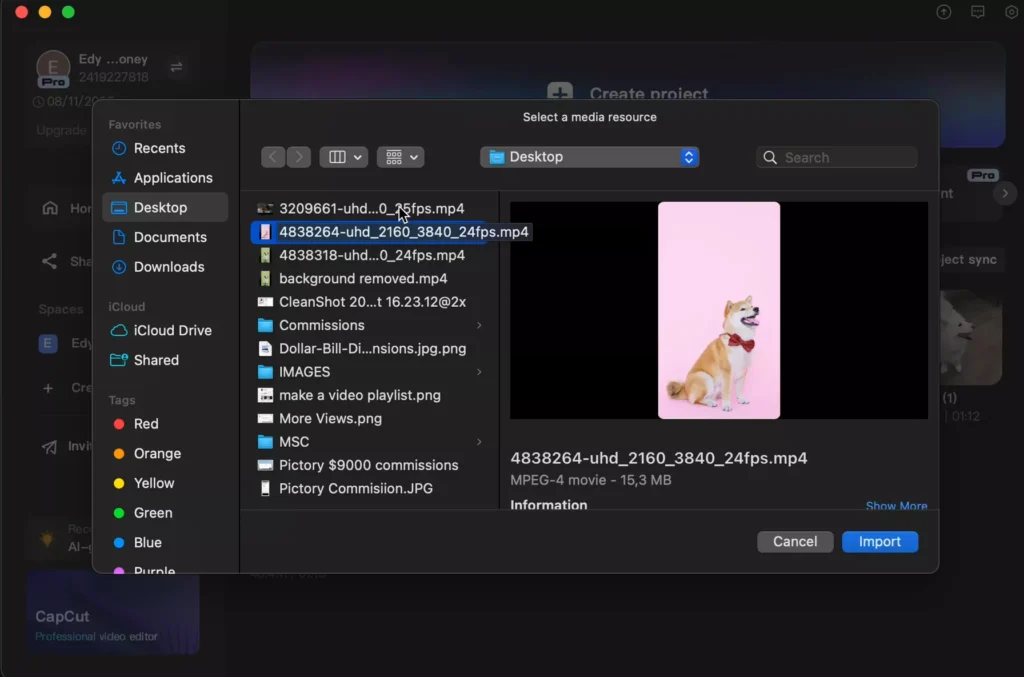
The background will vanish instantly. You are left with just your subject on a transparent layer. It works great for dogs, people, and clear objects.
Add a New Creative Backdrop
A subject with no background looks unfinished. You can put a new image or video behind your subject to change the scene.
- Import a second file, like a photo of an office or a beach.
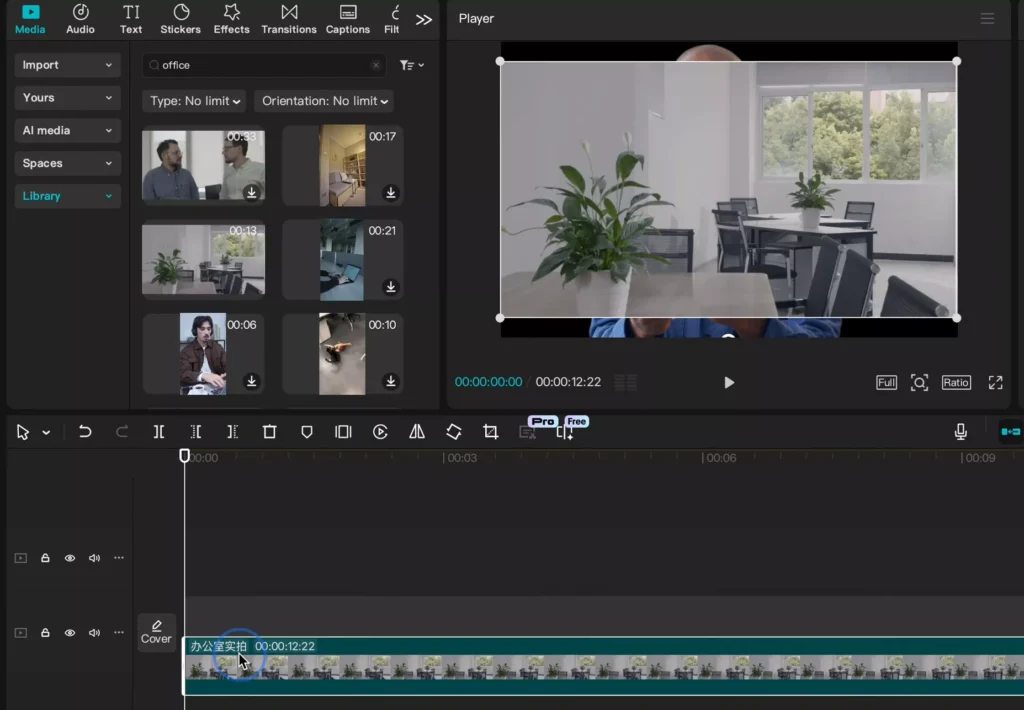
- Drag this new file to the track below your cutout image.
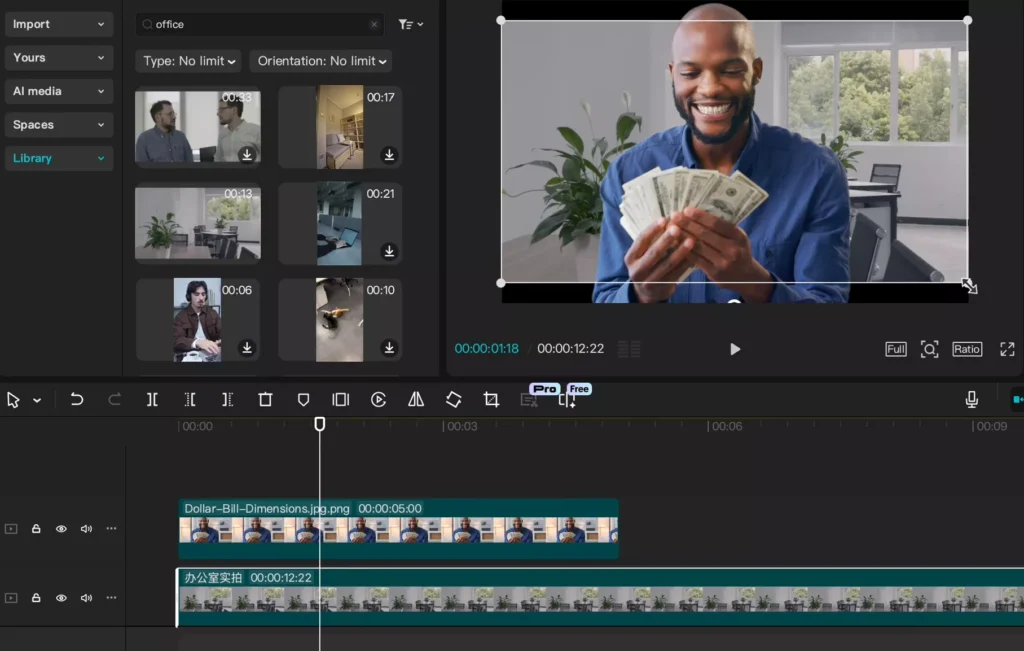
- Resize and move your subject to fit the new scene.
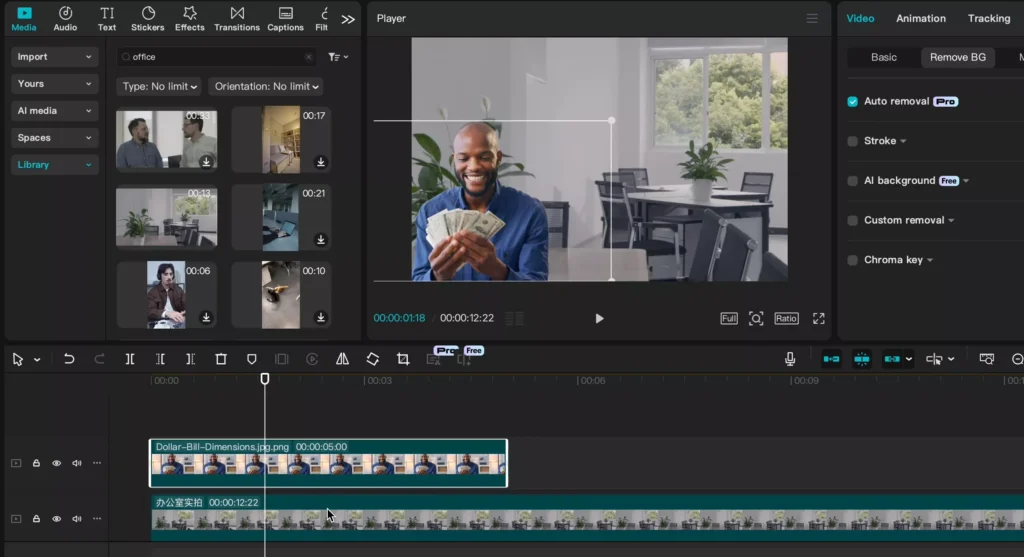
The cutout image must stay on the top layer. If the background is on top, it will cover your subject.
Remove Backgrounds from Video Footage
Video is harder to process than images because the subject moves. CapCut handles this by tracking the subject frame by frame.
Using Auto Cutout on Video Clips
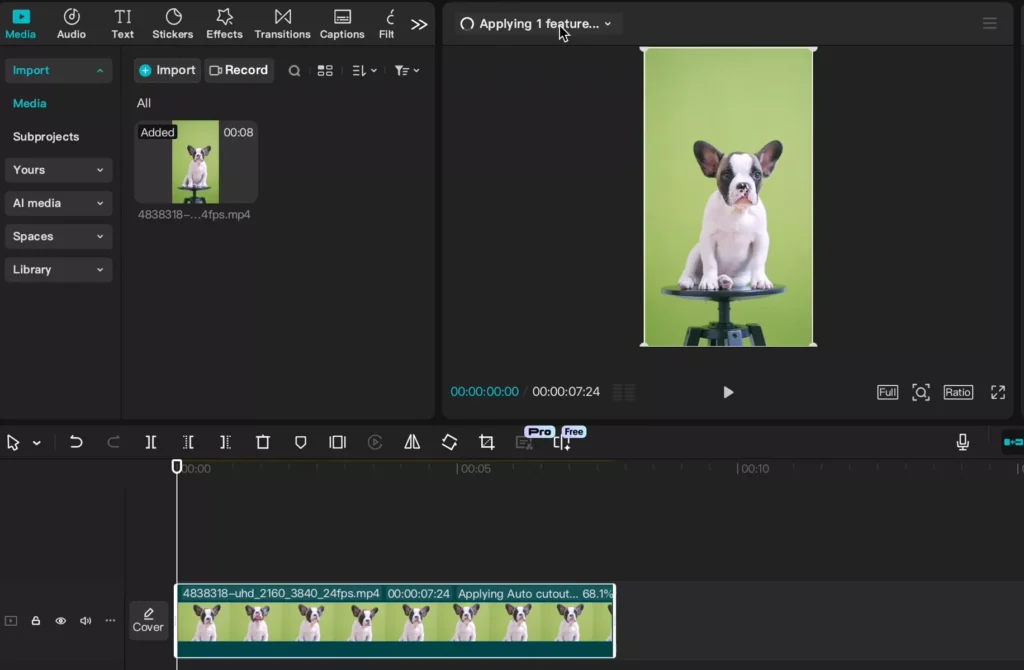
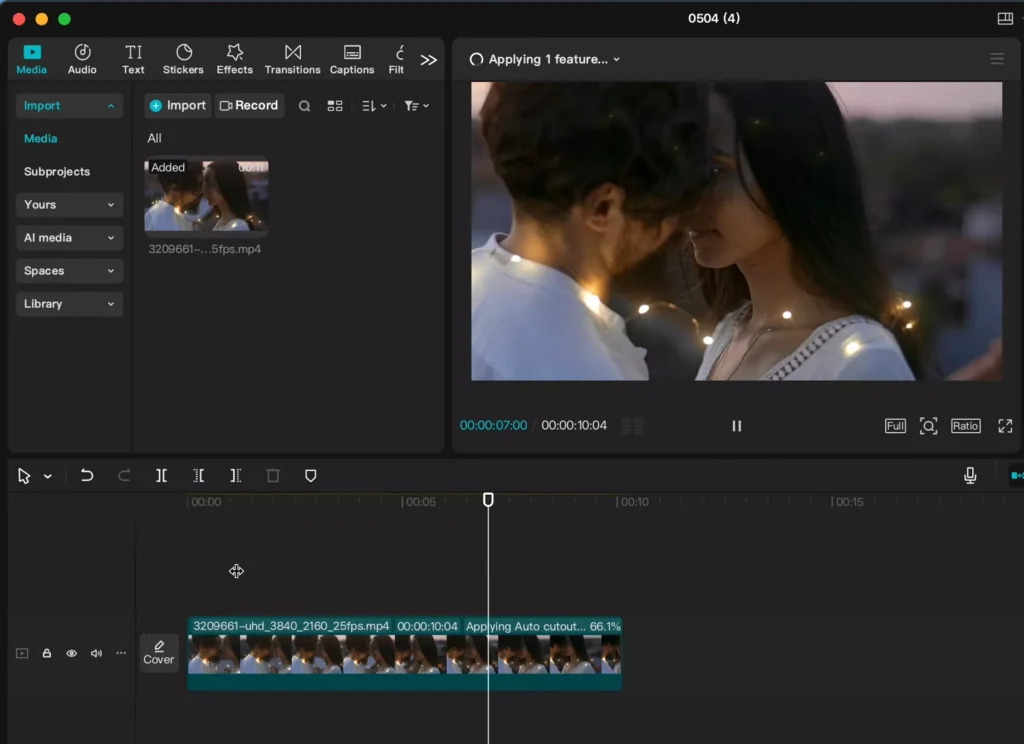
Import your video clip into the editor. Select the clip and click on Auto Cutout. You will see a notification at the top of the screen saying “applying one feature.”
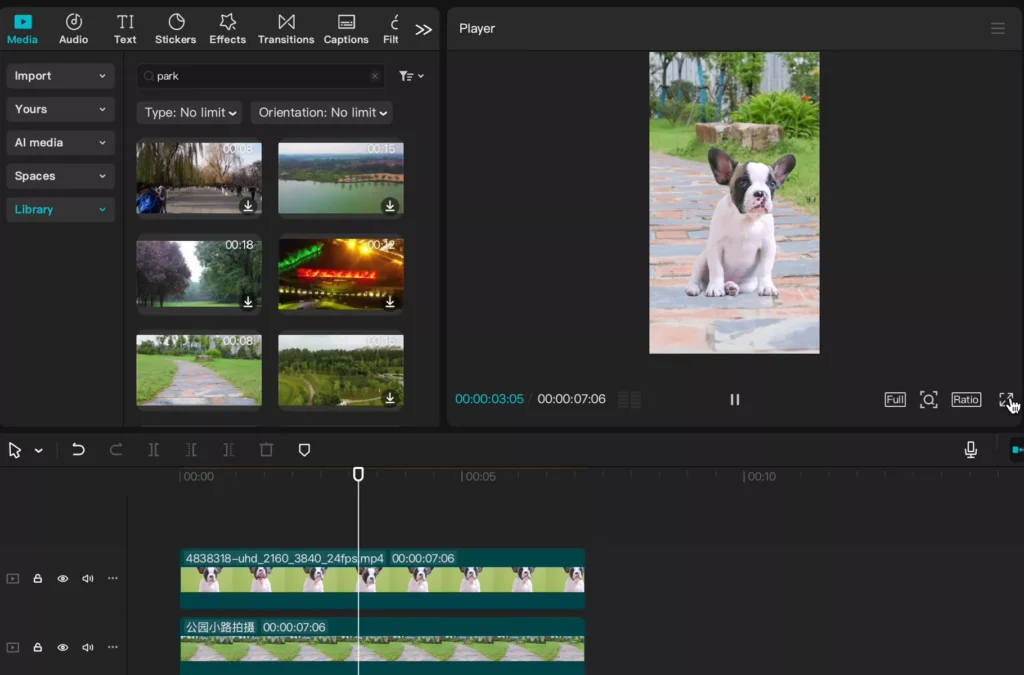
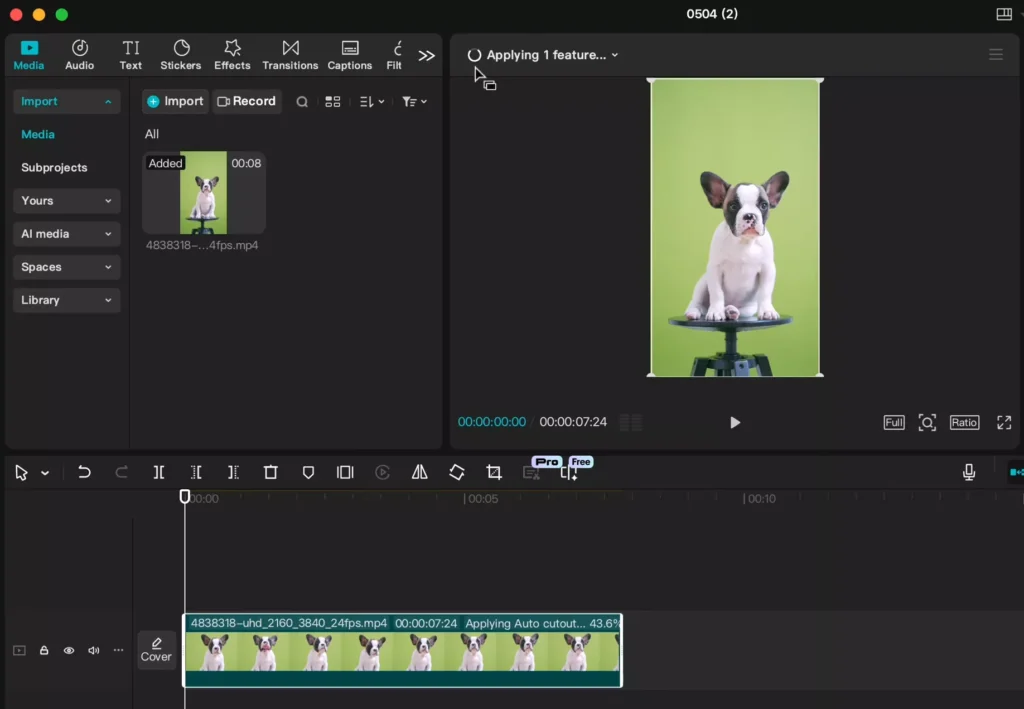
Wait for the progress bar to finish. Once it is done, the background will be gone. The AI tracks the movement of the person or object to keep the cutout clean as they move.
Layering New Visuals in Video
You can place your subject in any environment by adding a background layer. You can use a stock video from the CapCut library or upload your own.
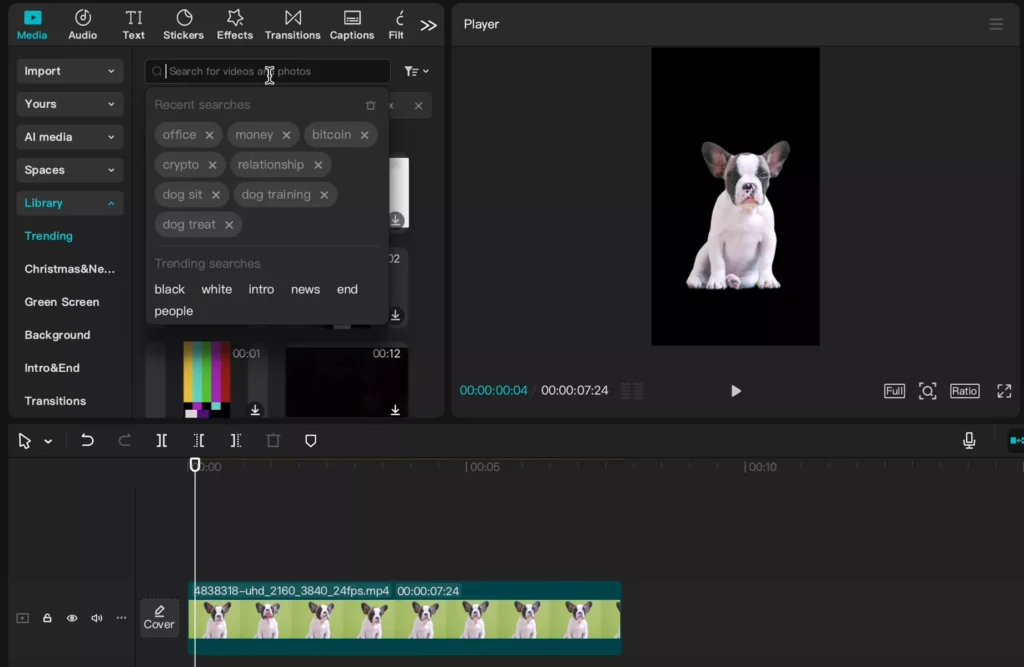
Place the new background video on the track underneath your subject. Ensure the cutout video is the top layer. When you play the video back, your subject will appear to be in the new location.
When Auto Cutout Works Best
The tool is powerful, but it does not work on every single video. The quality of your result depends on the original footage.
High Success Rate Scenarios
The tool excels when there is a clear difference between the subject and the background. A person wearing a dark shirt against a white wall is easy for the AI to find.
Images are almost always perfect. Videos of humans also work well because the AI is trained to recognize human shapes. If the lighting is good, the edges look sharp and professional.
Common Limitations and Failures
Not all backgrounds are easy to remove. For example, if you use a pink screen or a color that is too close to the subject’s skin tone, the tool may fail.
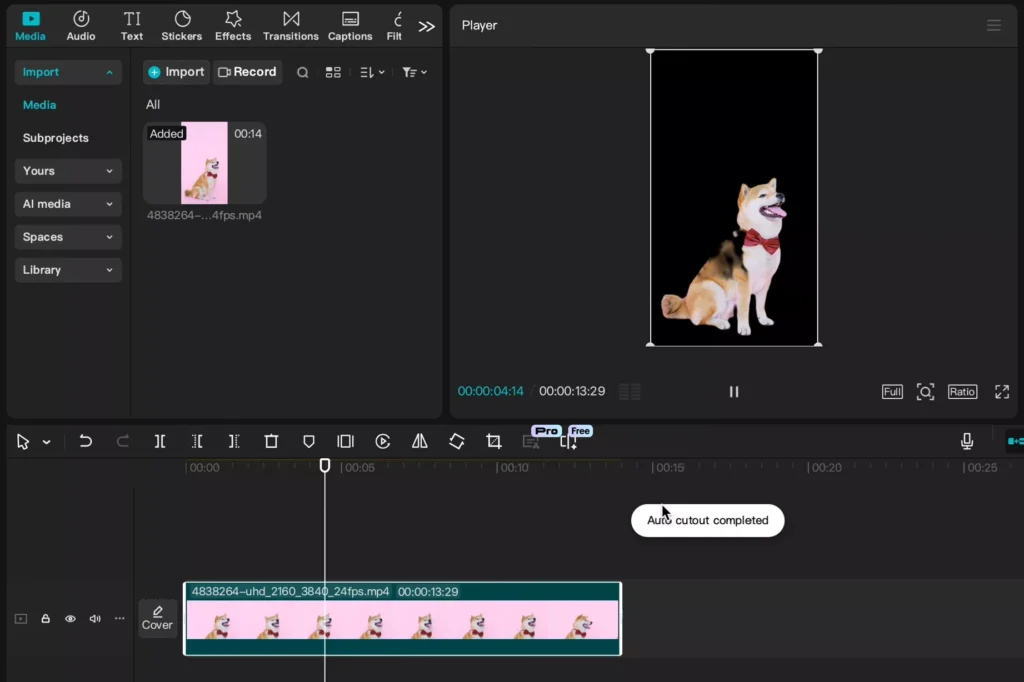
In some tests, pink screens did not work as well as traditional green screens. The subject might disappear or have “jittery” edges. If the background is cluttered or has many similar colors, the cutout will look messy.
Get Better Results with Less Effort
You don’t need to be an editor to make these videos look great. A few small changes to how you film can make the AI work better.
The Shift Toward Automated Editing
We no longer need to spend hours on “rotoscoping.” Rotoscoping is the old way of cutting out subjects frame by frame. Automation makes this a five-second task. This allows you to focus on the story and the content rather than the technical struggle.
Tips for a Cleaner Cut
To get the best result, follow these simple rules:
- Use high contrast. Wear clothes that are a different color than your wall.
- Ensure good lighting. Shadows on the wall can confuse the AI.
- Keep the camera steady. Shaky footage makes it harder for the tool to track edges.
- Use a plain background. Even if it isn’t a green screen, a flat wall helps.

Key Features of CapCut Auto Cutout
CapCut Auto Cutout uses AI to identify the main subject in an image or video and separate it from the background. Instead of manually tracing edges, the tool automatically detects people, pets, and many common objects with just a few clicks.
Some of its most useful features include:
- AI-powered background removal for photos and videos
- One-click subject detection
- Support for transparent backgrounds
- Easy background replacement with images or videos
- Works on both desktop and mobile versions of CapCut
- Fast processing without manual masking
- Suitable for social media, marketing, and product content
These features make Auto Cutout a practical option for beginners and experienced editors who want to save time.
Read Also:
- CapCut vs Premiere Pro: Which Video Editor is better?
- The Complete Beginner-to-Pro Video Editing Guide
- Best AI Video Generators in + CapCut Workflow Guide
Best Use Cases for CapCut Auto Cutout
Auto Cutout can be used in many different editing projects beyond simple background removal.
Create Professional Social Media Videos
Replace messy or distracting backgrounds with clean, branded visuals for platforms like Instagram Reels, TikTok, and YouTube Shorts.
Design Better YouTube Thumbnails
Remove yourself or an object from a photo and place it on a colorful custom background to create eye-catching thumbnails.
Improve Product Photography
E-commerce sellers can remove backgrounds from product photos to create clean white or transparent images for online stores and marketplaces.
Produce Marketing Content
Businesses can quickly create promotional graphics and videos without renting a professional studio.
Create Online Course Videos
Teachers and trainers can replace home or office backgrounds with presentations, virtual classrooms, or branded environments.
Build Creative Projects
Auto Cutout also works well for posters, memes, presentations, event promotions, and digital artwork.
Auto Cutout vs Green Screen
Both Auto Cutout and green screen techniques help replace backgrounds, but they work differently.
| Feature | CapCut Auto Cutout | Green Screen |
|---|---|---|
| Extra equipment | Not required | Requires green backdrop |
| Ease of use | Very easy | Moderate |
| Editing speed | Fast | Slower |
| Accuracy | Excellent for simple scenes | Better for professional productions |
| Best for | Everyday creators | Studio-quality videos |
If you regularly create content at home, Auto Cutout is usually the quicker option. Green screens still offer better results for complex productions with challenging lighting or detailed subjects.
Common Problems and How to Fix Them
Although Auto Cutout performs well in most situations, you may occasionally encounter issues.
The Background Is Not Removed Completely
This usually happens when the subject blends into the background.
Solution:
- Increase lighting
- Use a plain background
- Wear clothing that contrasts with the surroundings
- Upload a higher-resolution image or video
The Subject Has Rough or Jagged Edges
Hair, transparent objects, and motion blur can reduce edge quality.
Solution:
- Record in good lighting
- Keep the camera steady
- Avoid fast movements
- Use high-resolution footage
Auto Cutout Is Missing Parts of the Subject
Sometimes hands, feet, or accessories disappear during processing.
Solution:
- Choose footage with better contrast
- Avoid objects overlapping the subject
- Reapply Auto Cutout after trimming the clip
Auto Cutout Option Is Missing
Some CapCut versions may not include the feature, or it may require a newer release.
Solution:
- Update CapCut to the latest version
- Check whether the feature is available on your device
- Verify whether your account requires a Pro subscription
Tips for Better Background Removal
Small improvements during filming can dramatically improve the final result.
- Record in at least 1080p resolution.
- Use bright, even lighting to reduce shadows.
- Stand several feet away from the background.
- Wear clothing that contrasts with the wall.
- Avoid busy or patterned backgrounds.
- Keep the camera stable by using a tripod or steady surface.
- Minimize motion blur by avoiding sudden movements.
- Record in a well-lit environment instead of a dark room.
Following these tips helps the AI detect cleaner edges and produce more natural-looking cutouts.
Is CapCut Auto Cutout Free?
CapCut includes Auto Cutout in its editing tools, but availability depends on your platform, region, and account type.
Basic background removal features are available for free, while advanced AI tools or exports using certain effects require a CapCut Pro subscription.
The easiest way to check is to apply Auto Cutout and export your project. If CapCut prompts you to upgrade before exporting, the feature or export option is part of the Pro plan.
If you only need occasional background removal, the free version is sufficient. Frequent creators who use AI editing tools regularly may find the Pro subscription worthwhile.
CapCut Auto Cutout Alternatives
If Auto Cutout doesn’t produce the results you need, several other tools offer AI-powered background removal.
- Adobe Express – Ideal for quick image editing with automatic background removal.
- Canva – Great for creating social media graphics and presentations with integrated AI editing tools.
- Remove.bg – Specializes in removing backgrounds from images with high accuracy.
- Clipdrop – Offers advanced AI editing features for images, including background removal and object cleanup.
- Adobe Premiere Pro – A professional video editor with advanced masking and background replacement capabilities.
Each option has its own strengths, so the best choice depends on whether you’re editing photos, videos, or professional marketing content.
Frequently Asked Questions (FAQ)
Is CapCut Auto Cutout free?
Many users can access basic Auto Cutout features for free, but some AI tools or export options may require a CapCut Pro subscription.
Can Auto Cutout remove backgrounds from videos?
Yes. The tool automatically tracks the subject throughout the video and removes the background frame by frame.
Does Auto Cutout work without a green screen?
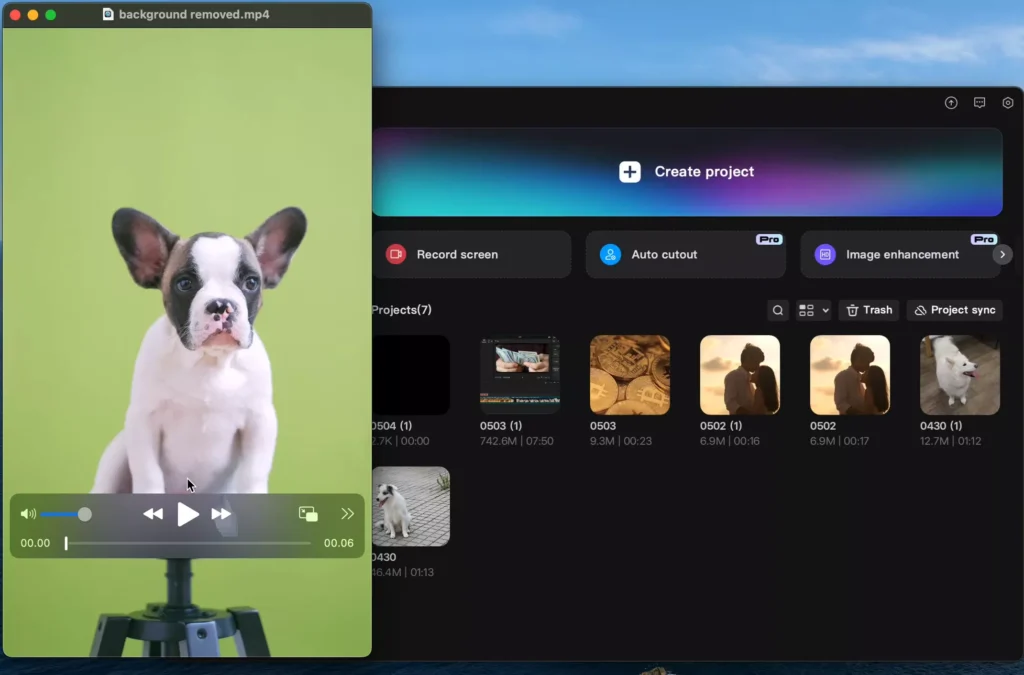
Yes. Unlike chroma key editing, Auto Cutout uses AI to detect the subject, so no green screen is required.
Can I replace the removed background?
Yes. After removing the original background, you can add any image or video behind your subject.
Does Auto Cutout work on mobile devices?
Yes. CapCut offers Auto Cutout on both desktop and mobile versions, although available features may vary by platform.
Why does Auto Cutout struggle with hair or transparent objects?
Fine details such as hair strands, glass, smoke, or reflective surfaces are more difficult for AI to separate accurately from the background.
Pros and Cons of CapCut Auto Cutout
Pros
- Extremely easy to use
- Fast AI-powered background removal
- Supports both photos and videos
- No green screen required
- Suitable for beginners
- Saves significant editing time
Cons
- Performance decreases with cluttered backgrounds
- Hair and transparent objects can be difficult to isolate
- Some features may require CapCut Pro
- Less precise than manual masking for professional productions
Final Thoughts
CapCut Auto Cutout is a fast way to create professional visuals. It removes the need for expensive gear and complex software. Whether you are editing a photo for a thumbnail or a video for social media, this tool saves time.
The tool is nearly perfect for images and very reliable for human subjects in videos. While it struggles with some colors and complex scenes, it is a massive improvement over manual editing.
Try uploading a clip today and swap your background. You can turn a bedroom video into a professional office scene in minutes. Stop worrying about your filming location and let the AI handle the backdrop.