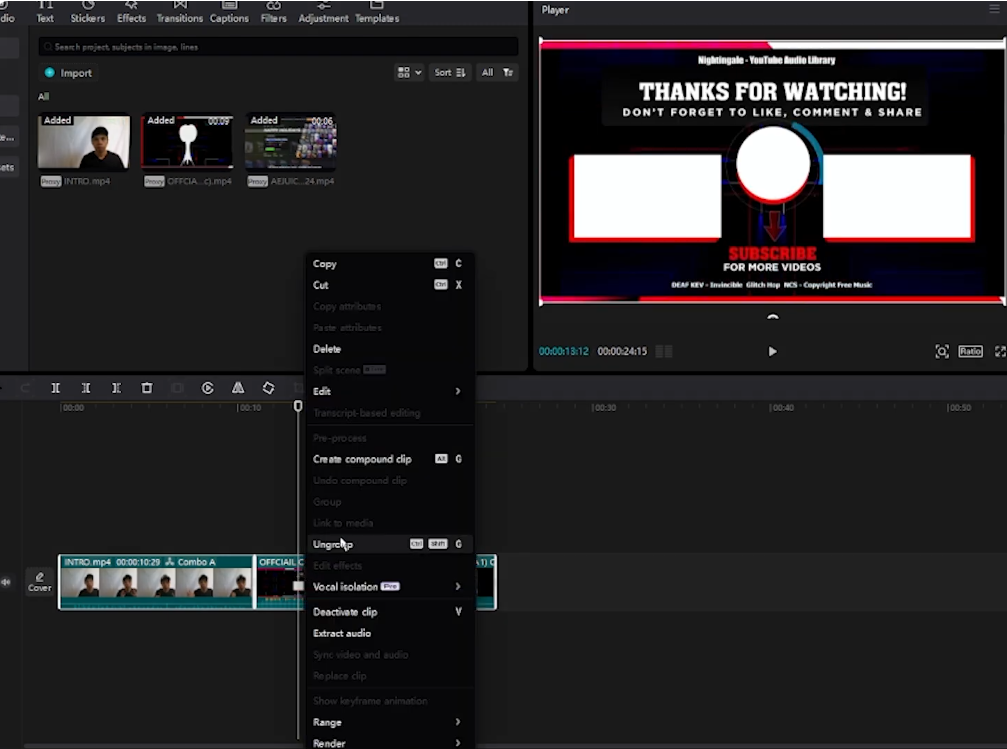
I haven't used CapCut in a while, so I'm not sure if this is a new limitation. I'm trying to combine two existing compound clips in a new project, but CapCut won't let me add one of them and instead shows the message: "Can't nest more subprojects."
Is there a workaround for this, or another way to combine the two compound clips?
Thanks in advance!

Hi,
Yes, this is a known limitation in CapCut. CapCut has a hard limit on how many levels deep you can nest compound clips (or subprojects).
This safety barrier is built-in to prevent performance lag, timeline corruption, and app crashes.
Because CapCut won't allow you to nest a compound clip inside another compound clip past its depth limit, here are the two best workarounds to bypass this error depending on whether you still need to edit the individual layers.
Method 1: The "Render & Replace" Workaround (Recommended)
If you are completely finished editing the elements inside those specific compound clips and just want to treat them as finished video blocks, the easiest fix is to bake them.
-
Open the original project containing the compound clips.
-
Isolate the compound clip you want to use (or export it from its own subproject).
-
Export just that compound clip sequence in the highest quality possible (e.g., 4K or high bitrate 1080p) so you don't lose visual quality.
-
Open your new master project, Import that newly exported video file, and place it into the timeline.
Because it is now a flattened, standard video file instead of a complex subproject, CapCut will read it seamlessly without throwing any nesting errors.
Method 2: The "De-nest" and Group Workaround
If you still need to actively edit the text, cuts, or effects inside both compound clips, you cannot use the export method. Instead, you need to flatten the hierarchy:
-
Go back to the original compound clips, right-click them, and select Undo Compound Clip (or use the shortcut
Alt + Shift + G). This breaks them back down into their raw, individual tracks and layers. -
Select all of those raw individual tracks, copy them (
Ctrl + CorCmd + C), and paste them (Ctrl + VorCmd + V) directly into the main timeline of your new master project. -
Highlight all the clips you just pasted together and press
Alt + Gto Create Compound Clip on the main timeline level. -
Tip: If you just want to keep the clips organized and moving together without creating a strict subproject hierarchy, select them and use Group (
Ctrl + GorCmd + G) instead of making a compound clip. Grouping tethers the elements together on your main timeline without adding to the nesting limit count.