

I'm using CapCut Standard on iOS 18.6.0 and have run into a strange issue with text in templates.
I used a creator's template that originally displayed the text "YOUR LOCATION." After replacing the template's photos and videos with my own footage from Japan, I edited the text to "Japan."
The problem is that the text doesn't appear in either the preview or the exported video. The text layer is still there, and I can edit the text, but the actual text remains invisible.
What's even stranger is that I tried a different creator's template and experienced the exact same issue, so it doesn't seem to be specific to a single template.
Has anyone else encountered this in CapCut Standard on mobile?
- Is there a setting I might be overlooking?
- Is this a limitation of the Standard version?
- Could it be a bug affecting certain templates?
Any suggestions would be appreciated.
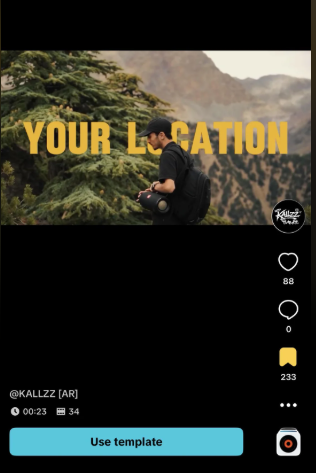

Hi,
I’ve run into this exact headache more times than I care to admit while editing on CapCut mobile.
Since you are experiencing this across multiple templates from different creators, I can assure you this isn’t a limitation of the Standard (free) version, nor is it a problem with those specific templates.
In my experience, this is almost always a classic CapCut rendering bug. When you swap out a template's media, CapCut’s graphics engine sometimes fails to map the creator's custom font files to your new text input (in this case, "Japan"), rendering the characters invisible.
Here are the exact troubleshooting steps I use to resolve this issue:
1. The "Font Style" Force-Refresh (My Go-To Quick Fix)
Because CapCut is trying to load a custom font file embedded in the template that might be glitched, changing the font usually forces the app to re-render the text.
-
Tap on the invisible Text layer in your timeline.
-
Select Style (or double-tap the text box).
-
Switch the font to a basic, pre-installed system font (like System, Helvetica, or Classic).
-
Slightly change the text color or add a quick stroke/outline.
-
Changing the font forces CapCut's engine to drop the bugged template font and draw a completely fresh text layer on your screen.
2. Verify the Layer Hierarchy
Sometimes when you replace template media with high-resolution footage from an iPhone, CapCut accidentally pushes the new video clips to a higher visual layer, physically covering your text.
-
Tap the Text tool at the bottom of the screen to view the text layers.
-
Select your "Japan" text.
-
Scroll through the bottom menu and tap Layer.
-
Set it to the highest layer number available (or drag it to the top) to ensure it sits on top of your footage.
3. Clear CapCut’s Internal Cache
CapCut accumulates a massive amount of temporary cache files from downloading elements of various templates. This can clog the app's ability to render new assets.
-
Go to the CapCut home screen.
-
Tap the Settings (gear icon) in the top right.
-
Tap Clear Cache and confirm.
-
Force-close the app entirely, reopen it, and check your project.
4. The iOS "Offload App" Refresh
If the cache clear doesn't work, there might be a minor software conflict between CapCut and iOS 18. Instead of deleting the app (which would delete all your local drafts), I recommend offloading it.
-
Go to your iPhone’s Settings > General > iPhone Storage.
-
Find and tap on CapCut.
-
Tap Offload App (this deletes the app's system files but safely preserves your local project drafts and media).
-
Tap Reinstall App.
The Ultimate Workaround
If you try all of the above and the text layer is still refusing to cooperate, the template's internal coding might just be completely broken on your current app version.
When this happens to me, I don't waste any more time troubleshooting. I simply delete the template's built-in text layer entirely and use CapCut’s standard Add Text tool to manually type "Japan" over the video.
You can easily match the font style and position, and it is guaranteed to display correctly on your final export!