

Hi! I'm trying to make a live wallpaper of my cat for my phone, and everything was going well until I noticed an issue with the Chroma Key feature.
After removing the background, there's a faint white/gray outline or box around the overlay. I've tried removing it manually, but that ends up erasing the entire overlay instead. I've also experimented with the opacity, vignette, shadows, and other settings, but nothing seems to get rid of it.
Has anyone else run into this issue or know how to fix it? Any help would be greatly appreciated!
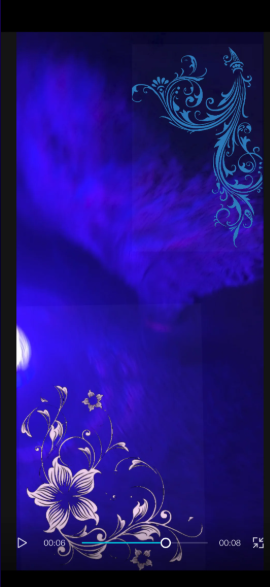

Hi,
From your screenshot, it looks less like a bad mask and more like a rectangular edge from the source clip.
This is a common issue when using Chroma Key in CapCut, especially if the overlay is a compressed video instead of a PNG with transparency.
A few things to try:
- Increase the Chroma Key intensity/Shadow
- Select the overlay → Chroma Key.
- Use the eyedropper on the background color.
- Increase Intensity until the box disappears.
- Adjust Shadow slightly afterward to clean up the edges without eating into your cat.
- Check if the box is already in the source clip
- Turn Chroma Key off.
- Zoom in and look carefully around the overlay.
- If you can already see a faint gray rectangle, it's baked into the video (often from screen recordings, exported transparency, or video compression).
- Chroma Key can't completely remove it because those pixels aren't the exact key color.
- Crop before keying
- If there's any extra border around the clip, crop it as tightly as possible before applying Chroma Key.
- Use a PNG instead of Chroma Key (best option)
- If this is a still image of your cat, remove the background in a tool like remove.bg or Photoshop and export as a PNG with transparency.
- Then import the PNG instead of using Chroma Key. You'll get much cleaner edges and no rectangular artifact.
- If it's a video of your cat
- Export with a true alpha channel, or use CapCut's Auto Cutout instead of Chroma Key if the background isn't actually a solid green/blue screen.
Looking at your screenshot
The rectangle has very straight vertical and horizontal edges, which suggests it's not an outline from the cat but the boundary of the overlay itself. That points to:
- compression artifacts,
- a non-uniform background being keyed,
- or a semi-transparent layer that remains after keying.
Can you provide more information as below:
- Is the overlay a video or a PNG image?
- Was the background originally green/blue, or was it another color (or removed in another app first)?
That will narrow down the exact cause.