

I spent a lot of time creating text with keyframes and animations, carefully positioning everything, and it looks perfect in the editor (Pic 1). However, when I export the video, all of the text becomes much larger, and parts of it are cut off the screen (Pic 2).
This has happened to me before, and I ended up recreating the text in the mobile app as a workaround. This time, I've already finished all of the text, so I'm hoping there's an actual fix.
I've already tried making the text smaller in the editor to compensate for the size increase after export, but it didn't help.
Has anyone else experienced this or found a solution? Any help would be greatly appreciated!
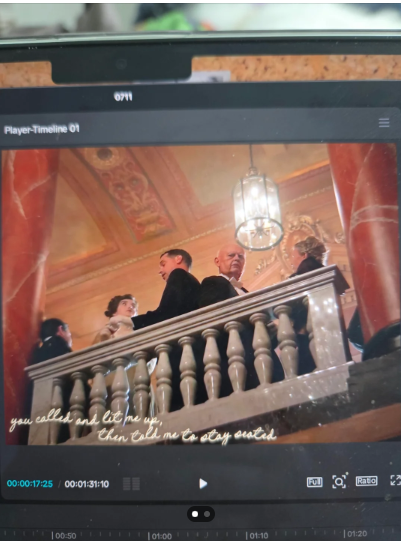

Hi,
It is a known issue in CapCut where the text scales up dramatically upon export, completely ruining hours of keyframing and alignment work.
Since adjusting the text size manually within the editor didn't fix it, the issue is likely tied to how CapCut calculates its resolution-independent font engine during final rendering.
The most effective ways to solve this without losing your animations are outlined below.
1. The Compound Clip Fix this is best for saving your work
If you've already spent a massive amount of time on keyframes, you don't want to risk losing them. By converting your text layers into a Compound Clip, you force CapCut to bake the text and its animations into a fixed video layer before the final export, preventing the font scaling engine from messing with it.
-
Select all your text layers in the timeline.
-
Right-click (on Desktop) or long-press/group them and select Create Compound Clip.
-
Once it becomes a single compound layer, try exporting again. The text should now remain the exact size it was in the editor.
2. Match Project Canvas Resolution to Export Resolution
CapCut doesn't use standard pixel sizes for fonts; it uses a relative scaling ratio based on the project canvas. If your active workspace canvas resolution doesn't perfectly match your export settings (e.g., you are editing on a 1080p timeline but exporting in 4K, or using a proxy), the text will scale proportionally to the higher resolution and expand outside the boundaries.
-
Check Project Settings: Go to your project details/settings and verify the timeline resolution (e.g., $1920 \times 1080$).
-
Match Export Settings: When you click Export, ensure the resolution drop-down matches your timeline exactly. If you want a 4K video, change the project canvas resolution to 4K first, adjust the text if it moves, and then export in 4K.
3. Disable Hardware Acceleration
Sometimes, GPU encoding glitches cause vector elements like fonts to miscalculate bounding boxes during rendering.
-
Open CapCut's Settings menu.
-
Go to the Performance or Export tab.
-
Look for Hardware Acceleration (or GPU rendering) and turn it off.
-
Try exporting the video again. (Note: The export might take a bit longer, but it frequently fixes layout scaling bugs).
4. Clear the Render Cache
A corrupted preview cache can display text accurately in the editor while the master export file reads broken metadata.
-
Go to CapCut Settings > Project / Draft.
-
Locate the Cache Size section and click Clear Cache (the trash bin icon).
-
Restart CapCut, let the project reload, and export.
If you want to test these fixes without waiting for the entire video to export, set your In/Out points (or temporarily trim your timeline) to export just a 5-second snippet containing the animated text. This will let you see instantly if a method worked without wasting time!