

I'm trying to make one song start immediately after the previous one ends, but I can't trim the tiny gap between them accurately enough.
Is there a way to make more precise audio edits or zoom in further on the timeline? Any tips would be appreciated!

Hi,
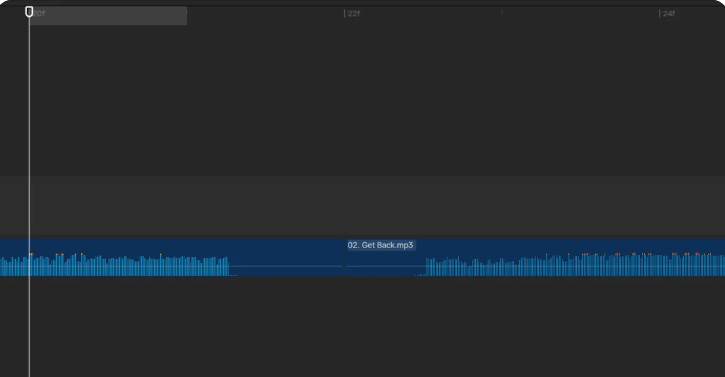
To bridge that gap and get a seamless transition in CapCut, you can use a combination of timeline zoom and precise positioning tools. Here is exactly how to do it:
1. Maximize your timeline zoom
You might just need to stretch the timeline out completely to see the individual frames.
-
On Desktop: Click on the timeline and press
Ctrl++(Windows) orCmd++(Mac) repeatedly. Alternatively, use the Zoom Slider located in the top-right corner of the timeline panel. -
On Mobile: Place two fingers on the timeline track and pinch outward horizontally. Keep stretching until the audio waveform expands as much as possible.
2. Snap your clips together
CapCut has a feature called "Magnet" or "Auto-Snapping" that automatically pulls adjacent clips together, eliminating gaps.
-
Look for the Magnet icon (right above the timeline toolbar on desktop, looking like a little horseshoe magnet).
-
Ensure it is turned ON. When you drag the second audio clip close to the first one, it should instantly "snap" to the exact frame where the first song ends.
3. Use Frame-by-Frame Precision
If dragging with your mouse or finger is still too clumsy, use your keyboard or nudging tools to edit at the frame level.
-
On Desktop: Select the audio clip, then use the Left/Right Arrow Keys on your keyboard to nudge the playback playhead frame by frame. You can also use
Ctrl+B(orCmd+B) to split a clip precisely at the playhead line, making it easier to delete the exact section of silence. -
On Mobile: Tap the clip, then use the "Split" tool right at the playhead line. To move a clip slightly, hold down on it and nudge it until you feel a slight haptic vibration (if enabled) indicating it has snapped to the next clip.
4. Try a Subtle Crossfade
Even if the tracks touch perfectly, a abrupt cut from one song to another can sometimes sound jarring.
-
Select the second audio clip and go to the Audio settings panel (top right on desktop, or "Fade" tool on mobile).
-
Add a very short Fade-In (e.g., 0.1 to 0.3 seconds) to the second track, and a matching short Fade-Out to the first track. This creates a smooth crossfade that masks any sudden audio pops.