

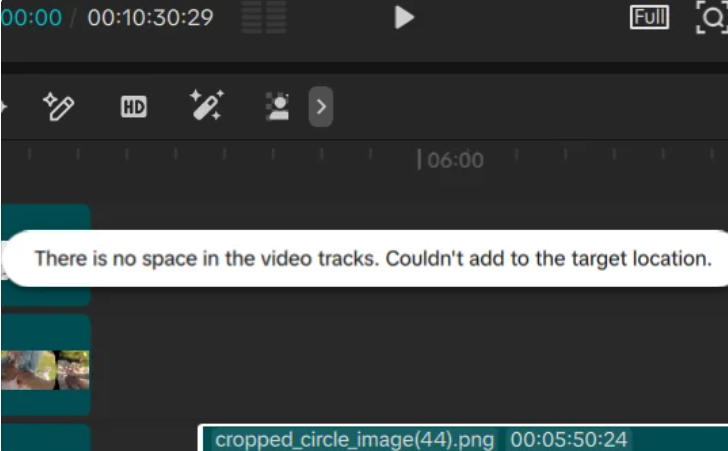
I'm currently working on an edit that already has more than 30 layers. When I tried adding another layer, I got the error shown in the attached image.
Is there a limit to the number of layers you can have in a project? If so, is there any way to work around it or increase the limit?
I'm pretty frustrated because I've already spent over an hour working on this edit, and running into this issue has brought everything to a halt.

Hi,
The error message "There is no space in the video tracks. Couldn't add to the target location" happens because CapCut has a strict limit on the maximum number of track layers you can have stacked on top of each other in the timeline (capped at around 30 to 32 video/overlay tracks depending on the version and your system's memory).
Because CapCut is built to run smoothly on lighter hardware, its timeline architecture won't let you add an infinite number of stacked tracks vertically. Since you cannot natively "increase" this hardcoded software limit, you have to use a couple of smart workarounds to get around it.
Workaround 1: Use the "Compound Clip" Feature (Best & Non-destructive)
This is the most professional and easiest way to bypass the track limit without losing your progress or quality. A Compound Clip collapses multiple stacked layers into a single clean track, immediately freeing up vertical space on your timeline while keeping them fully editable.
-
Select the layers you want to combine. You can do this by holding down
Ctrl(Windows) orCmd(Mac) and clicking them, or by clicking and dragging a selection box over them. -
Right-click on any of the selected clips.
-
Select Create compound clip (or use the keyboard shortcut
Alt + Gon Windows /Option + Gon Mac). -
What this does: CapCut will fuse those layers into one single track on your main timeline, instantly "emptying" the other tracks so you can add more layers.
-
Note: If you ever need to edit those layers again, you can just right-click the compound clip and select Deconstruct compound clip (
Alt + Shift + G), or double-click it to edit its contents.
Workaround 2: The "Export and Re-import" Method (The Classic Way)
If you are completely finished with a certain portion of your edit (for example, a highly complex intro or a background scene that has 15 layers of overlays and texts), you can bake them down permanently.
-
Save your project as-is.
-
Hide/Mute the tracks you don't want to bake down yet (or temporarily delete them, export, and then hit
Ctrl + Z/Cmd + Zto undo the deletion). -
Export the highly-layered section as a high-quality video file (e.g., in 1080p or 4K with a high bitrate to prevent quality loss).
-
Delete those 30+ original messy layers from your current timeline.
-
Import the freshly exported video file back into your project and drop it onto a single track.
-
You now have all your complex visual elements perfectly preserved in exactly 1 layer, leaving you with 29+ free tracks to continue editing.
Important Tip:
Before doing any massive collapsing or exporting, go to your CapCut project lobby, duplicate your project, and name it something like "My Edit_Backup".
That way, if you make a mistake while grouping or deleting layers, you have a perfect, untouched version of your hour-long hard work to fall back on!