

Hi everyone,
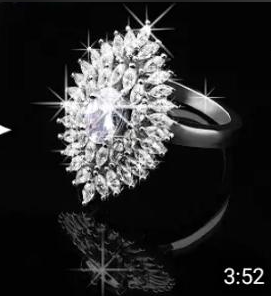
I'm trying to recreate a sparkle effect like the one shown in the example. Does anyone know how to achieve this in CapCut?
If possible, could you share:
- Which effect or filter to use
- Any settings or adjustments needed
- Whether it requires overlays, keyframes, or templates
Thanks in advance for your help!

Hi,
This effect looks like a glint/starburst sparkle effect seen on the diamond ring in your example. The good news is you don't need any complex overlays or templates.
CapCut has built-in video effects that automatically track highlights (such as shiny jewelry) and turn them into multi-pointed stars.
Here is exactly how to achieve it:
1. Effects to Use
-
The Best Option: Go to Effects > Video Effects, then look under the Bling or Light Effect category. Search for the effect named "Gleam" or "Diamond".
-
Alternative Options: "Star Prism" or "Starlight" also work well if you want long, defined starburst lines similar to the example.
2. Settings & Adjustments
Once you apply the effect over your video clip, click the effect bar in your timeline to open the Adjust menu on the right panel (PC) or bottom toolbar (mobile). Fine-tune these settings to match the example:
-
Filter: Set to 0 so the effect doesn't change the underlying color of your ring or tint the background.
-
Intensity: Increase this to around 70–90 to create sharp, bright streaks.
-
Size: Set it between 40–60. This makes the starbursts extend beyond the ring without becoming overly blurry.
-
Color: Keep it at 0 or 100 (depending on the slider) so the sparkles remain bright white instead of rainbow-colored.
-
Number/Amount: If you're using the Diamond or Glint effect, increase the amount to around 60 so multiple facets of the ring sparkle at once.
3. Does It Require Overlays, Keyframes, or Templates?
-
Overlays/Templates: No. You don't need external overlays or green-screen assets. The built-in effect automatically detects the brightest parts of the jewelry and places the sparkles on those highlights.
-
Keyframes: Optional. If the ring stays still, keyframes aren't necessary. If the ring moves or rotates and you want the sparkles to brighten or fade as it catches the light, you can keyframe the Intensity or Size settings for more control.
Pro Tip: If the sparkles don't stand out enough because the background is too bright, open Adjust for the main video clip and slightly lower the Shadows and Blacks, while increasing the Highlights. This creates stronger contrast and makes the jewelry sparkle more dramatically.