

I'm having an issue with the Background Remover in CapCut.
While editing, everything looks completely normal in the workspace—the background is removed correctly. However, after I export the video, parts of the original background become visible, and I can also see a distorted or deformed version of myself in the exported video.
I've already tried changing the export file type, but the problem still occurs.
Is there a way to fix it so the exported video matches what I see in the editor?

Hi,
What's happening is a hardware encoding desync. When you're editing in the workspace, CapCut uses a lightweight, live-preview render engine to keep things fast. However, when you hit Export, CapCut shifts to your graphics card (GPU hardware acceleration) to process the final video frame-by-frame.
If your GPU struggles with the AI cutout mask during full render, it drops frames or misplaces the mask, resulting in the background showing through and a warped/distorted subject.
Work through these solutions to match the export to your editor:
Solution 1: Turn Off Hardware Acceleration (Most Reliable Fix)
Forcing CapCut to render using software instead of GPU acceleration usually stops the AI cutout from glitching.
On CapCut Desktop (PC/Mac):
-
Click Menu in the top-left corner of CapCut.
-
Go to Settings > Performance tab.
-
Uncheck Speed up hardware encoding (and Speed up hardware decoding if available).
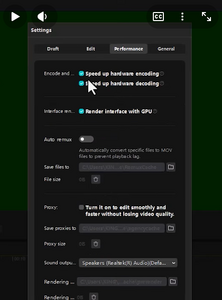
-
Click Save, restart CapCut, and try exporting again.
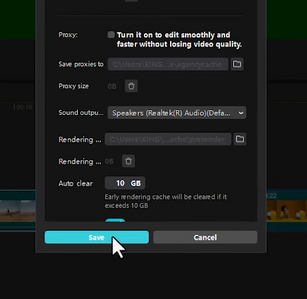
(Note: The export might take slightly longer, but the AI cutout will be rendered accurately.)
Solution 2: Pre-Render the Cutout (Compound Clip Trick)
If CapCut is glitching because it's trying to calculate the Auto Removal effect at the same time as export filters, baking the cutout into the clip first will fix it:
-
Right-click the video clip on your timeline that has the background removed.
-
Select Create Compound Clip.
-
This forces CapCut to "flatten" the AI background removal into a single fixed asset on the timeline.
-
Try exporting now.
Solution 3: Render at 1080p / Match Source Frame Rate
Sometimes higher resolutions (like 4K) or unusual frame rates cause the AI keying mask to misalign during export.
-
In the Export menu, ensure your Frame Rate matches your original video (usually 30fps or 60fps).
-
Set the resolution to 1080p. High-resolution exports heavily strain the Auto Removal engine.
Solution 4: Duplicate Layer Strategy (Chroma Key Alternative)
If Auto Removal keeps failing no matter what:
-
Place your video on Track 2 (top layer).
-
Duplicate it to Track 1 (bottom layer).
-
Apply Cutout / Auto Removal only to Track 2.
-
Put your desired custom background in between or behind them, or turn the visibility of Track 1 down to isolate the glitch.