

I've tried:
Firewall
Removing Windows Defender Protections (I Don't have any kind of anti viruses)
Removing all files and downloading again
Removing all cache
Turning off my wifi and pressing to look for updates
Pressing to look for updates
Executed as a administrator
Unistalling all vpns i use
Downloading via microsoft store
Downloading past versions
Removing it from task manager then trying to execute again
Updating Windows
Updating my clock
Deleting all projects
I've reset my entire pc as of right now, deleted every file i have everything yet it still says security notice.

Hi,
The "Security Notice: The current version of the app is not secure" message in CapCut typically indicates that the app failed a security or authentication check with CapCut's servers.
Since you've already cleared the cache, reinstalled the app, disabled firewalls, and even reset Windows, it's unlikely to be caused by local software corruption. The issue is more likely occurring during CapCut's startup authentication process.
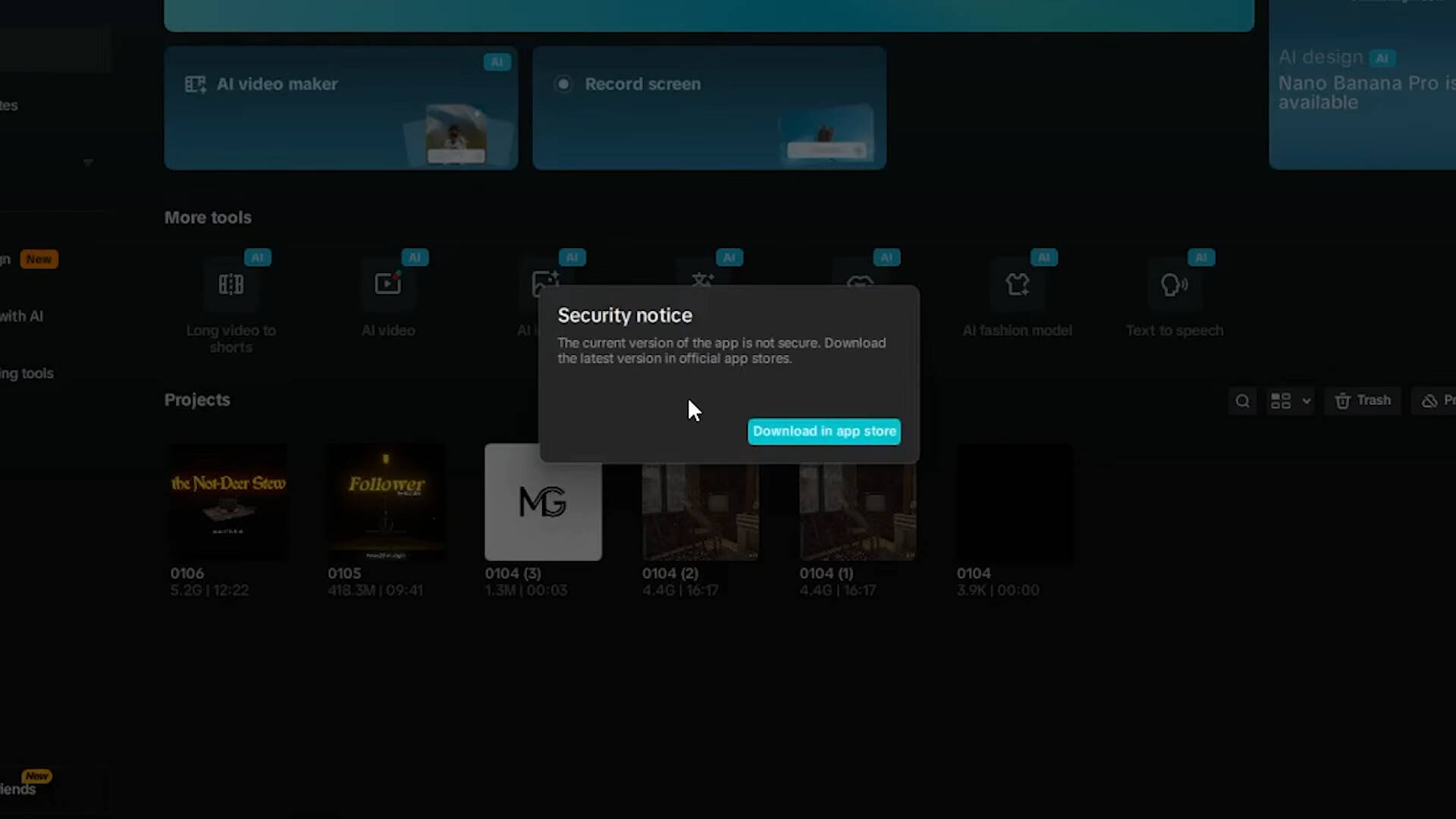
Here are a few troubleshooting methods that may help.
Method 1: Try Launching Offline, Then Update
In some cases, launching CapCut without an internet connection allows it to open before the security check is performed.
- Close CapCut completely. Check Task Manager to make sure no CapCut processes are still running.

- Disconnect your computer from the internet. Turn off Wi-Fi or unplug the Ethernet cable.

- Launch CapCut.
- Reconnect to the internet after the application opens.
- Open Settings (or More inside a project) and select Check for Updates.
- If an update is available, install it and restart CapCut.
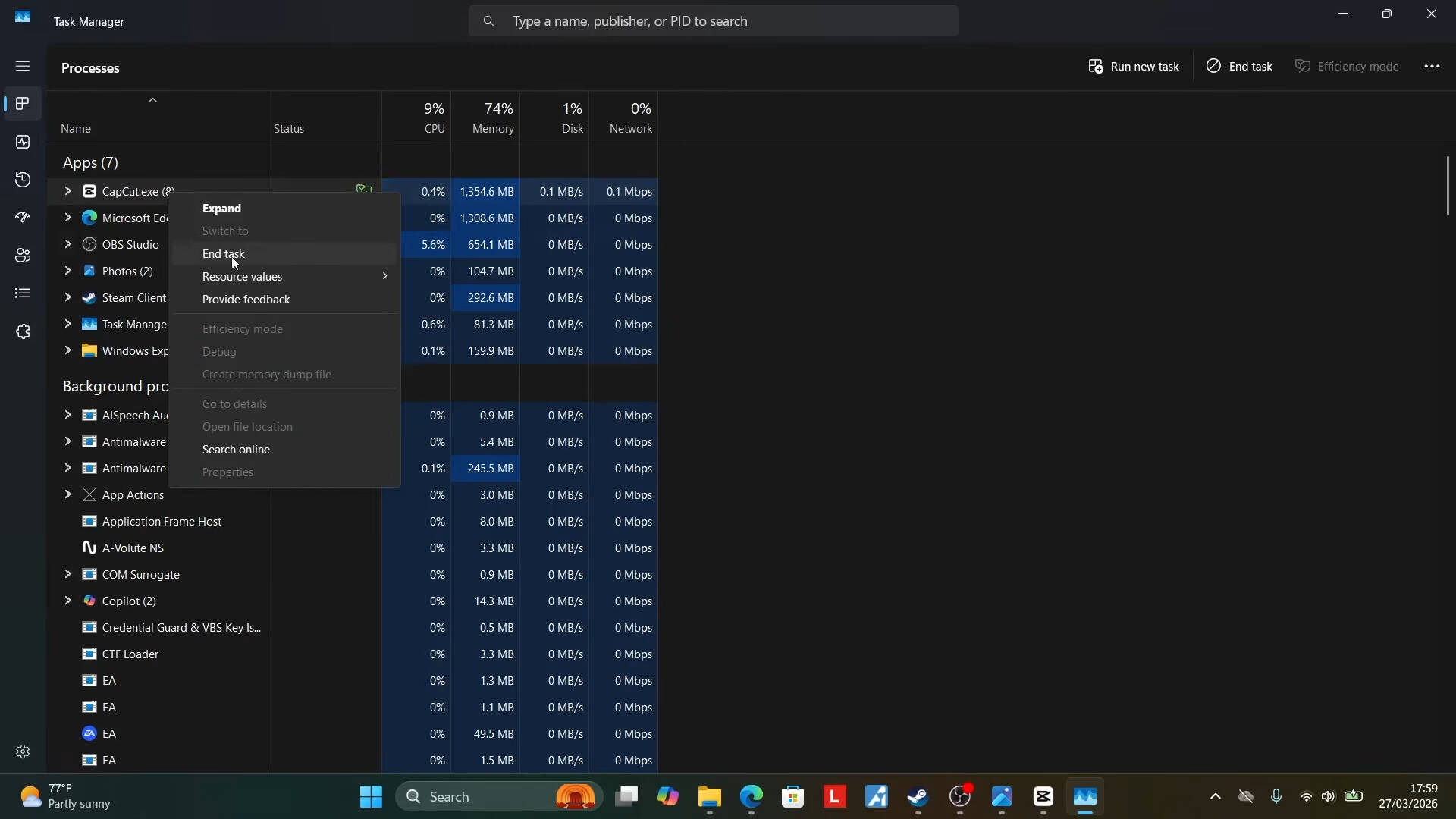
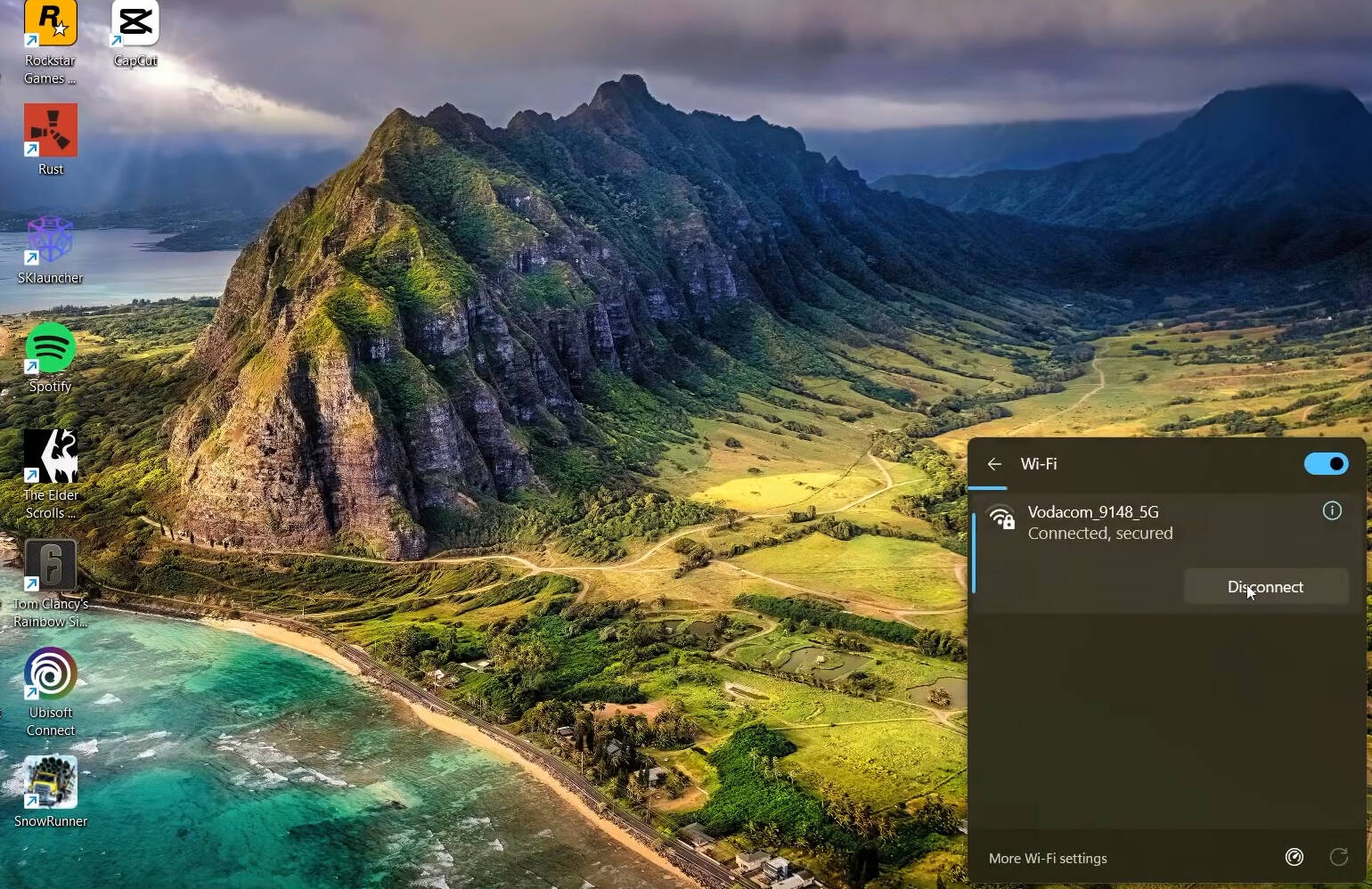
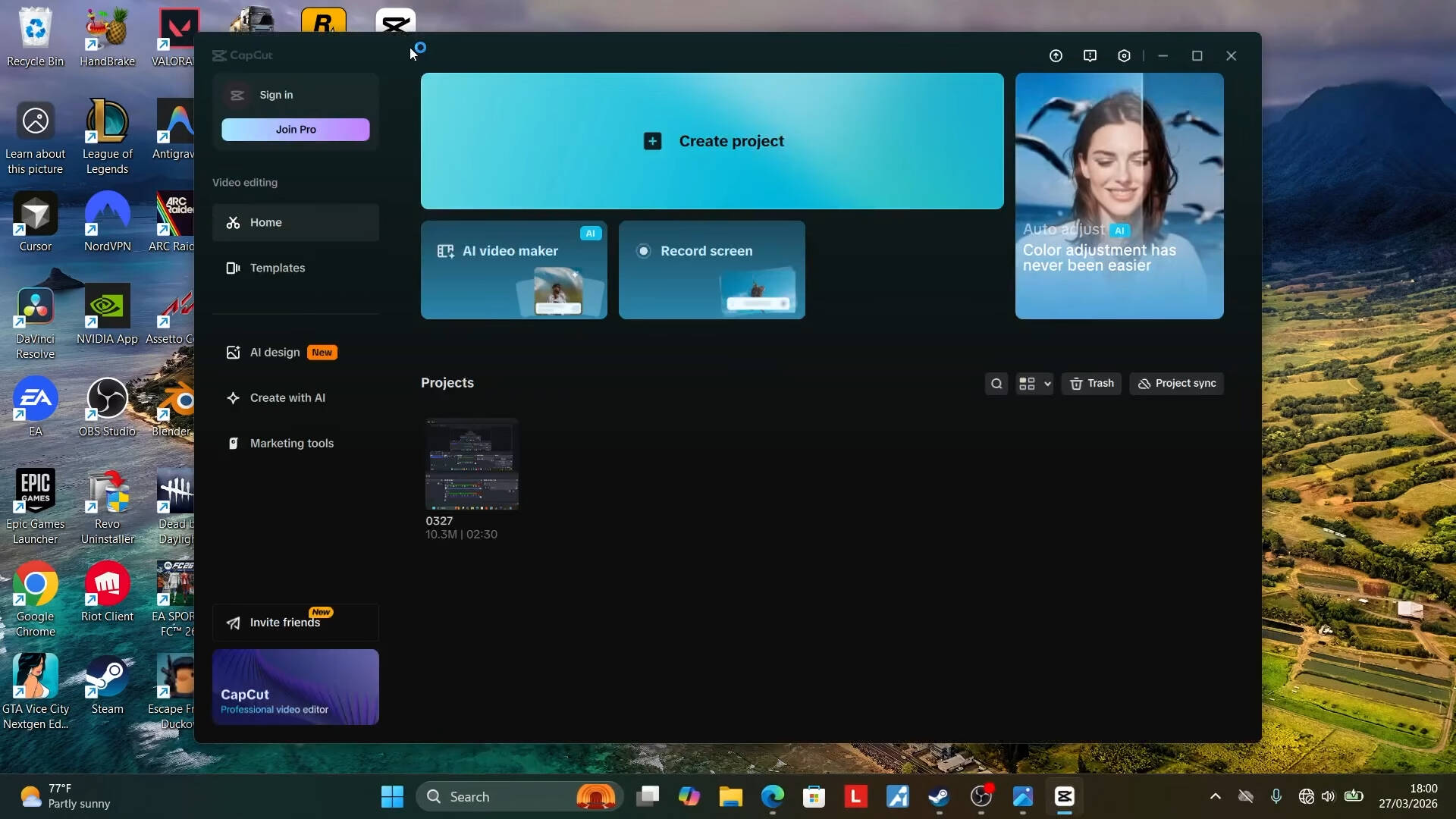
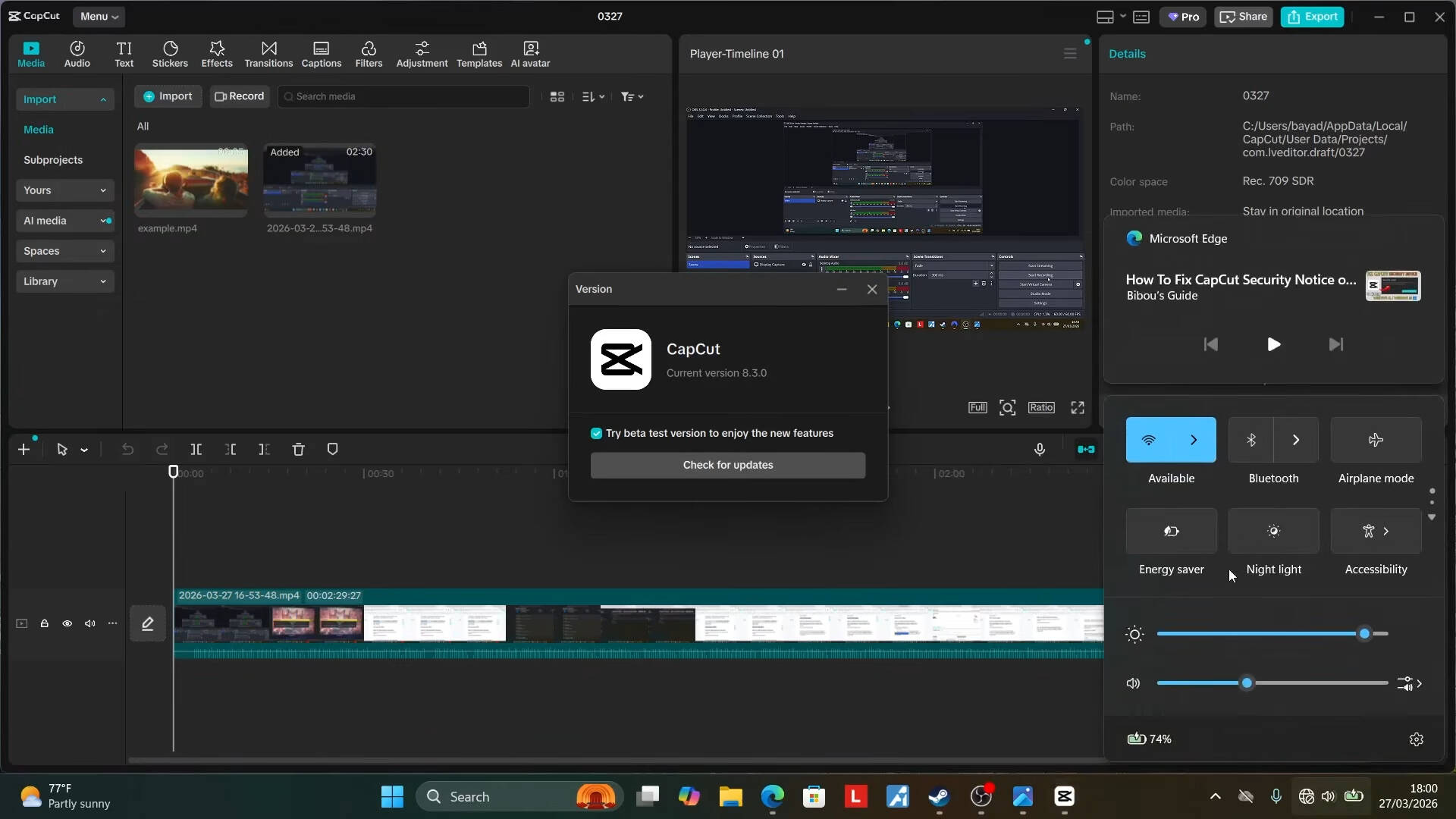
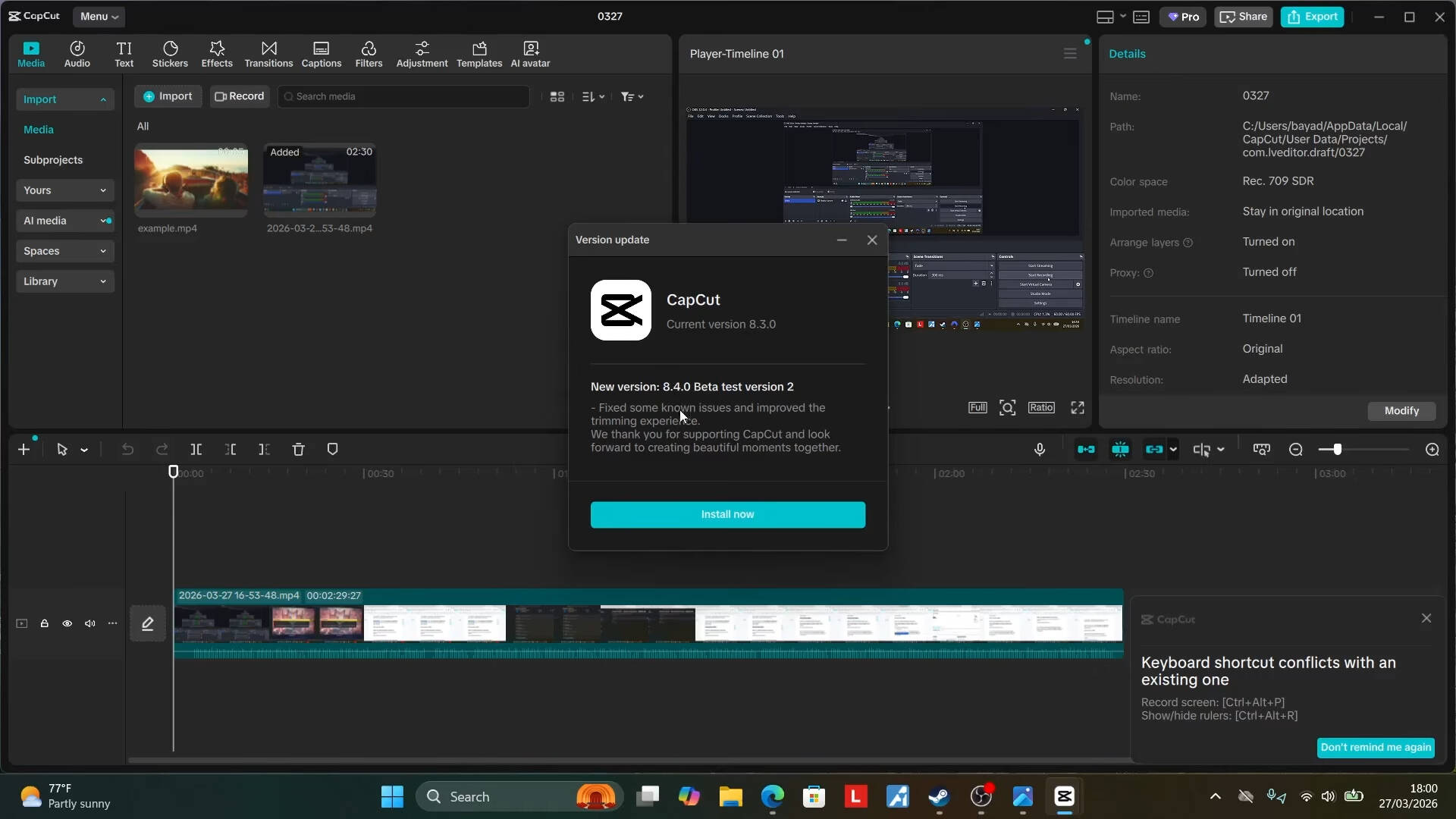
You can also watch this walkthrough:

Method 2: Try a Different Network or DNS
If the issue is related to your network or regional server routing, switching networks or DNS servers may help.
-
Test with a mobile hotspot. Connect your PC to your phone's cellular hotspot and launch CapCut. If it works, the issue may be related to your home network or ISP.
-
Try Cloudflare DNS.
- Open Settings → Network & Internet → Wi-Fi/Ethernet.
- Edit the DNS server assignment and choose Manual.
- Set the preferred IPv4 DNS server to
1.1.1.1. - Set the alternate IPv4 DNS server to
1.0.0.1. - Save the changes and reconnect to the network.
Method 3: Use the Web Version
If the desktop application is temporarily affected by a server-side issue, you can use the web version until the problem is resolved.
- Open capcut.com/editor in your browser.
- You can continue working with your cloud projects and supported assets without relying on the desktop application.
Summary
| Issue | Possible Cause | Suggested Fix |
| Security Notice | Authentication or version verification failed | Launch offline, reconnect, and check for updates. |
| Network-related issue | DNS or ISP routing problem | Try Cloudflare DNS or test with a mobile hotspot. |
Hope these suggestions help resolve the issue. Let me know how it goes.