

I'm having an issue with text animations in CapCut. Whenever I apply an In, Out, or Loop animation to a text layer, the text shrinks dramatically and becomes almost impossible to see.
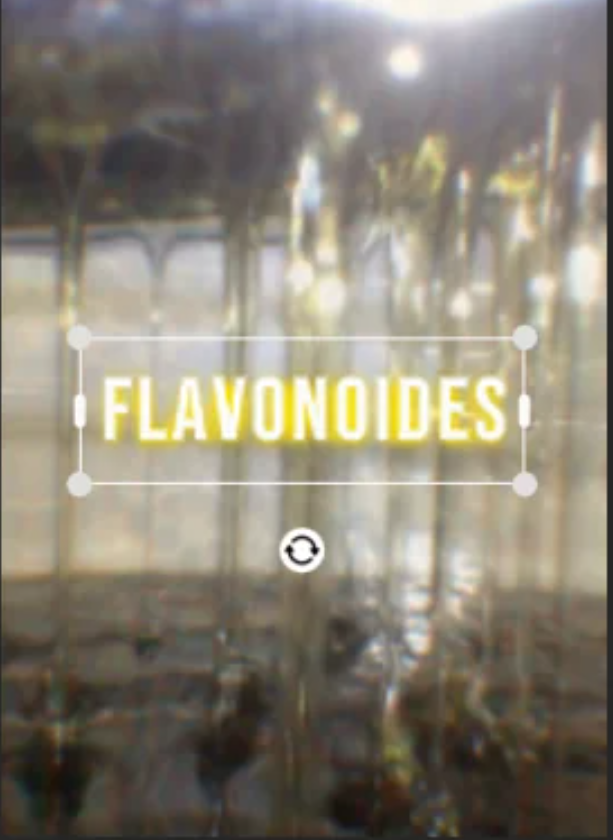
Has anyone else experienced this issue? Is there a setting or fix that prevents the text from shrinking when an animation is applied?
Any help would be greatly appreciated. Thanks!

Hi,
This is a surprisingly common issue in CapCut. It happens because CapCut treats the text Font Size and the text box Scale differently when rendering preset animations (In, Out, and Loop).
If you resized the text by dragging the corner handles in the preview window instead of changing the font size in the text settings, applying a preset animation can cause CapCut to recalculate the text size, making it appear to shrink dramatically.
Here are a few ways to fix the problem.
Fix 1: Convert the text to a compound clip (Most Reliable)
Creating a compound clip preserves the text's size, font, and position, preventing animations from recalculating its scale.
- Adjust the text so it's exactly the size and position you want.
- Right-click the text clip on the timeline (or use the equivalent option on mobile).
- Select Create Compound Clip.
- Apply your animation from the main Animation panel (In, Out, or Combo).
Fix 2: Resize the Text Using the Font Size Slider
If you resized the text using the canvas handles, try using the text settings instead.
- Remove any existing animation from the text.
- Open the Text Settings or Basic panel.
- Reset the text box if necessary.
- Adjust the text using the Font Size slider or the Scale value in the properties panel instead of dragging the corner handles.
- Apply the animation again.
Fix 3: Check the Animation Duration and Keyframes
-
Animation duration: Check the duration slider in the Animation panel. If the animation lasts for the entire clip, effects such as zoom or shrink may make the text appear small for most of the timeline.
-
Keyframes: If you've already added manual position or scale keyframes, they may conflict with the preset animation. Remove those keyframes before applying the animation.
Summary Checklist
| Cause | Quick Solution |
| Resized using corner handles | Resize the text using the Font Size slider in the text properties. |
| Bounding box scaling issue | Right-click the text → Create Compound Clip, then apply the animation. |
| Animation duration too long | Reduce the animation duration using the slider in the Animation panel. |