

I'm having an issue where my video export consistently fails at around 20% every time. I don't have any VIP features in my project, so I don't think that's the cause.
This has been happening for a while now, and I'm not sure what's causing it.
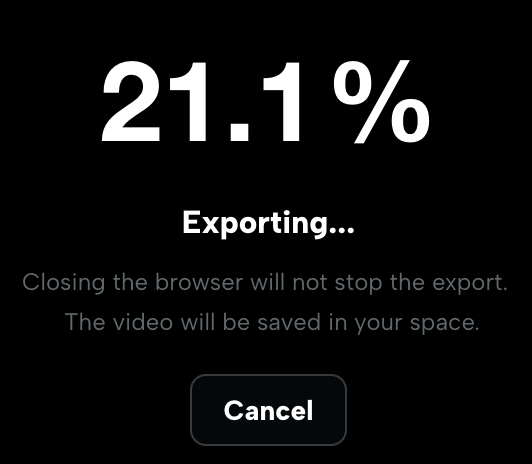
Is there a way to fix it?

Hi,
Your screenshot shows CapCut Web (Online) with the message, "Closing the browser will not stop the export. The video will be saved in your space".
The export consistently stops at around 20–21%, the issue is related to a specific point on the timeline or a browser/cloud resource limitation.
Here are the most effective troubleshooting steps.
1. Check the timeline around the 20% Mark
If the export always fails at the same percentage, there's a good chance the exporter is encountering a problematic clip or effect.
-
Estimate where 20% occurs. For example, if your video is 2 minutes (120 seconds) long, 20% is approximately the 24-second mark.
-
Inspect that section of the timeline.
- Look for resource-intensive AI effects, complex transitions, 3D animations, motion blur, or potentially corrupted media files or stickers.
- Quick test: Temporarily remove or replace the clip or effect at that point (or mute the corresponding audio) and try exporting again.
2. Check Browser Memory and Extensions
CapCut Web relies heavily on your browser's available memory and storage.
- Disable browser extensions. Ad blockers, privacy extensions, and script blockers can interfere with CapCut. Try exporting in an Incognito or Private window with extensions disabled.
- Clear your browser cache. Go to your browser settings → Privacy/History → Clear Browsing Data, then reload CapCut.
- Close unnecessary tabs and applications. Freeing up RAM can improve export stability.
3. Lower the Export Settings
If you're exporting at a very high quality, try reducing the settings temporarily.
- Lower the resolution (for example, from 4K to 1080p).
- Reduce the frame rate (for example, from 60 FPS to 30 FPS).
- If the export succeeds, you can later duplicate the project and try exporting again at higher settings or use the desktop application.
4. Try the CapCut Desktop App
Complex projects generally export more reliably in the desktop version than in the web editor.
- Save your project to Cloud or Space in CapCut Web.
- Open the CapCut Desktop application on Windows or macOS.
- Sign in with the same account, open the cloud project, and export it from the desktop app.