

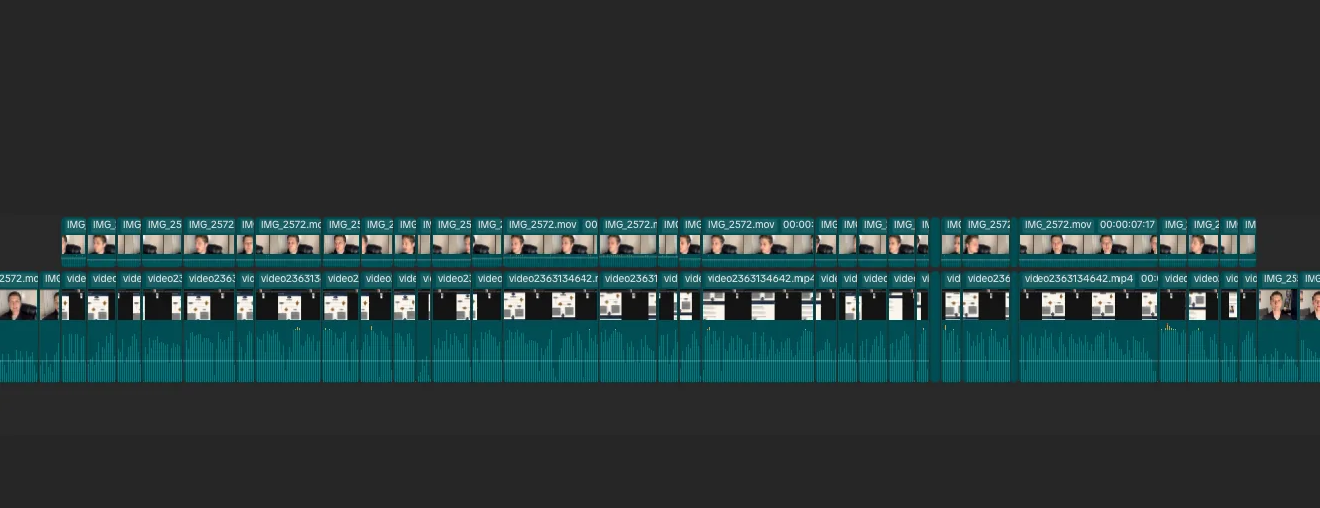
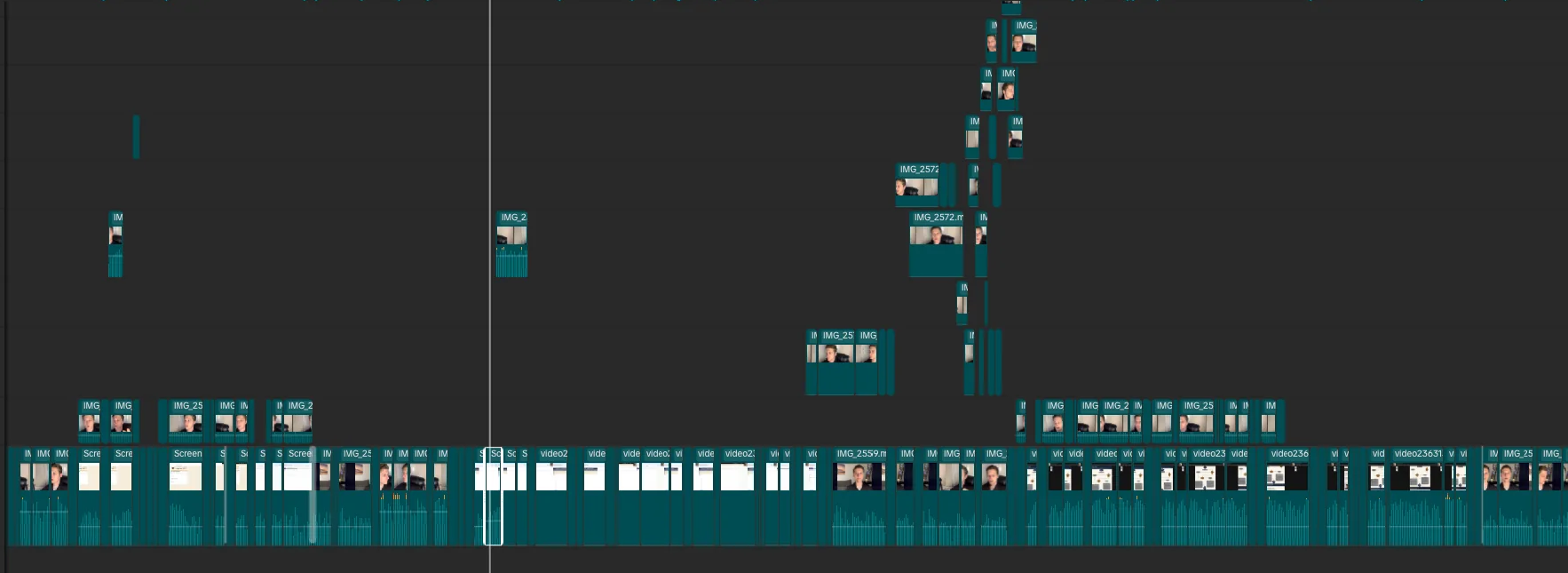
Last night I finished editing my project, and everything looked exactly as it should (like the "before" image). When I opened it this morning, the timeline looked like the "after" image—clips had been rearranged, split across different tracks, and I had to manually piece everything back together.
I'm new to CapCut and video editing in general, so I'm hoping someone can help me figure out what might have caused this.
Here's everything that happened between finishing my edit and discovering the issue:
- I finished editing last night and left CapCut open.
- This morning, I noticed CapCut was still running, so I closed it and restarted my computer.
- After reopening CapCut, I played the project from the beginning and noticed the audio was out of sync with my video. (The screenshot shows two separate tracks, but at the beginning of my project it's normally a single combined video/audio clip.)
- I closed CapCut again, noticed there was an update available, and installed it.
- After reopening the project, the audio was still out of sync at first, but after a minute or two it corrected itself.
- When I scrolled through the timeline, I found that several clips had been split apart, moved to different tracks, and the overall timeline was scrambled.
One other detail that may or may not be relevant: my computer only has about 12 GB of free storage remaining.
Has anyone experienced something like this before? Could low disk space, the update, or something else have caused the timeline to become corrupted?
Before photo:
After Photo:
I'd appreciate any ideas or suggestions. Thanks!

Hi,
From what you've described, this doesn't sound like normal editing behavior or something you accidentally did. The fact that:
- the project was correct when you finished,
- you left CapCut open overnight,
- audio was initially out of sync when reopening,
- the audio later "fixed itself,"
- and only then you discovered clips scattered across tracks,
points more toward project corruption or an incomplete project state being saved, rather than a simple editing mistake.
A few possibilities, in roughly the order I'd suspect them:
1. Low disk space (very possible)
Having only ~12 GB free can absolutely cause problems with video editors.
CapCut uses a lot of temporary files, caches, autosaves, and proxy media. If Windows and CapCut are competing for space, you can get:
- incomplete project saves,
- corrupted cache,
- media temporarily going offline,
- strange timeline behavior.
It's not guaranteed to cause clips to move, but it definitely increases the chance of project corruption.
2. CapCut didn't close cleanly
You mentioned:
I finished editing and left CapCut open overnight.
If Windows went to sleep, updated, crashed, or CapCut encountered an internal error while the project was still open, the autosave/project file may have been left in an inconsistent state.
The first symptom you saw—audio being out of sync—makes me think CapCut was still rebuilding or relinking media when you opened it.
3. Cache/proxy rebuilding
The fact that:
audio was out of sync, then after a minute or two it corrected itself
suggests CapCut was probably rebuilding caches or proxies.
Normally this shouldn't rearrange clips, but if the project file was already damaged, rebuilding media could expose those problems.
4. The update probably wasn't the cause
Because you noticed the audio problem before updating, I don't think the update itself caused the issue.
The corruption likely existed already.
5. Timeline corruption (matches your screenshots)
Looking at your screenshots:
- the "before" timeline is a normal, continuous sequence.
- the "after" timeline has clips stacked on multiple tracks with large empty gaps.
That doesn't look like someone accidentally nudged a few clips.
It looks more like:
- clip positions were lost,
- linked audio/video relationships broke,
- some clips retained timestamps while others shifted.
That's much more consistent with a damaged project than an accidental edit.
Things I would check
- Look for automatic backups
- CapCut sometimes keeps autosaves or backup versions.
- See if there's a "Project History," "Autosave," or backup folder.
- Duplicate the project immediately
- Don't keep editing the damaged project if you can avoid it.
- Clear CapCut cache
- Corrupted cache can cause strange playback behavior.
- Free up disk space
I'd try to get at least 50–100 GB free if possible for video editing. - Check if the original media files were moved
If CapCut couldn't find files temporarily, relinking can sometimes produce odd behavior.
For the future
I would recommend:
- Save manually every so often (Ctrl+S).
- Close CapCut when you're finished instead of leaving it open overnight.
- Keep plenty of free disk space.
- Periodically duplicate your project (
Project_v1,Project_v2, etc.). - Export a project backup after major editing sessions.
One question that could narrow this down:
Were those clips originally "linked" video+audio clips, or had you already detached the audio earlier in the edit?
That detail would help me determine whether this was a linked-media failure or full timeline corruption.