

I'm going crazy trying to figure this out.
I'm using CapCut for desktop, and this used to work without any issues. Whenever I dragged my main video clip left or right on the timeline, any overlays on the second track would move with it.
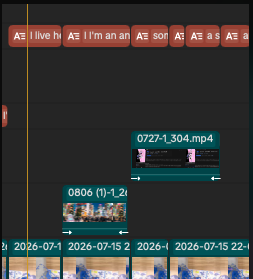
Now, that's no longer happening.
Here's what I'm seeing:
- Auto Snap is enabled.
- Auto captions/subtitles still move correctly with the main video.
- However, regular overlays (images, videos, text, etc.) on the second track stay in the same position while the main clip moves underneath them.
Did a recent update change this behavior? Is there a setting I accidentally turned off, or could this be a bug?
Has anyone else experienced this or found a fix?
Thanks in advance!

Hi,
Don’t worry, you aren't going crazy. As a video editor who uses CapCut for desktop regularly, I’ve run into this exact workflow headache before.
You haven't encountered a bug, and a recent update didn't remove the feature—you’ve just accidentally toggled a specific timeline behavior.
While Auto Snap (shortcut N) ensures clips snap cleanly against each other or the playhead, the feature that actually anchors your overlays, audio, and text to the main video track is called Linkage.
When Linkage is turned off, standard overlays (images, videos, text) will stay frozen in place while the main clip moves underneath them.
Auto Captions often behave differently because they are natively tied to the speech audio of the primary track, which is why they appeared to still work for you.
Here is exactly how I fix this whenever I accidentally disable it:
The Fix
You can turn Linkage back on using either of these two methods:
-
The Keyboard Shortcut: Press the
~(tilde) key on your keyboard. This is the default toggle in CapCut to switch Linkage back on. It’s right next to the1key, which is usually how people accidentally turn it off without realizing it. -
The Timeline Toolbar: Look at the small toolbar right above the right side of your timeline (near the Magnet and Auto Snap icons). You will see an icon that looks like two overlapping tracks with a line connecting them (the Linkage tool). Click it so it lights up/highlights as active.
Once you turn Linkage back on, any overlay elements on your secondary tracks will instantly lock back to the main track and move right along with your clips just like you're used to. Let me know if that does the trick for you!