

I just downloaded CapCut from the Google Play Store, but when I open it, I get this message:
Security notice
The current version of the app is not secure. Download the latest version in official app stores.
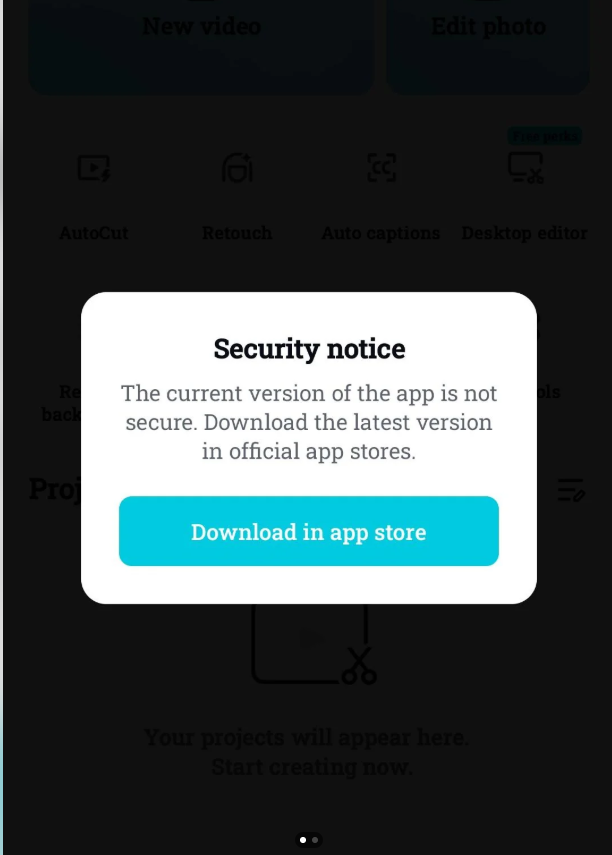
The strange part is that I literally just installed it from the Play Store, and it shows as up to date with no updates available.
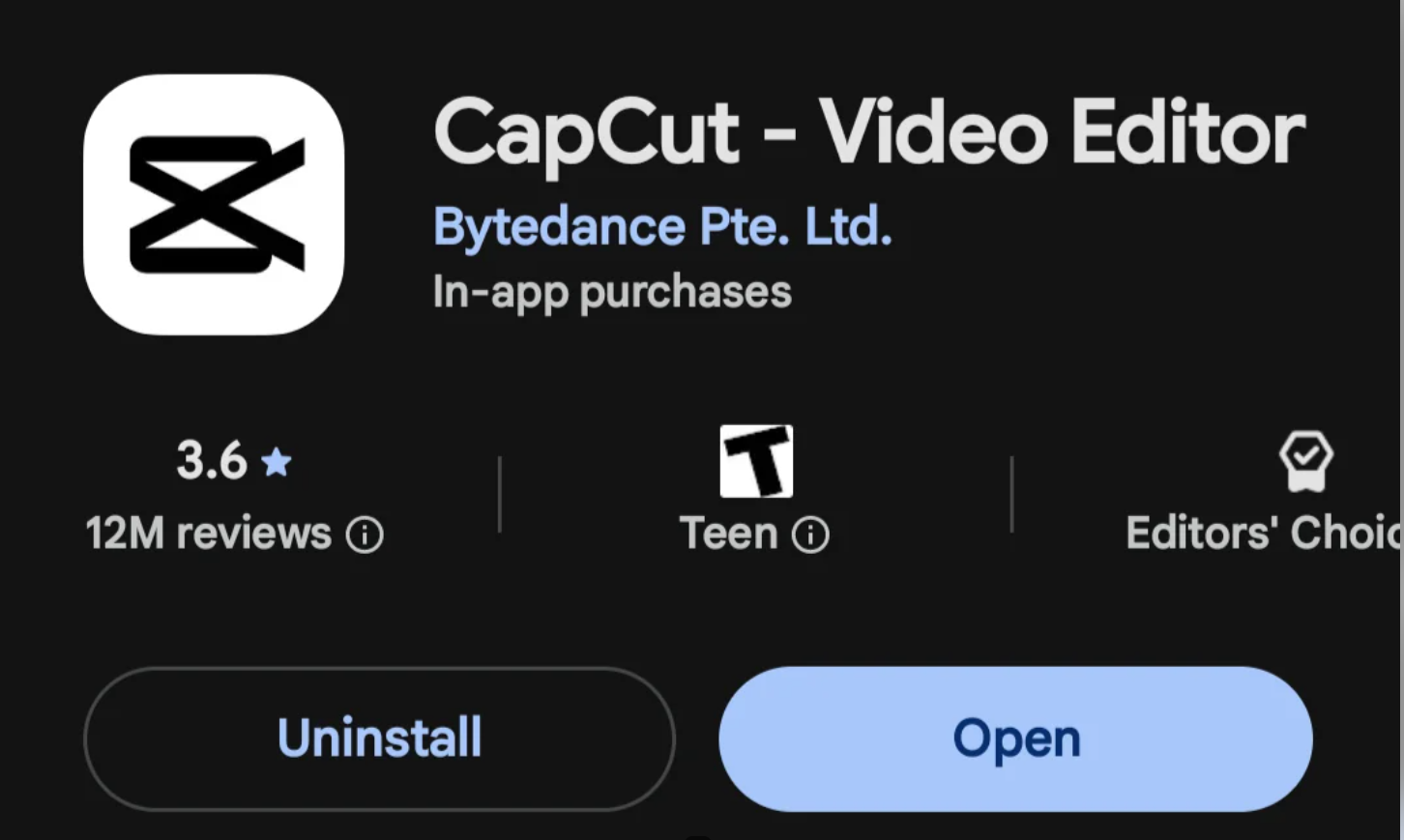
I've already tried:
- Installing it directly from the Play Store.
- Confirming it's the latest version.
Has anyone else run into this issue? Is there a fix, or is this a server-side bug or region-specific problem?

Hi,
This Security Notice generally happens due to corrupted local cache data, VPN / regional server verification mismatches, or Google Play Protect / SafetyNet verification delays.
Here is how you can resolve it:
Step-by-Step Fixes
1. Clear CapCut’s App Cache & Data
Old app files or corrupted cache data from previous installs often trick CapCut’s internal security check into thinking it's running an old or modified build.
-
Go to Settings on your phone.
-
Tap Apps (or App Management) → CapCut.
-
Select Storage & cache.
-
Tap Clear Cache, then tap Clear Storage / Clear Data.
-
Re-open CapCut and check if the popup disappears.
2. Disable VPNs or Switch Networks
CapCut performs a server-side region and security check when launching. If you are connected to a VPN or a restricted network, the security validation can fail and trigger this false notice.
-
Turn off any VPN, Proxy, or Ad-blocker apps running in the background.
-
Switch your internet connection (e.g., toggle from Wi-Fi to Mobile Data, or vice versa).
-
Force close CapCut and launch it again.
3. Clear Google Play Store Cache & Force Stop
Sometimes Play Store holds onto stale installation metadata, serving an older sub-version without letting you know.
-
Go to Settings → Apps → Google Play Store.
-
Tap Force Stop.
-
Select Storage & cache → Clear Cache.
-
Re-open Play Store, search CapCut, and make sure no additional patch update pops up.
4. Check Play Protect Certification
If your device is rooted or fails Google's SafetyNet/Play Integrity check, CapCut’s security shield will trigger automatically.
-
Open the Google Play Store.
-
Tap your Profile Icon (top right) → Play Protect.
-
Tap Scan to ensure no security flags or uncertified status are present on your phone.
Quick Tip: If none of the above work immediately, uninstalling CapCut, restarting your phone, and re-downloading it directly via the Play Store link usually clears out the false verification flag.