

I'm trying to recreate a template like this in CapCut, but I'm not sure where to start.
Does anyone know how this type of template is made, or what tools, effects, or editing techniques are used to achieve it? If there are any tutorials or guides that explain the process, I'd really appreciate it.
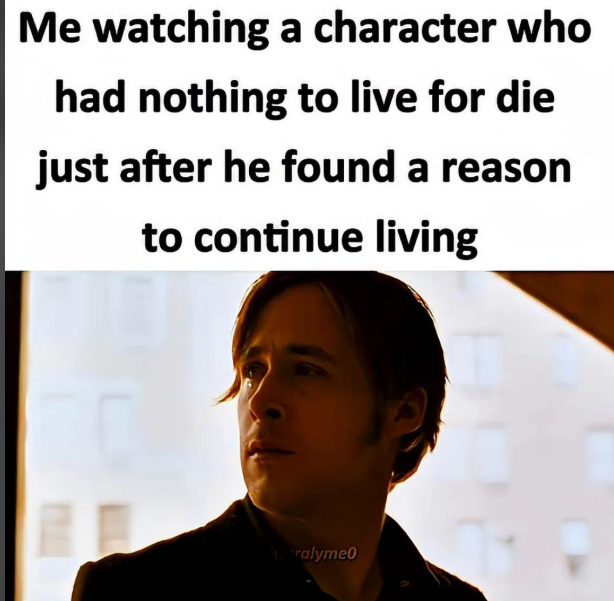

Hi,
Yes. This style is actually very simple it's more about layout and pacing than special effects. The image you posted is basically made from two parts:
- A white text panel at the top
- A reaction image or video clip underneath
Here's how you can recreate it in CapCut.
Method 1: Static Meme (Like the Image)
- Create a new project.
- Add your reaction image or screenshot.
- Open Canvas and make the background taller (or use a white background).
- Move your image to the bottom half.
- Add a Text layer.
- Type your caption.
- Use a font similar to:
- Arial Bold
- Helvetica Bold
- Montserrat ExtraBold
- Set:
- Black text
- White background
- Center alignment
- Increase line spacing slightly until it resembles the meme.
The layout is simply:
+-----------------------------+
| Me watching...              |
| had nothing to live for...  |
| continue living             |
+-----------------------------+
|                             |
|   Reaction image/GIF        |
|                             |
+-----------------------------+
Method 2: Video Version (TikTok/Reels)
If you want it to animate:
- Start with the white text at the top.
- Put the movie/anime clip underneath.
- Add slow zoom (Keyframes or Animation → Combo → Zoom).
- Fade in the text.
- Add emotional music.
- Export as a 9:16 vertical video.
Many creators also:
- Slow the clip to 0.5x–0.8x
- Add a slight blur or film grain
- Increase contrast
- Lower saturation a little for a cinematic look
Popular Effects
These edits often use:
- Slow Zoom
- Motion Blur
- Film Grain
- Vignette
- Fade In / Fade Out
- Color grading (warmer or darker tones)
Nothing particularly advanced is required.
Read: How to Create Smooth Text Animations in CapCut - Tutorial
Search Terms for Tutorials
On YouTube, search for:
- CapCut meme edit tutorial
- CapCut cinematic edit tutorial
- CapCut text meme tutorial
- How to make TikTok reaction memes in CapCut
- CapCut movie edit slow zoom
Those tutorials demonstrate the same techniques used for this style.
If you want it to look exactly like this
The key details are:
- White rectangle occupying about the top 35–40% of the frame.
- Large, bold, centered black text.
- Movie clip cropped to fill the lower portion.
- Minimal effects—just clean typography and a cinematic frame.
- Export in 1080×1920 (9:16) if you're posting to TikTok, Instagram Reels, or YouTube Shorts.