

I am writing with an urgent request regarding a technical error that is currently preventing me from submitting a time-sensitive university assignment.
Issue Summary:
I am a student user utilizing the standard, free version of CapCut. My completed project is currently blocked from export by an error message stating I have used CapCut Pro features.
I acknowledge that I may have accidentally applied a Pro element during editing, but I have since thoroughly reviewed the entire project and deleted or replaced every single Pro element (effects, transitions, etc.) from the timeline.
Despite my complete removal of all Pro content, the application remains stuck, incorrectly flagging the project and preventing any attempt to save or export the final video. This appears to be a bug where the software retains a "residue" of the Pro feature usage even after it has been deleted.
As this video is due for a university course, I respectfully ask for your immediate technical assistance. Please investigate this project on your end and provide a solution to clear this erroneous Pro flag so that I can download the file using my standard account.
Thank you for your prompt attention to this matter.

Hi,
This is a known CapCut bug that sometimes causes a project to remain “flagged” as Pro even after all premium elements have been deleted.
Why this happens
CapCut sometimes caches metadata from Pro elements (especially filters, text styles, transitions, or AI effects). Even if you delete them visually, the project file may still reference those Pro assets in the background XML or timeline data.
Fix Method 1: Copy All to a New Project
This is the most reliable fix.
-
Open your stuck project.
-
Select everything on the timeline (
Ctrl + Aon PC, or drag to select all clips on mobile). -
Tap Copy (or “Duplicate” if on mobile).
-
Go back to your Home screen → create a New Project.
-
Paste everything into the new timeline.
-
Try exporting and in most cases, the Pro flag disappears because the metadata isn’t carried over.
-
This works because the new project is created fresh, without the cached internal references.
Fix Method 2: Clear Cache (Mobile or PC)
Sometimes the export flag is cached.
-
On PC:
-
Go to Settings → Cache → Clear Cache.
-
Restart CapCut and open your project again.
-
-
On Mobile:
-
Tap Settings → Clear Cache inside CapCut.
-
Force close and reopen the app.
-
Then reattempt the export.
Fix Method 3: Remove All “Invisible” Pro Triggers
Double-check these hidden Pro traps:
-
“Video Effects” or “Body Effects” still applied but opacity = 0%.
-
A Pro font used in text (switch to a free one).
-
Pro stickers or AI-generated backgrounds (e.g., Auto Cutout).
-
Color filters or LUTs that are Pro (replace with standard ones).
-
A “Pro” template-based transition that got baked into a cut.
If you see any yellow “PRO” tag anywhere in your resource browser, recheck those sections.
Fix Method 4: Export without Watermark option
Try toggling this:
-
If you have “Export without watermark” (Pro) set, turn it off before exporting as even this setting can falsely trigger a Pro restriction for free users.
Fix Method 5 for PC:
If you are on CapCut PC, you can manually remove cached Pro metadata:
-
Go to your CapCut project folder:
C:\Users\<YourName>\Documents\CapCut\Projects -
Locate your project folder.
-
Duplicate it for safety.
-
Inside, open the
.jsonor.ccprojfile with a text editor (like Notepad). -
Search for
"isPro":trueor similar entries and if found, delete or set tofalse. -
Save and reopen in CapCut.
Do this only if you are comfortable editing config files.
If none of the above solutions which we have proposed works:
-
Export the project as screen recording (as a temporary measure).

-
Or contact CapCut support via:
Settings → Feedback → Report a problem → Attach screenshots + project ID. - You can also write an email to support: [email protected]

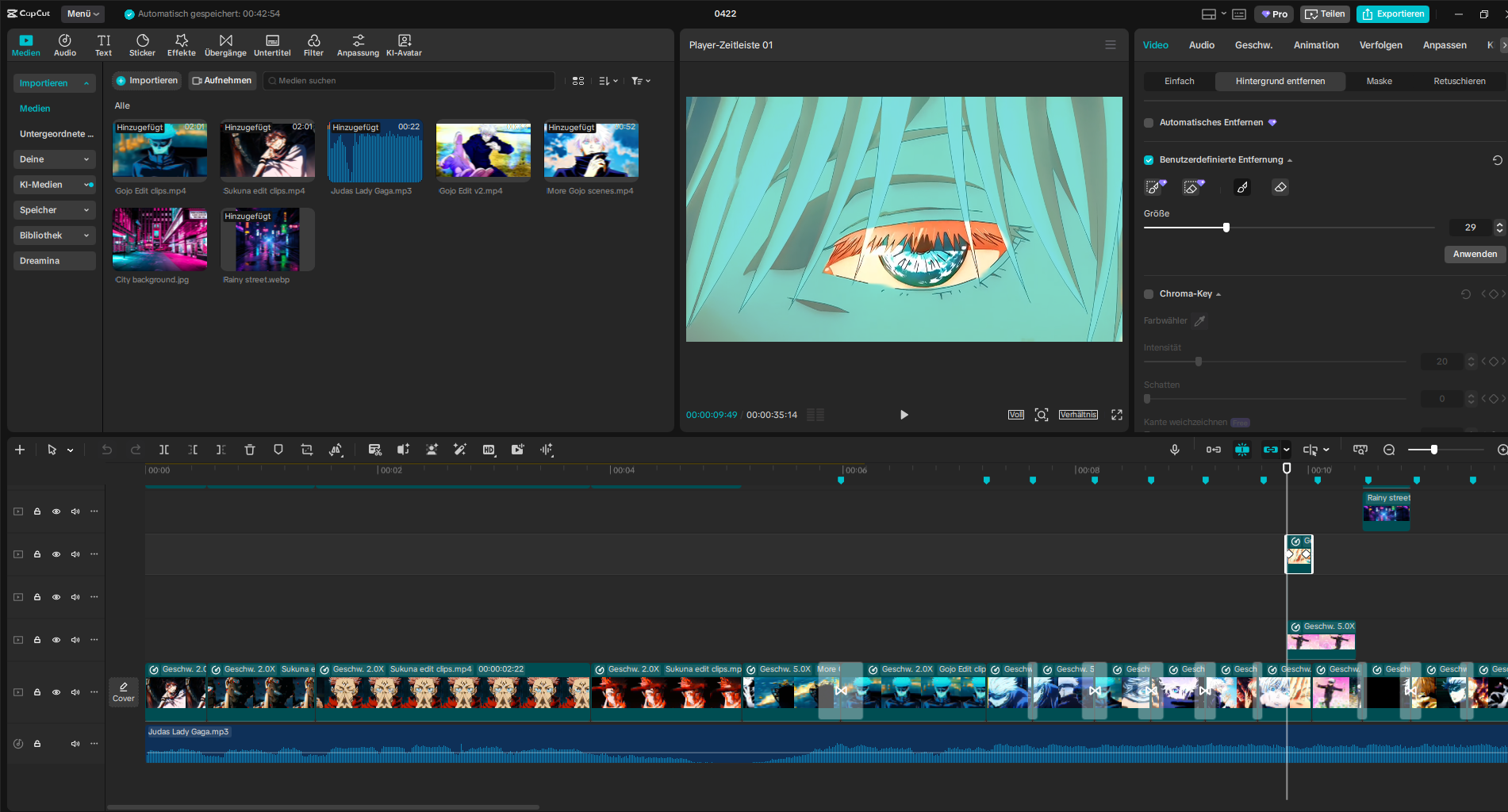
Hallo Liebes CapCut Support Team
Ich habe ein Problem und zwar immer wenn ich auf Expotieren klicke wird mir angezeigt das ich Pro features benutze wie z.B den Intelligenten Pinsel, dies tue ich aber nicht. Gibt es Lösungen dieses Problem zu lösen?