

Hi everyone,
I'm running into a strange issue and was wondering if anyone else has seen this.
I created a brand new space and tried uploading a file (~151 MB), but I immediately get the following error:
Can't upload
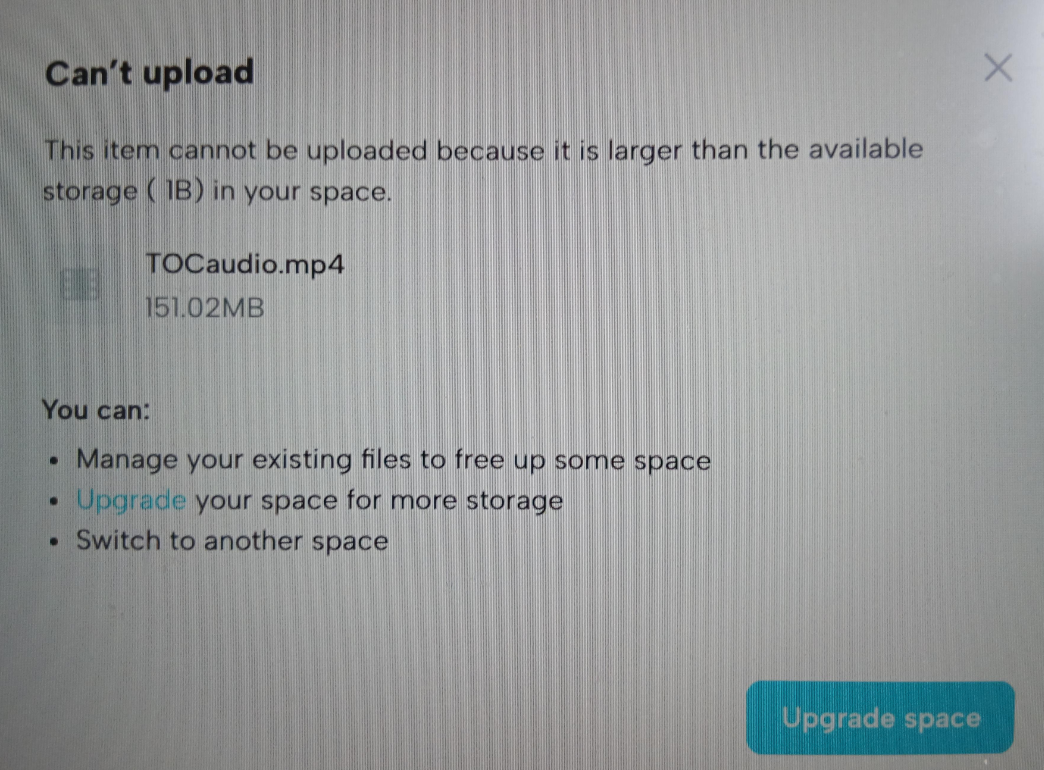
This item cannot be uploaded because it is larger than the available storage (1B) in your space.
The space is completely new with no media or files uploaded, so I'm confused as to why it's reporting that I only have 1 byte of available storage.
Has anyone experienced this before? Is this a bug, or is there something I need to configure before uploads will work?
For reference, here's the error I'm seeing:
Any help would be appreciated. Thanks!

Hi,
This is a known bug/glitch related to storage quota provisioning and backend cache sync.
When a brand-new space or workspace is created, the system's quota manager sometimes fails to properly initialize or calculate your default storage allowance, causing it to fall back to a dummy placeholder value of 1 Byte (1B).
Since your video file (151.02 MB) is larger than 1 byte, the upload is instantly blocked.
Key Causes
-
Provisioning Delay: The backend storage service hasn't finished assigning your space's default storage tier yet.
-
Cache Stale State: Your session or local browser state is pulling an unitialized (
0or1B) storage state from when the space was mid-creation. -
Permission / Ownership Mismatch: If the space was created under a team/organization or shared account, default member storage limits might be set to 0 or unassigned until modified by an admin.
Recommended Troubleshooting Steps
1. Hard Refresh & Clear Session Cache
-
Log out, clear your browser’s cache/cookies, and log back in.
-
Alternatively, open the space in an Incognito / Private window to verify if the correct storage quota loads.
2. Re-trigger the Storage Quota Sync
-
Try creating a tiny text file or uploading a tiny file (<1 KB) if allowed, or edit the Space settings (e.g., change the space name or description) and save. This often forces the backend database to re-evaluate and sync storage limits.
3. Check Account / Billing Settings
-
Go to your main account settings or billing management dashboard. Ensure that your plan tier is active and assigned to this specific space.
-
If you are in a team account, verify in Workspace Settings that the default storage limit for newly created spaces isn't restricted to 0/1B by an administrative rule.
4. Re-create the Space
-
Since the space is completely new with no data in it, delete the space and create a new one. Most quota provisioning errors are transient and won't reoccur on a second attempt.
Note: If deleting and recreating the space yields the same "1B" result, contact the platform's support team—there is likely a stuck billing/entitlement flag on your user profile that requires a manual reset on their end.