

Whenever I adjust a single photo as per instructions, other photos on the time line become affected. I DO NOT have the Apply to all pressed. I did click on save preset but the problem still exists. HELP ME PLEASE.

Hi,
This is a very common CapCut behavior and we will help you fix this issue step by step:
Why this is happening even without “Apply to all”
In CapCut, photo adjustments can affect other photos on the timeline because of one of these hidden causes:
-
You are editing a grouped selection
-
The photos are inside a compound clip
-
You are adjusting the Track (layer), not the clip
-
The preset is auto-applied to new clips
-
Keyframes are disabled / shared
Let us diagnose and fix each one.
Make sure only ONE photo is selected (most common issue)
Even if you think only one photo is selected, CapCut generally highlights multiple clips subtly.
Fix:
-
Click empty space on the timeline to deselect everything
-
Click ONE photo only
-
Check the timeline:
-
Only one clip should be outlined
-
-
Now adjust your settings again
If more than one clip is selected, CapCut applies changes to all selected clips.
Check if your photos are inside a Compound Clip
If you imported multiple photos together or used templates, they may be nested (as you can see in the below image).
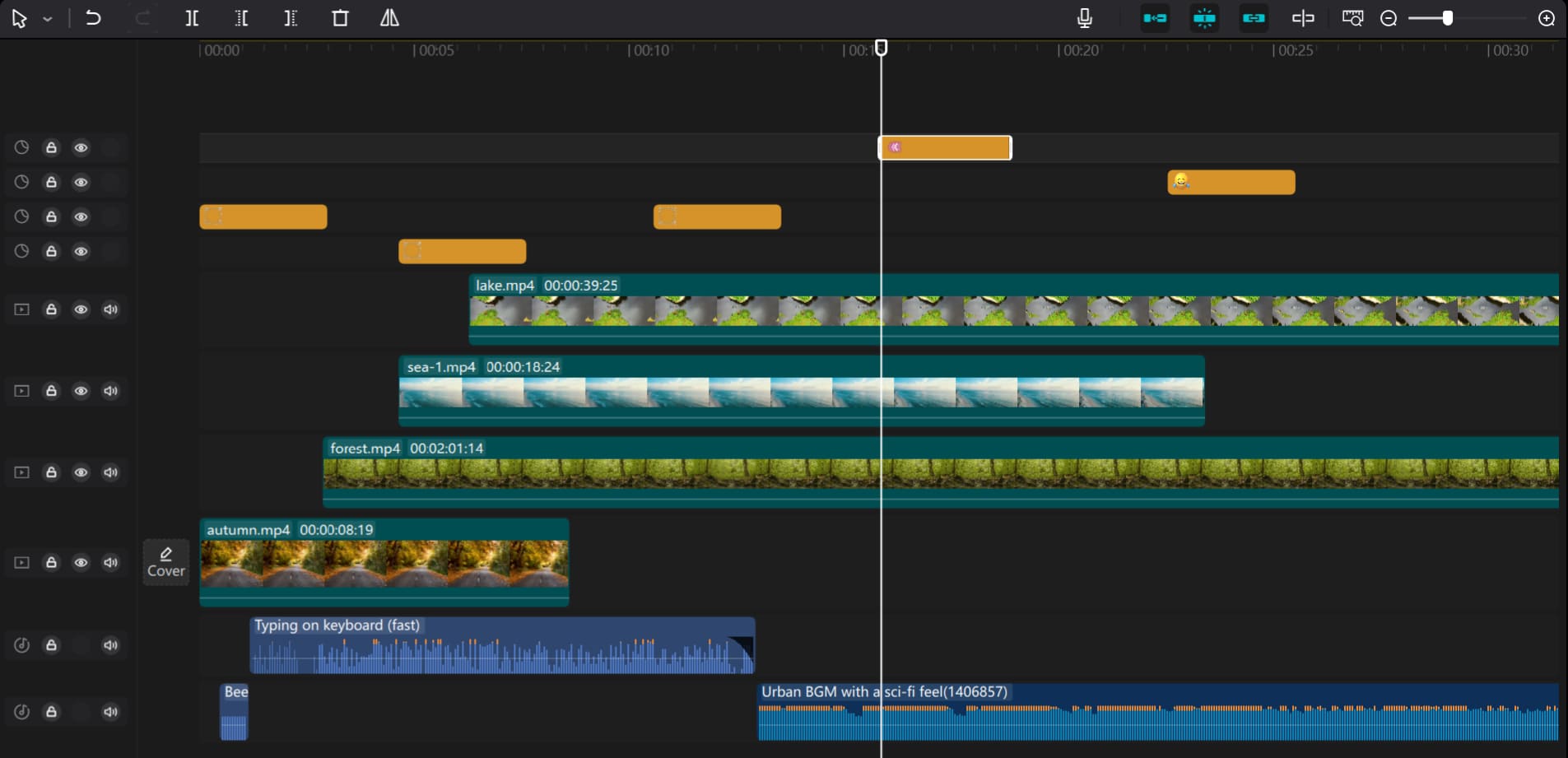
How to tell:
-
Right-click the photo
-
If you see “Ungroup” or “Break Apart”, it is a compound clip
Fix:
-
Right-click → Break Apart
-
Now adjust photos individually
You might be adjusting the TRACK, not the PHOTO
This is sneaky (check the image below)

Fix:
-
Click the photo clip itself, not the track header
-
Open Adjust
-
Make sure the panel says Clip, not Track
If you adjust at track level → EVERY photo on that track changes
Preset is being auto-applied (this still affects clips)
Saving a preset can still cause issues if you accidentally apply it again.
Fix:
-
Go to Adjust → Presets
-
Make sure:
-
The preset is NOT highlighted
-
Auto-apply is OFF
-
-
Try adjusting manually without presets
Presets do NOT apply retroactively unless selected but it’s easy to re-click them accidentally.
Check for copied attributes
If you used:
-
Copy / Paste
-
Alt-drag
-
Duplicate
Then attributes may be linked.
Fix:
-
Right-click affected photo
-
Choose Reset Adjustments
-
Re-edit ONLY that clip
Quick check (if nothing works)
-
Select ONE photo
-
Go to Adjust
-
Click Reset
-
Close CapCut
-
Reopen project
-
Edit photos one at a time
This clears ghost selections and cached behavior.
Best workflow to prevent this forever
- Edit one photo at a time
- Deselect timeline between edits
- Avoid track-level adjustments
- Break compound clips early
- Use presets only after confirming clip selection
Can you let us the below details as a reply to this thread to help you out further:
-
Mobile or Desktop CapCut?
-
Windows or Mac?
-
Are these photos or freeze frames from video?
We will suggest the exact steps to your setup and stop this permanently.