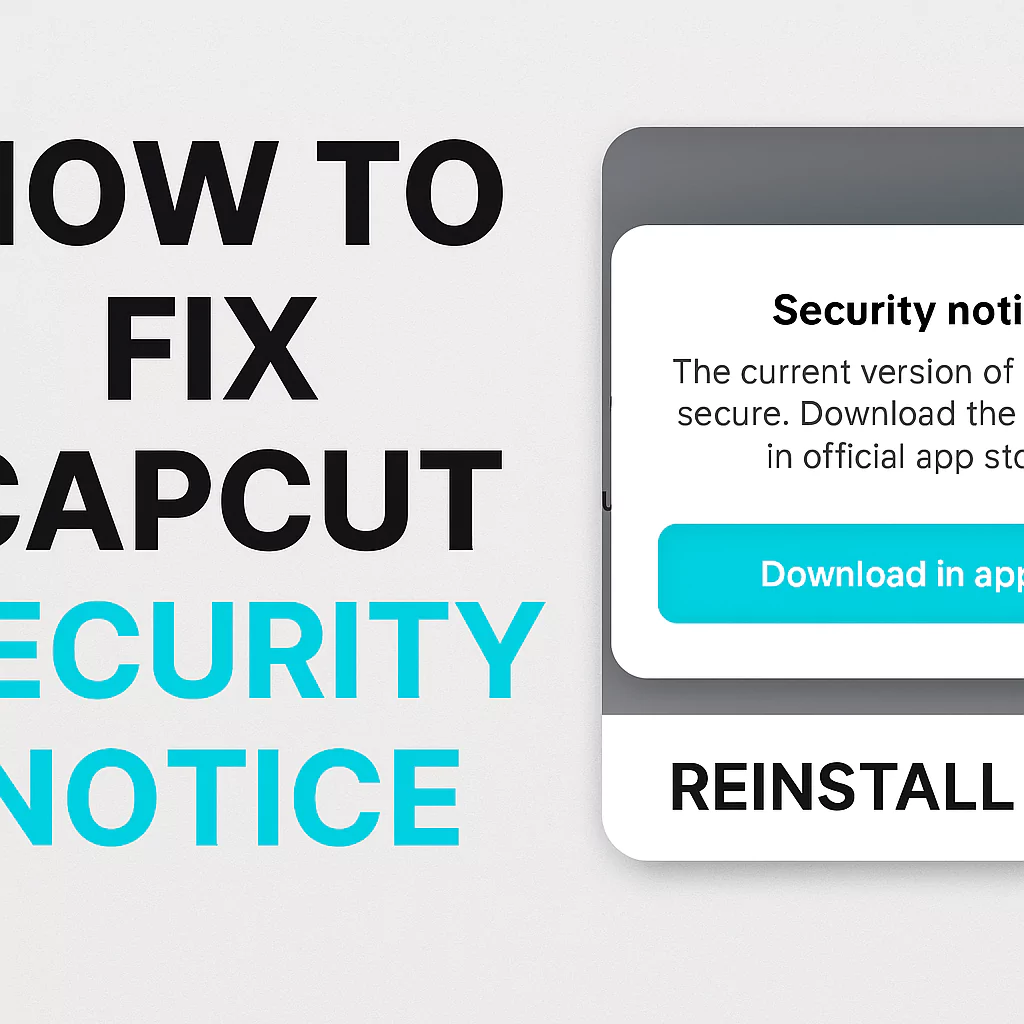
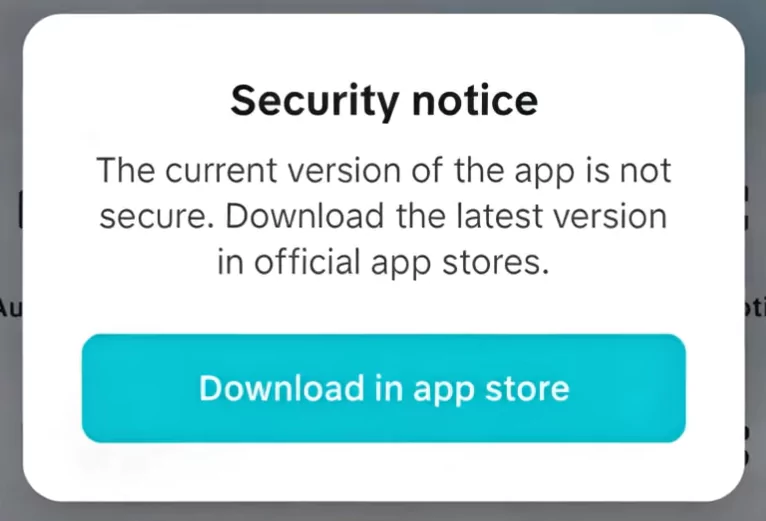
If you are ready to edit a video but suddenly hit with a “Security Notice” in CapCut, it can instantly kill your creative flow.
Instead of cutting clips and adding transitions, you are stuck staring at a pop-up telling you the app isn’t secure or needs an update.
The good news? This issue is usually easy to fix and in this guide, you will learn exactly how to solve it on Android, iPhone, or PC/Mac without losing your projects.
Quick Fix Table
| Cause | Quick Fix | Time Required |
|---|---|---|
| Outdated CapCut version | Update via Google Play / App Store | 2–3 min |
| Weak or unstable internet | Switch Wi-Fi/Data or restart router | 1–2 min |
| Corrupted app cache | Clear cache/storage | 2–4 min |
| Missing permissions | Enable all app permissions | 1 min |
| Persistent glitches | Reinstall CapCut from official store | 3–5 min |
What is the CapCut Security Notice?
The Security Notice issue has been discussed on our forum quite extensively. It appears when CapCut detects something unusual with your account, device, or app version.
This is CapCut’s way of protecting you from potential account breaches, corrupted app files, or unsafe software.
Common triggers include:
- Outdated app version
- Installed from unofficial sources (APK sites, modded builds)
- Unstable or restricted internet connection
- Login from unusual locations or devices
- Temporary app conflicts with other software
Signs you might see before the Security Notice appears
You may notice subtle hints before the error shows up, such as:
- Slower app loading times
- Certain buttons or features becoming unresponsive
- Difficulty logging in
- Sync issues with your drafts or cloud storage
Catching these early might help you fix the problem before it fully blocks you.
Why you should fix it immediately?
- Protect your account from unauthorized access
- Prevent losing unsaved projects
- Regain full access to all CapCut features
- Avoid editing interruptions during deadlines or client work
Step-by-Step fixes for the CapCut Security Notice
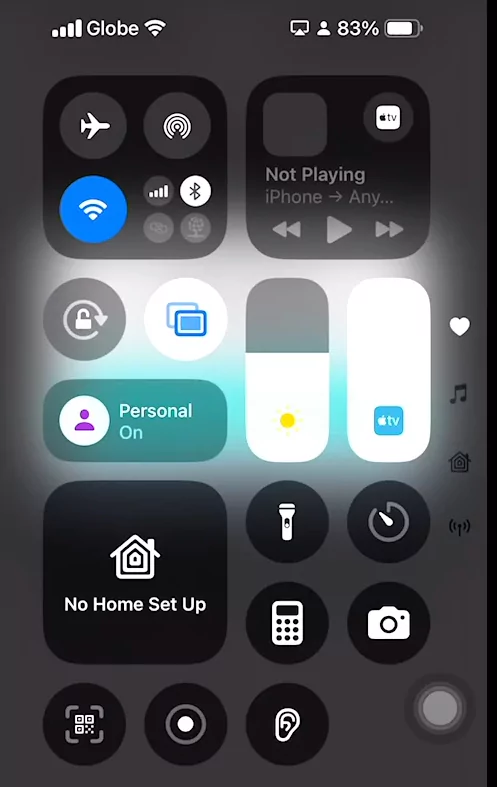
1. Check your Internet Connection
A weak or unstable internet connection can confuse CapCut’s security verification.
- Switch between Wi-Fi and mobile data.
- Restart your router if using a home network.
- Disable VPNs or proxies, as they may trigger the warning.
Tip: Use a stable, high-speed connection when logging in after updates.
2. Update CapCut from the Official Store
The most common fix.
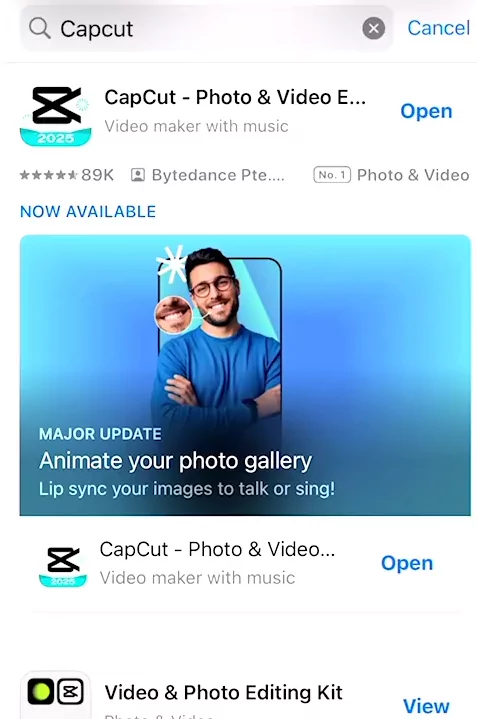
- Go to the Google Play Store or Apple App Store.
- Search for “CapCut” and tap Update.
- If no update is available but you still see the notice, uninstall and reinstall from the official store.
Avoid APK sites — installing from unofficial sources is a major cause of this warning.
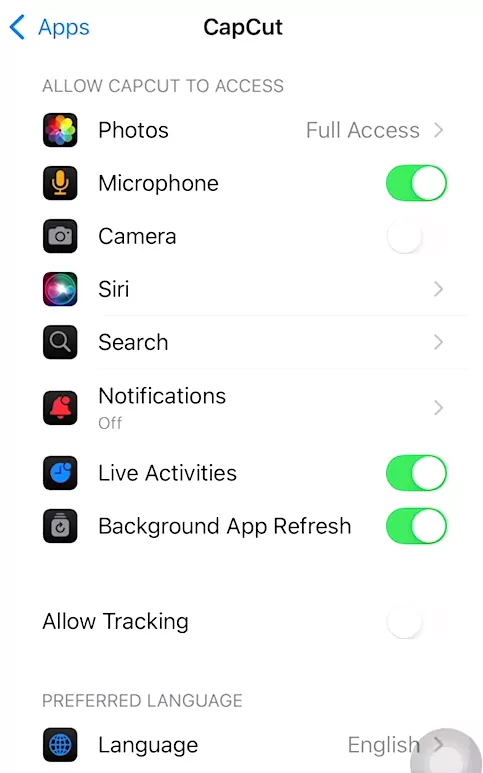
3. Grant full app permissions
CapCut may fail its security check if it can’t access necessary device functions.
On Android & iOS:
- Go to Settings → Apps → CapCut → Permissions.
- Enable permissions for storage, camera, microphone, and network access.
On PC/Mac:
- Ensure CapCut has network access through your firewall or antivirus settings.
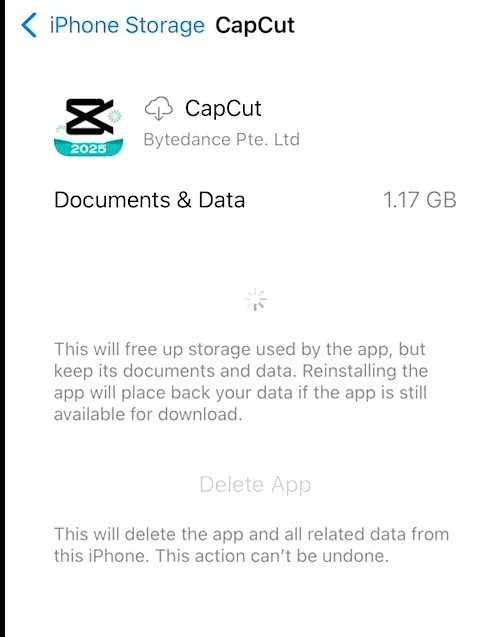
4. Clear cache or offload storage
Sometimes, old or corrupted cache files cause verification failures.
On Android:
- Settings → Apps → CapCut → Storage → Clear Cache.
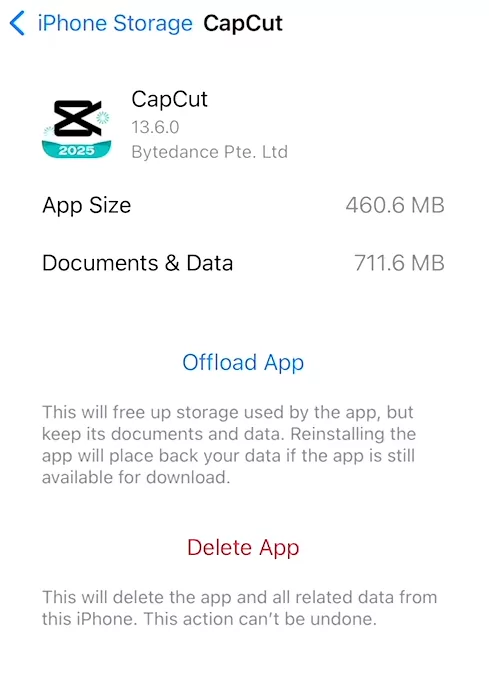
On iOS:
- Settings → General → iPhone Storage → CapCut → Offload App.
This resets the app without deleting your drafts (unless you clear data).
5. Backup projects before reinstalling
If you must reinstall CapCut, save your work first.
- Export important drafts as finished videos.
- Sync projects to CapCut Cloud (requires login).
- Copy exported files to another storage location.
6. Reinstall CapCut
When other fixes fail:
- Backup drafts.
- Uninstall CapCut.
- Reinstall from the official app store.
Most persistent security notices disappear after a clean install.
7. What NOT to do when you see the Security Notice
- Don’t try modded APKs or cracked versions to bypass it.
- Don’t repeatedly log in on multiple devices in a short time.
- Don’t ignore the warning — it won’t disappear on its own.
Using a VPN to Fix the CapCut Security Notice
While VPNs can sometimes trigger the CapCut security notice, in certain cases using a VPN can actually fix the issue—especially when the problem is related to regional servers, ISP restrictions, or network filtering.
When a VPN Can Help
Using a VPN may resolve the security notice if:
- Your internet service provider (ISP) is blocking or throttling CapCut services
- CapCut servers in your region are temporarily unstable
- You’re facing network-level restrictions (public Wi-Fi, workplace, school networks)
- Your IP address has been incorrectly flagged or rate-limited
In these situations, a VPN provides a fresh, stable connection path to CapCut’s servers.
How to Use a VPN Safely to Fix the Issue
Follow these steps carefully:
- Close the CapCut app completely
- Enable a trusted, reputable VPN (avoid free or unstable VPNs)
- Connect to a nearby or popular region (such as your own country or a major server like the US)
- Open CapCut and attempt to log in
- Once logged in successfully, keep the VPN connection stable
Tip: Do not switch VPN locations while CapCut is running.
Recommended VPN Usage Practices
To avoid triggering another security notice:
- Use one consistent VPN server
- Avoid rapidly changing IP addresses
- Disable VPN during app updates, then re-enable if needed
Important Disclaimer
VPNs should be used as a temporary troubleshooting step, not a permanent solution. If CapCut works normally without a VPN after login, it’s best to continue using it on your regular network.
- VPN can help if the issue is ISP or region-related
- Switching servers repeatedly can cause warnings
- Use VPN only during login or verification if needed
Device-Specific fixes
For Android:
- Clear cache/data from App Settings.
- Ensure “Background Data” is enabled.
For iPhone/iPad:
- Enable “Background App Refresh” in CapCut’s settings.
- Offload and reinstall if needed.
For PC/Mac:
- Download the latest version from CapCut’s official site.
- Disable strict firewall rules that may block app verification.
Related CapCut errors you might encounter
If you see a different error after fixing the security notice, it might be one of these:
- “Version Not Supported” — Requires update.
- “Login Failed” — Usually network or account-related.
- “Network Error” — Connection or firewall issue.
Frequently Asked Questions (FAQ)
Will reinstalling delete my projects?
Yes, unless you’ve saved them to CapCut Cloud or exported them.
Does the security notice mean my account was hacked?
Not necessarily — often it’s just an outdated app or unstable internet.
Can I still edit offline after seeing the notice?
No, you must resolve it before CapCut will allow editing.
How often should I update CapCut?
Check for updates at least once a month.
Troubleshooting Checklist
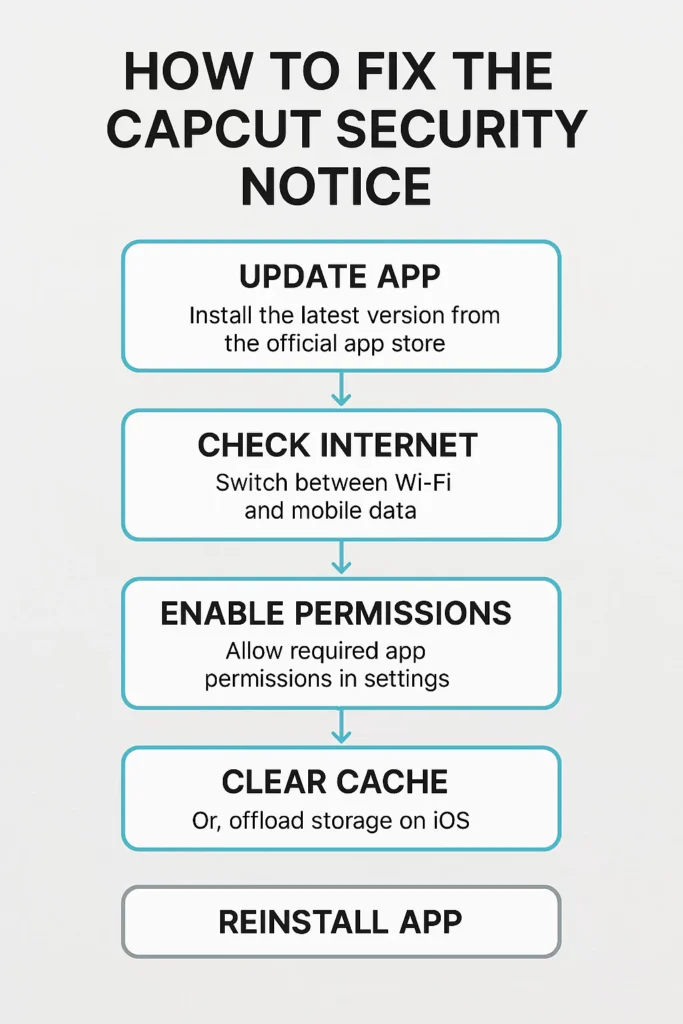
- Check your internet connection
- Update CapCut from official store
- Enable full app permissions
- Clear cache/offload app
- Backup projects and reinstall if needed
- Contact CapCut Support if problem persists
Conclusion
The CapCut Security Notice is meant to protect your account — but it can be frustrating when it stops your workflow.
By following the steps above, you can usually fix it in under 10 minutes and get back to editing your videos without losing any projects.
Pro Tip: Always use the official CapCut app from trusted sources and keep it updated to avoid future issues.