You know that feeling when inspiration hits—but time doesn’t?
You have an idea. Maybe even a few images saved on your phone. But turning that into a polished video? That usually means hours of editing, learning complicated software, or settling for cookie-cutter templates that all look the same.
That’s exactly where this story begins. I will show you in this post how can you convert your idea to videos in a short amount of time. Even better, you can create multiple versions of the video from your idea in order to compare and see which one is the best for you. So let’s go ahead.
The Problem Every Beginner Faces
Imagine this: you sit down to create your first video. You open a traditional editor, and immediately you’re asked to:
- Build a timeline
- Write a full script upfront
- Choose from rigid templates
It feels less like creating and more like assembling a puzzle you didn’t ask for.
For beginners, this friction is often enough to stop the process before it even starts.
Discovering a Different Way
Now picture something else.
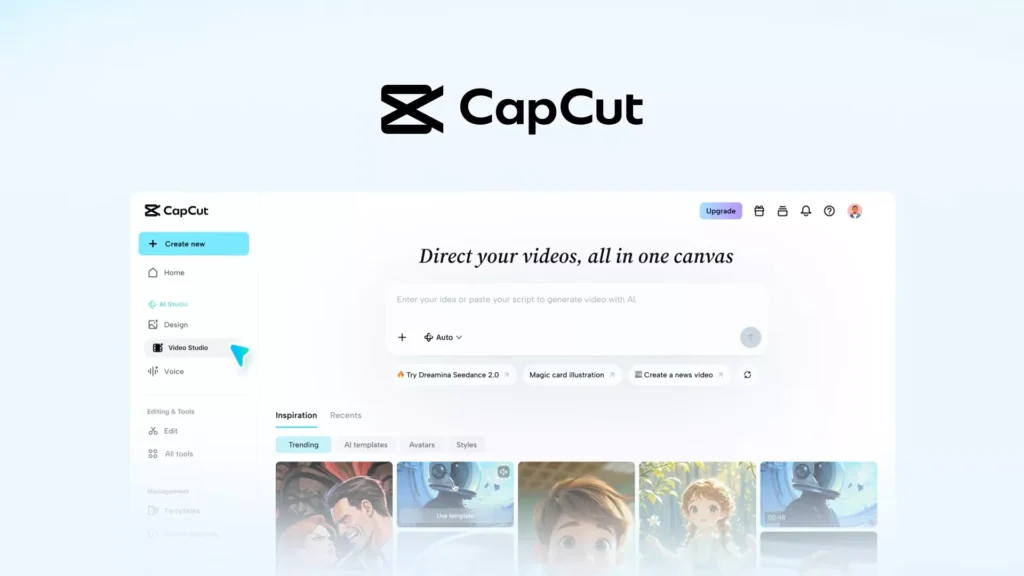
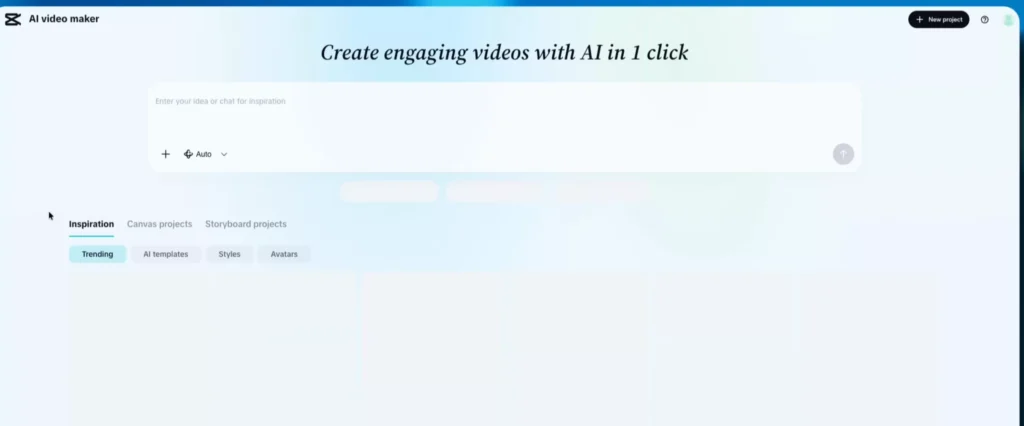
Instead of downloading heavy software, you open your browser and head to CapCut’s online editor. No installs. No setup headaches.
Inside, you find something unexpected—not a timeline, but a vast digital canvas.
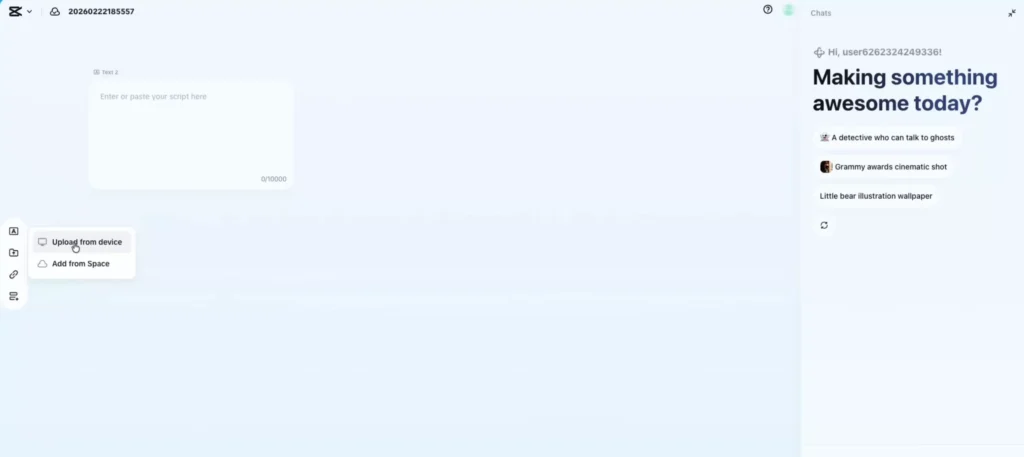
This is where things change. Watch the below introduction video from CapCut:
A Canvas Instead of a Timeline
Rather than forcing your idea into a rigid structure, the AI Video Maker 2.0 gives you an infinite canvas—like a creative whiteboard.
You can drop in anything:
- A paragraph of text
- Images
- Video clips
- Links
The AI instantly transforms these into visual cards.
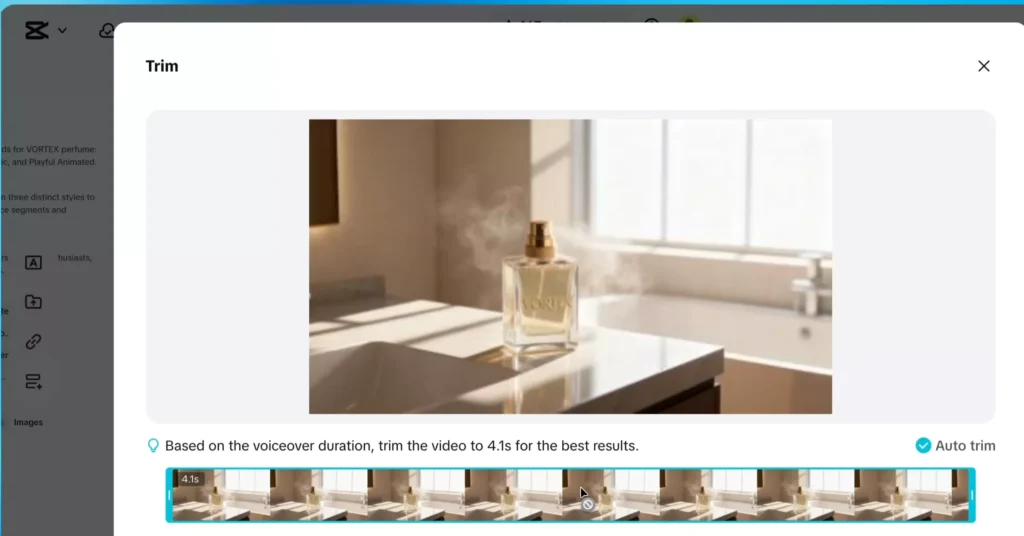
And here’s the magic:
- You can move them around freely
- Expand or remix ideas
- Regenerate scenes instantly
- Create multiple versions at once
It’s not just editing—it’s exploration.
The following experiments can also be done seamlessly using the free CapCut PRO APK. In this post I have shown how to do them using online version for convenience.
A First Experiment: Explaining Black Holes
Let’s say you’re curious about science and want to create a simple educational video.
You paste a short paragraph about black holes and upload a couple of images. Then you give the AI a prompt:
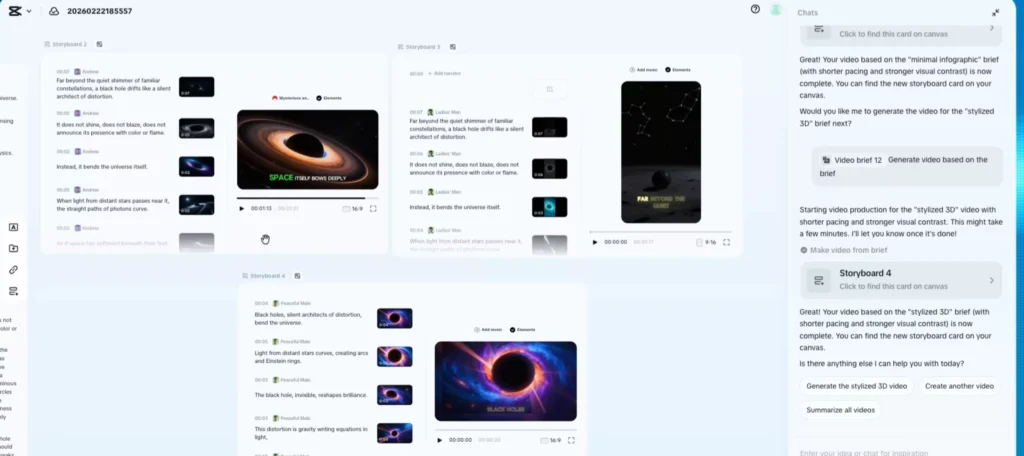
“Create three versions: cinematic, 3D stylized, and minimal infographic.”
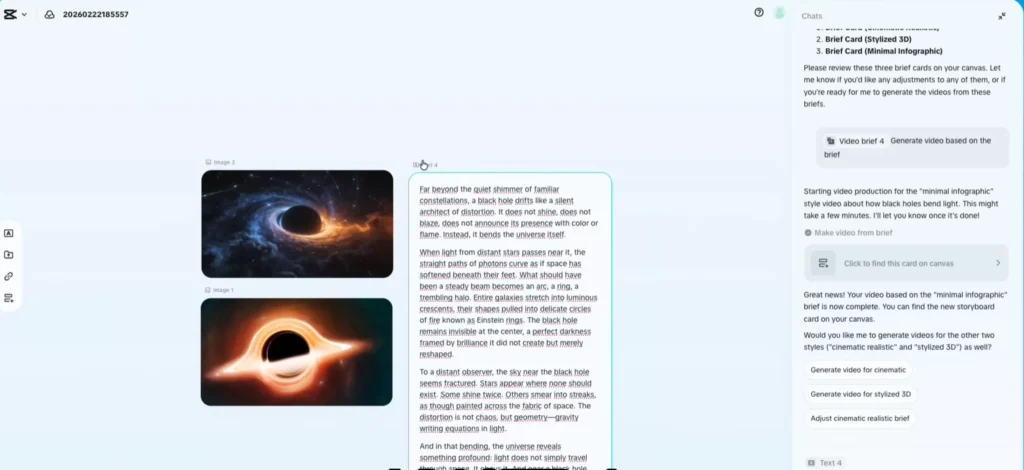
Within moments, something incredible happens.
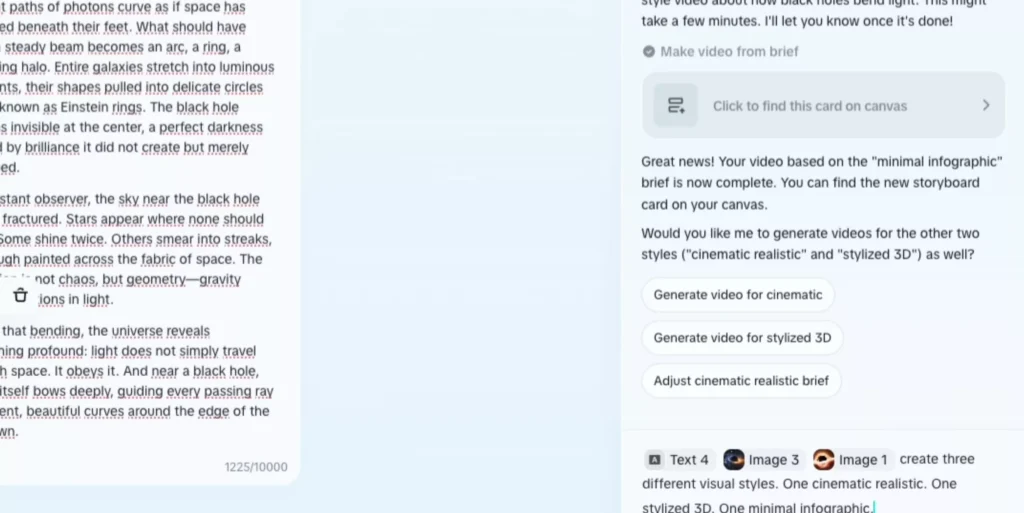
Step 1: Structure Appears
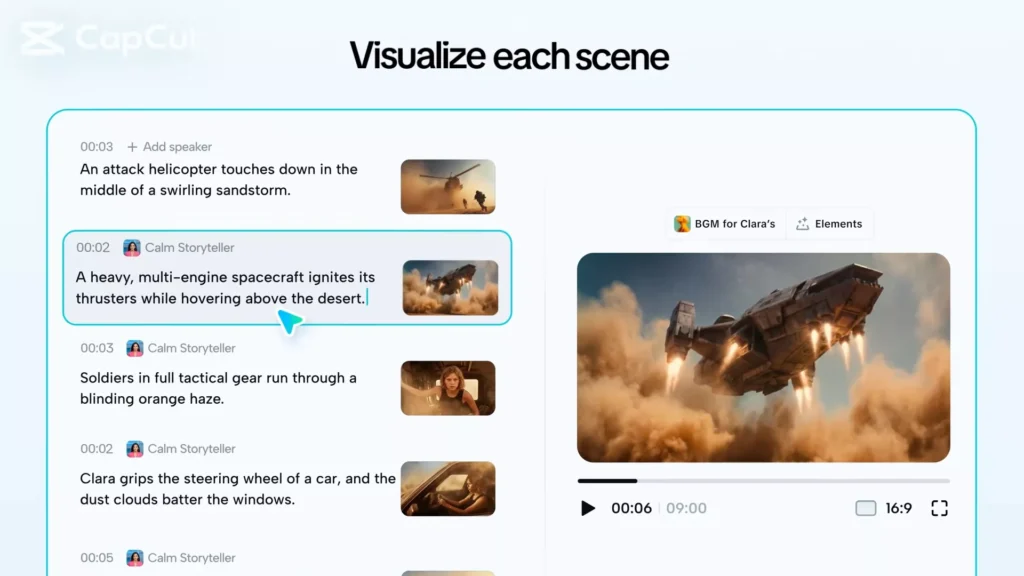
Scenes are automatically organized into cards across the canvas.
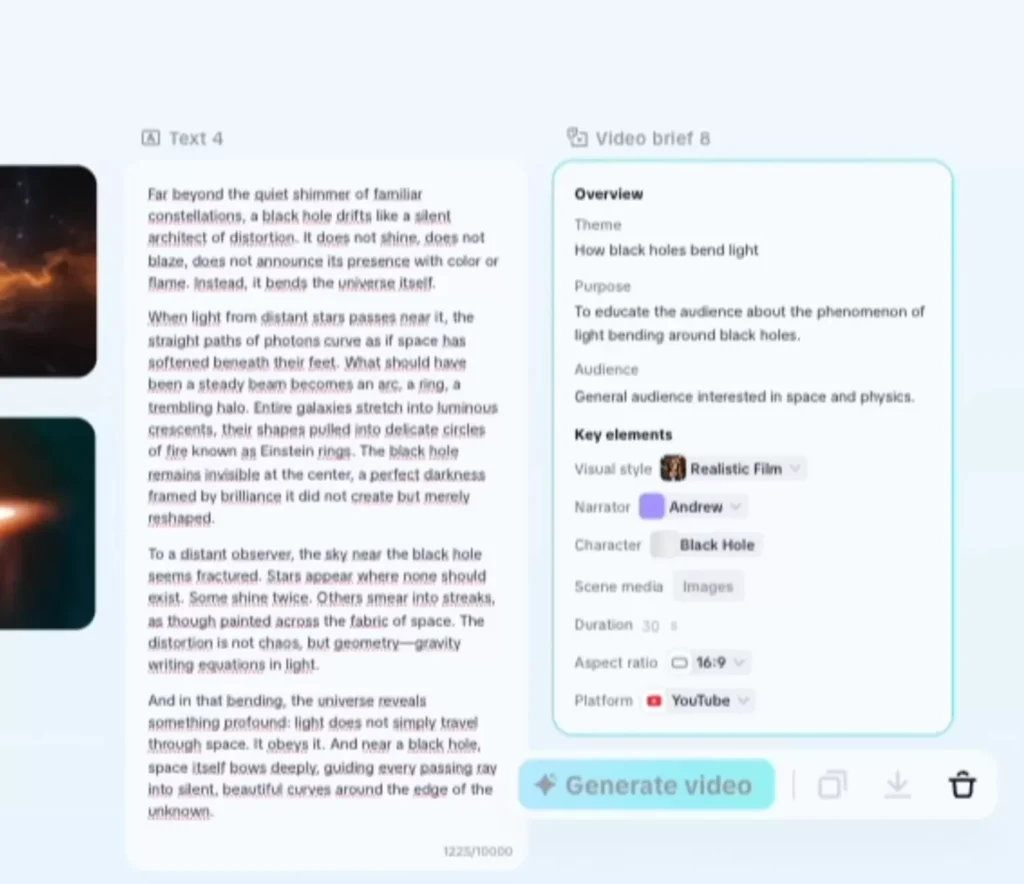
Step 2: Visuals & Voiceovers
Each version gets its own style, visuals, and narration.
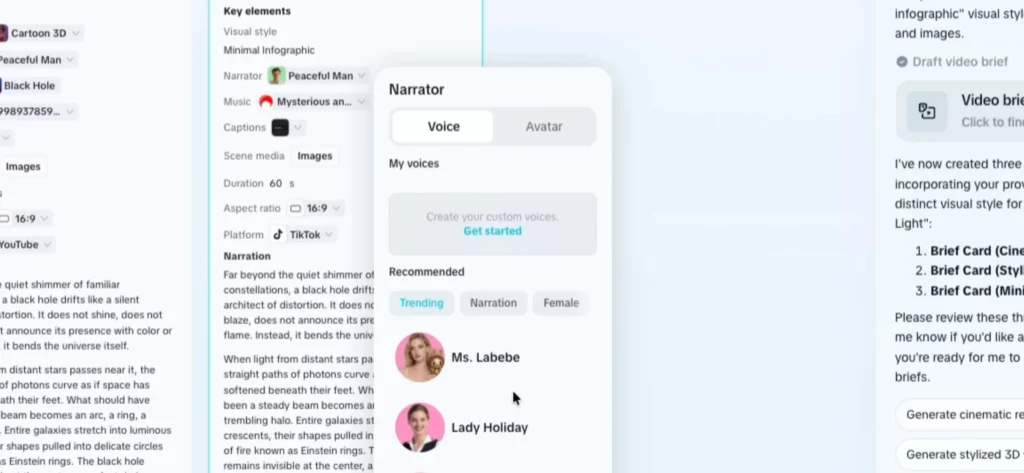
Step 3: Instant Refinement
You ask for faster pacing and stronger contrast—and the AI updates all versions at once.
Now you’re not stuck with one video.
You’re comparing three different storytelling approaches side by side.
- That’s a completely different mindset:
- Not “Did I make this right?”
- But “Which version works best?”
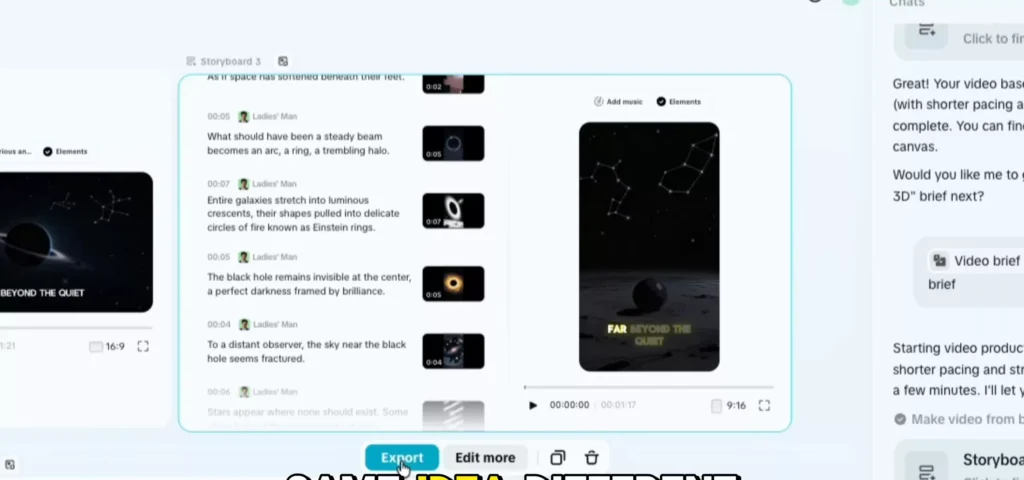
One Idea, Multiple Platforms
Here’s where it gets even more practical.
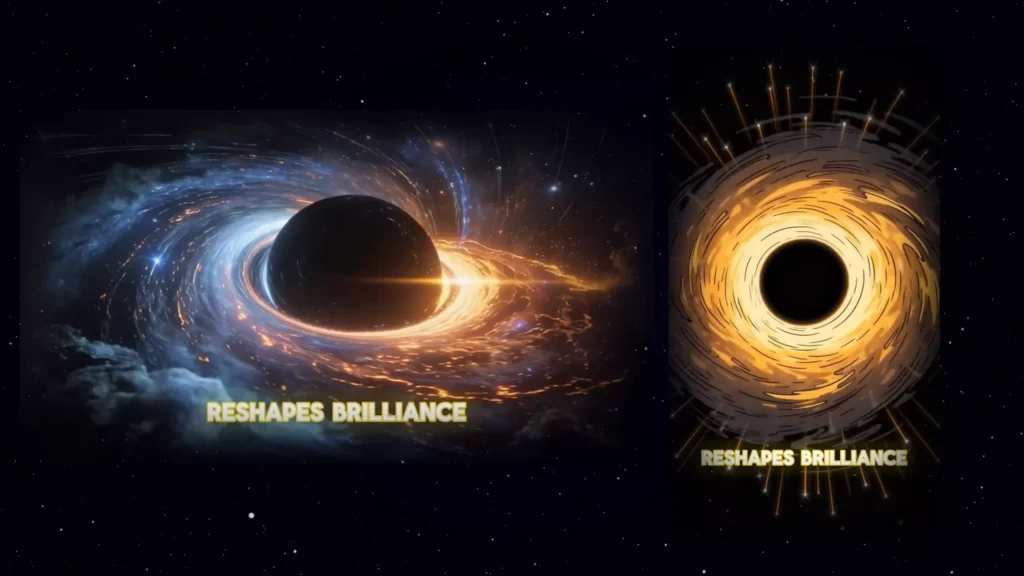
From that same black hole concept, you can:
- Export a cinematic horizontal version for YouTube
- Export a vertical infographic version for short-form platforms
One idea. Multiple formats. Zero extra effort.
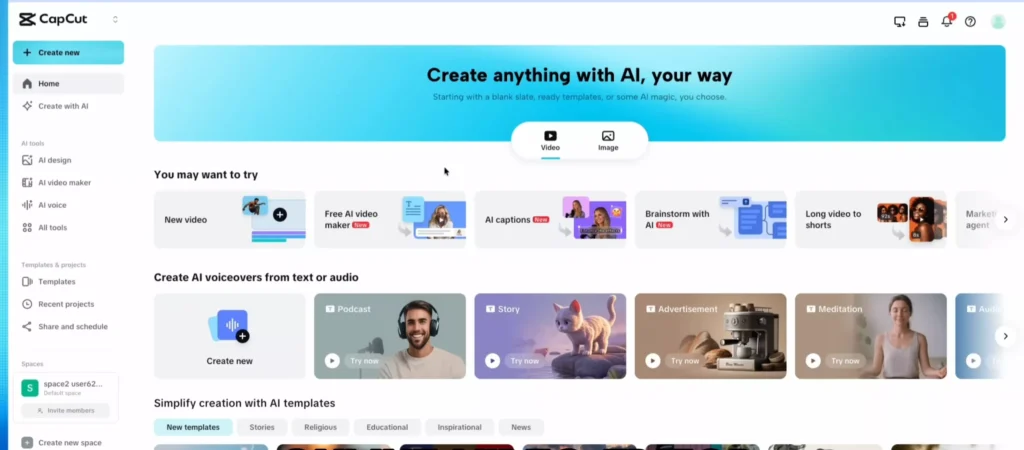
A Second Experiment: Product Marketing
Now imagine you’re promoting a product.

You upload a single image and ask for:
- A clean luxury ad
- A fast-paced energetic promo
- A playful animated version
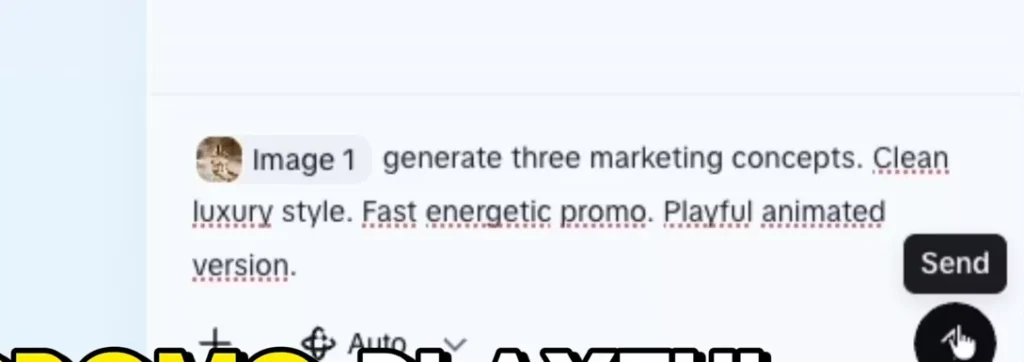
Again, the AI generates three completely different concepts.
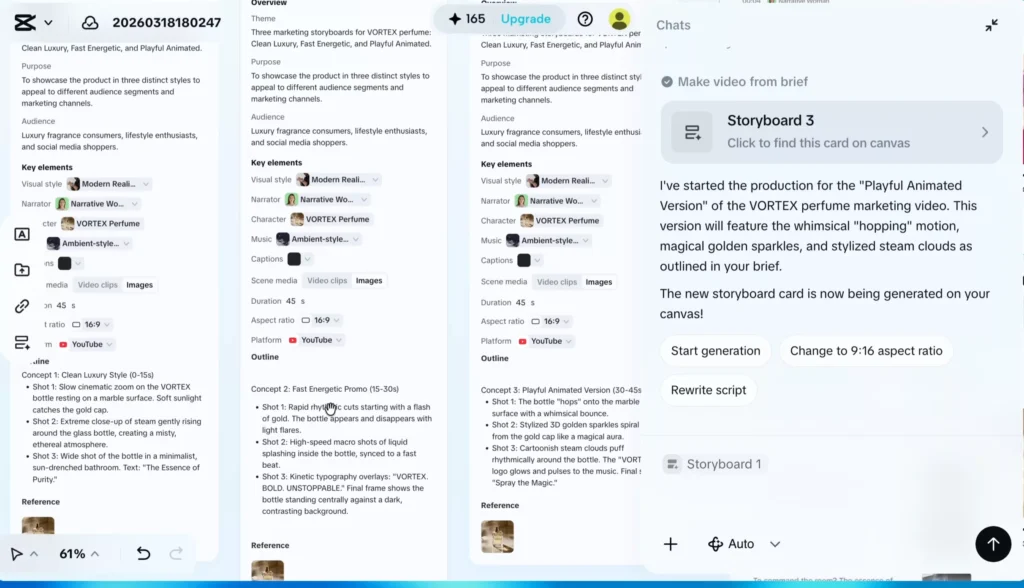
Instead of committing too early, you:
- Compare storytelling styles
- Adjust one scene across all versions
- Export the strongest performer

This isn’t just faster—it’s smarter.
The Real Shift: From Editing to Choosing
Traditional editing feels like this:
Build → Adjust → Fix → Hope it works
But this new workflow flips everything:
Generate → Compare → Refine → Select
You’re no longer trapped in one timeline.
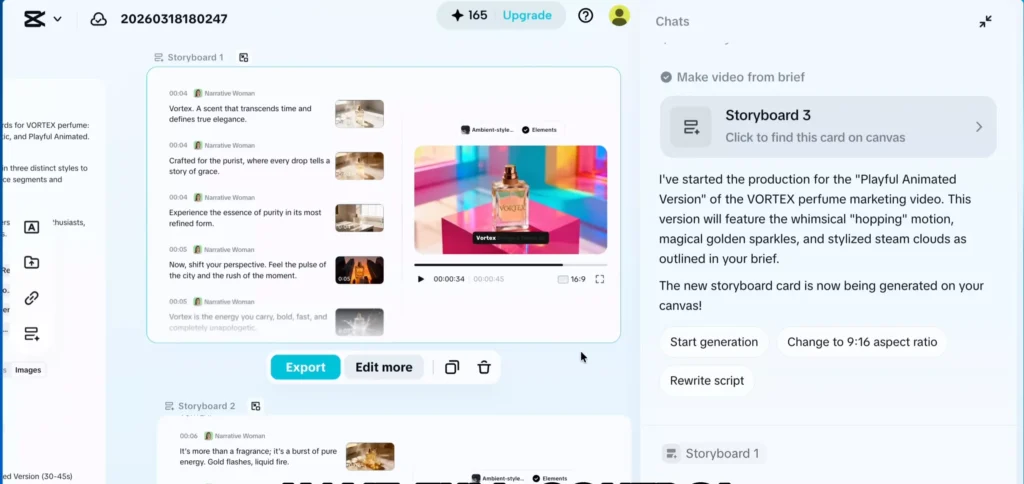
You’re exploring possibilities.
Still in Control (Even as a Beginner)
One of the biggest fears beginners have with AI tools is losing control.
But here, you still can:
- Edit any scene manually
- Change voiceovers
- Rearrange sequences
- Regenerate specific shots
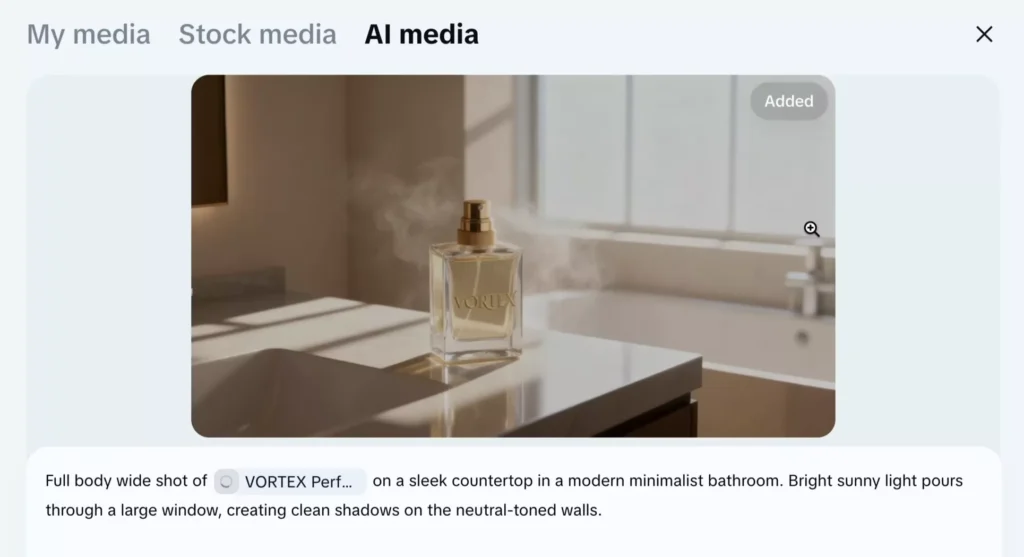
Or go bigger:
- Apply changes across every version at once
It’s flexible enough for beginners—and powerful enough to grow with you.
Why This Matters More Than You Think
This isn’t just a new feature.
It’s a shift in how videos are created.
Instead of:
- Learning complex tools first
- Spending hours on one version
You can:
- Start with an idea
- Let AI generate possibilities
- Focus on storytelling and creativity
That’s what makes it so beginner-friendly.
Your Turn to Create
If you’ve ever thought:
“I have ideas, but I don’t know how to turn them into videos…”
This is your entry point.
Open CapCut online, try the AI Video Maker, and experiment:
- Create multiple versions
- Compare styles
- Export what works
You might be surprised how quickly your ideas come to life.
Who is This Tool Best for?
Before diving deeper, let’s pause for a second.
Who is this actually for?
If you’ve ever felt like video editing was too complicated, too time-consuming, or just not worth the effort—CapCut video creator 2.0 was built with you in mind.
It’s especially useful for:
- Complete beginners who have ideas but no editing experience
- Content creators who want to produce more videos faster
- Small business owners who need simple marketing content
- Students and educators looking to explain ideas visually
You don’t need to know timelines, keyframes, or transitions.
If you can describe your idea, you can create a video.
How to Create Your First Video (Step-by-Step)
Let’s make this real.
Here’s what your first video could look like—from idea to export:
- Open CapCut online in your browser
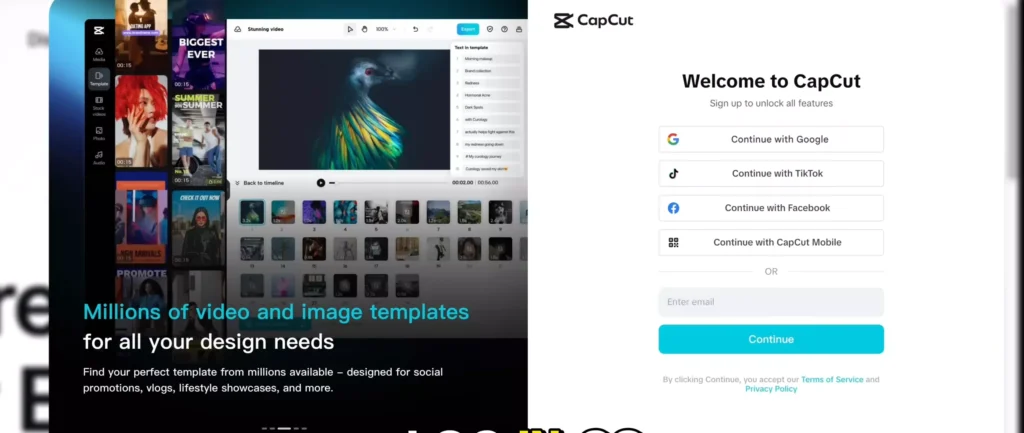
- Go to the AI Video Maker
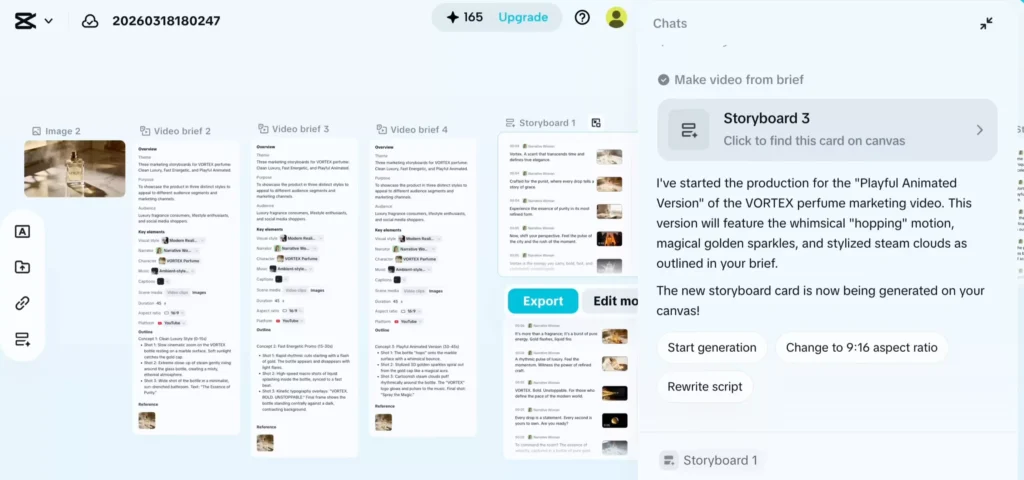
- Paste a short paragraph or upload an image/video
- Give the AI a simple instruction (e.g., “Create a cinematic and an infographic version”)
- Let it generate multiple versions
- Compare them side by side
- Ask for adjustments (shorter pacing, different visuals, new voiceover)
- Export the version you like best
That’s it.
No timeline. No complicated setup. Just idea → generation → selection.
Core Features Explained Simply
At first glance, everything might feel new. So here’s a simple breakdown of what’s actually happening behind the scenes:
- Infinite Canvas
Think of it as a creative workspace where ideas live freely—not locked into a timeline. - AI Storyboard Generation
Your input is automatically turned into structured scenes. - Multiple Versions at Once
Instead of one draft, you get several variations instantly. - Batch Editing
Change multiple versions with a single instruction. - Flexible Export
Easily create horizontal, vertical, or platform-specific videos.
Each feature removes a traditional pain point—and replaces it with speed and flexibility.
What I Liked and What Could Be Better
No tool is perfect—and that’s a good thing to understand upfront.
What I Liked
- It removes the intimidation of starting
- You can create multiple ideas in minutes
- No editing experience required
- Comparing versions side by side is incredibly powerful
What Could Be Better
- Results depend on how clearly you describe your idea
- The interface can feel unfamiliar at first
- Free access may be limited depending on usage
The learning curve isn’t about editing—it’s about learning how to communicate your ideas clearly to the AI.
Beginner Tips to Get Better Videos Faster
If you’re just starting, these small tweaks can make a big difference:
- Start simple
One short paragraph is enough for your first video - Ask for multiple styles
Don’t settle on one idea too early - Use batch edits
Instead of fixing one version, improve all versions at once - Focus on clarity, not perfection
Clear ideas produce better results than complicated ones - Experiment freely
The real power comes from trying different directions quickly
Think of your first few videos as experiments—not final products.
AI Video Maker vs Traditional Editing
To really understand the shift, it helps to compare:
Traditional Editing
- You build one timeline
- You manually adjust every detail
- You commit to one direction early
- It takes time to test new ideas
AI Video Maker Workflow
- You generate multiple versions instantly
- You compare ideas side by side
- You refine everything in batches
- You choose what works best
It’s the difference between building one option and exploring many possibilities.
What You Can Create With This
Once you understand the workflow, the possibilities open up quickly.
You can create:
- Short educational videos
- Product promotions
- Social media content (Reels, TikTok, Shorts)
- Story-driven personal videos
- Simple tutorials or explainers
And the best part?
You don’t need a different workflow for each. The same process applies to all of them.
Mistakes Beginners Make and How to Avoid Them
Starting something new always comes with a few bumps. Here are the most common ones:
- Trying to perfect one version too early
→ Generate multiple options first - Using too much text
→ Keep your input short and clear - Not experimenting with styles
→ Ask for at least 2–3 variations - Ignoring pacing and contrast
→ These small tweaks make a big difference - Overthinking the process
→ Treat it like exploration, not a final exam
Avoid these, and your learning curve becomes much smoother.
Frequently Asked Questions
Do I need any editing experience?
No. That’s the whole point—you can start from zero.
Can I use my own images or videos?
Yes, you can upload your own assets and build from them.
Is this only for short-form content?
No. You can create both short-form and long-form videos.
Is it free?
There is limited free access, depending on availability and usage.
What platforms can I export for?
You can easily format videos for YouTube, TikTok, Instagram, and more.
Final Thought
Instead of asking “Can I make a video?”—you’re now asking:
“Which version of my idea works best?”
That’s a powerful shift.
So here’s a simple challenge:
Take one idea—just one paragraph—and turn it into three different videos.
Compare them. Adjust them. Learn from them.
Because once you see your ideas come to life this quickly…
You won’t go back to the old way. I hope you liked this idea. Let me know in comments about what you tried today and how did you like the CapCut Video Maker 2.0.