

I have two videos that are both around 23 minutes long, but one is 11 GB while the other is only 4 GB. What could be causing such a large difference in file size?

Hi,
From what I can see, your computer isn't playing tricks on you, and there is a very simple explanation for what’s happening here.
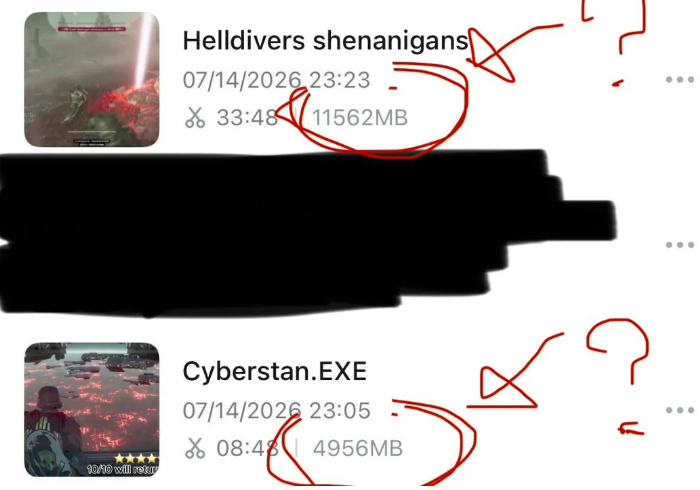
You haven't actually made two 23-minute videos. The UI is just a bit confusing at a glance.
1. The "23-Minute" Mystery Solved
The number 23 you are seeing is actually the time of day (in 24-hour military format) when you last edited or saved the projects, not the length of the videos:
-
Helldivers shenanigans: Saved at
23:23(11:23 PM) -
Cyberstan.EXE: Saved at
23:05(11:05 PM)
The actual length of your videos is shown next to the scissors icon (✂):
-
Helldivers shenanigans: 33 minutes and 48 seconds (
33:48) -
Cyberstan.EXE: 8 minutes and 48 seconds (
08:48)
Since the Helldivers video is nearly four times longer than the Cyberstan video, it makes complete sense that its file size is much larger (11.5 GB vs 4.9 GB).
2. Why are CapCut project sizes so massive anyway?
Even for an 8-minute video, 4.9 GB is quite a hefty file size. If you are wondering why CapCut projects balloon in size so quickly, it usually comes down to a few behind-the-scenes factors:
-
High-Resolution Source Clips: If you are importing gameplay recorded in 4K or 1080p at 60 frames per second (fps), those raw files are massive. CapCut references these original files.
-
Smart/Performance Cache: CapCut automatically generates pre-render cache files so your timeline doesn't lag while you edit. These temporary rendering files can easily take up several gigabytes.
-
Proxies: If you have "duplicate/proxy" editing turned on, CapCut creates duplicate, lower-resolution versions of your clips to make editing smoother, doubling up on space.
Quick Tip to Free Up Space
If your hard drive is crying for help, you can easily clean this up without losing your projects:
-
Go to the CapCut homepage.
-
Click on the Settings gear icon.
-
Find the Cache section and click Clear Cache/Delete. This will safely wipe the temporary render files and free up gigabytes of storage space instantly without deleting your actual video edits!