

I'm trying to delete a video from my project, but whenever I do, two other items on the timeline are deleted as well. It seems like they're somehow linked to the video.
Does anyone know how I can unlink them or delete just the video without removing the other timeline elements?
Any help would be appreciated. Thanks!

Hi,
When deleting one clip triggers a domino effect on your timeline is what you are experiencing is due to CapCut’s Track Linkage feature.
When Track Linkage is active, any secondary elements (like text, overlays, or audio) are bound to the video clip on the main track. If you delete or move that main clip, everything linked to it goes down with it.
Here is how you can easily unlink your clips and delete just the video, depending on whether you are using CapCut on a computer or a mobile device.
If you are using CapCut Desktop (PC / Mac)
You have two simple ways to turn this off on your computer:
Method 1: Toggle the "Track Linkage" Button (Best Option)
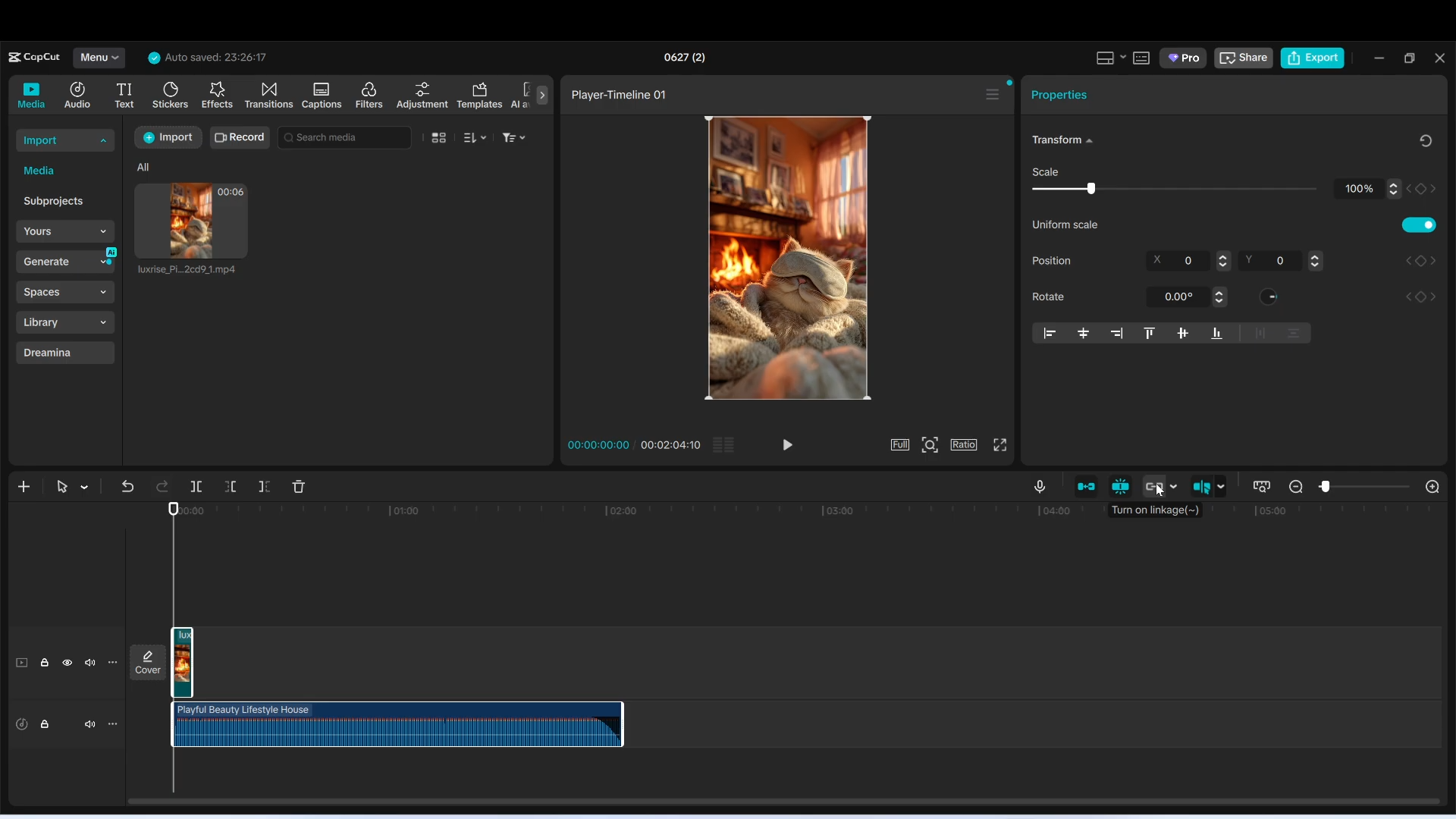
Right above your timeline (usually on the far right side of the timeline's toolbar, near the magnet icon), you will see an icon that looks like two overlapping chain links.
-
Hover over the icon to confirm it says Turn off linkage (or Track Linkage).
-
Click it to turn it off (the icon will go from white/light blue to greyed out).
-
Shortcut: You can also press the
~(tilde) key on your keyboard to instantly toggle this setting on and off. -
Once linkage is turned off, select your main video clip and press Delete. Your other timeline elements (text, audio, overlays) will stay exactly where they are.
Method 2: Ungroup the Clips
If turning off linkage didn't work, your clips might be hard-grouped together.
-
Select the clips in your timeline.
-
Right-click on them and select Ungroup, or use the keyboard shortcut:
-
Windows:
Ctrl + Shift + G -
Mac:
Cmd + Shift + G
-
-
Try deleting your video clip again.
If you are using CapCut Mobile (iPhone / Android)
On mobile, you can manually unlink the secondary tracks before making the edit.
-
Tap on the video clip on your timeline.
-
Scroll through the bottom toolbar options all the way to the right.
-
Look for the Link or Unlink tool (it looks like a chain link).
-
Tap Unlink to sever the connection between that video and any overlapping text or audio.
-
Select the video and tap Delete.
Pro-Tip: Want to replace the video instead of leaving a gap?
If you are deleting the video because you want to swap it for a different clip without messing up your perfectly-timed texts or music:
-
Turn off Track Linkage (using the steps above).
-
Right-click the new video clip in your media bin, choose Replace, and drop it over the old one.
-
This swaps the background footage instantly while leaving your other timeline elements completely untouched.
