

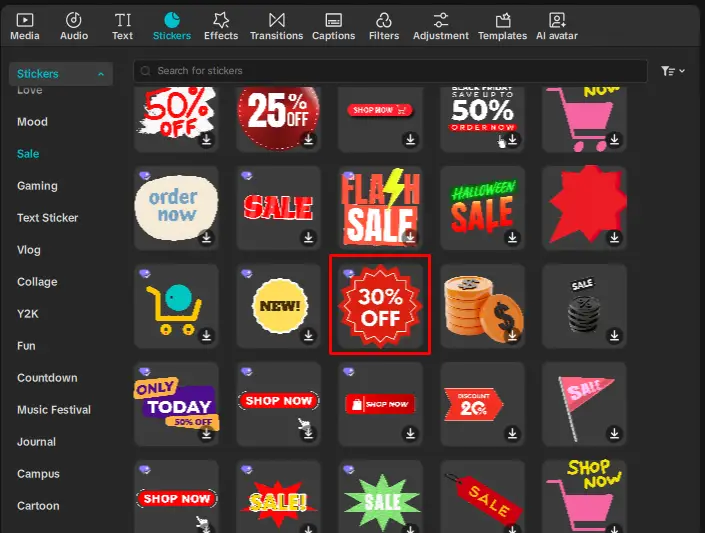
I'm using a sticker that says 30% off. It is the only one that looks like this but if I want to say 50% off, is it even possible to edit? I can't see anywhere to do so 😆

Hi,
Most CapCut stickers cannot have their text edited, including the “30% OFF” one you highlighted.
CapCut has two types of stickers:
1. Static image stickers those are not editable
These are pre-designed graphics.
If the text is “baked into” the image (like 30% OFF, SALE, FLASH SALE, etc.), CapCut does not allow text changes.
The sticker you are using is one of these that is why you don’t see a text-edit option.
2. Editable text stickers which you can edit
These usually appear under:
-
Text → Text Templates
-
Stickers → Text Sticker
They contain editable text layers, and when you add one, CapCut shows a text box you can modify.
Your sticker is not one of these templates, unfortunately.
So how can you get a 50% OFF version?
Here are your options:
Use a similar editable text sticker
Go to:
Stickers → Text Sticker
or
Text → Text Templates
Search “sale” or “discount.”
These allow text editing, but the design may differ slightly.
Recreate the sticker manually
Add the badge shape
CapCut doesn’t have that exact seal shape as a native shape, but you can find a very similar one.
1. Use the built-in starburst sticker
-
Go to Stickers
-
Search for: “burst”, “starburst”, “explosion”, or “sale shape”
-
Pick a plain spiky/burst shape (usually red or customizable)
If you don’t find a plain version:
-
Choose any burst-type sticker
-
Delete any text it comes with
-
Or recolor it using Filters → Adjust → Hue/Saturation
2. Use CapCut Web for more shapes
CapCut Web has more shape templates:
-
Go to Shapes → Badge / Burst
Set the color
The sticker you showed uses:
-
Bright red background
-
White text
-
White dotted border stroke
To match it:
-
Select the shape
-
Go to Style
-
Set Fill color: Red (#E40000 or similar)
-
Add a white outline (stroke)
Add the text
-
Go to Text → Add Text
-
Type: "
OFF"
-
Change color to white
-
Use a bold font (or the font most similar to the original: blocky, sans-serif)
Formatting tips:
-
Make 50% larger than OFF
-
Center-align everything
-
Position text centered within the shape
Add the inner dotted border makes it match perfectly
CapCut doesn’t have a built-in dotted-stroke feature for shapes, so below is the workaround.
Method A — Use a dotted-circle sticker
-
Search in Stickers:
-
“dotted circle”
-
“border”
-
“dashed line”
-
“circle outline”
-
-
Add it and resize to sit just inside the burst shape.
-
Change color to white (if recolorable).
Method B — Create your own border (fastest)
-
Duplicate your burst shape
-
Resize it slightly smaller
-
Change its color to white
-
Reduce its opacity to 20–30% (optional)
-
Increase the stroke
-
Lower the shape's fill opacity so only the border shows
This won’t be dotted, but visually it will look close to the original.
Group everything
To make the sticker behave like a single object:
-
Select the shape + text
-
Right-click → Group (or use the top menu)
Now you have a reusable “50% OFF” sticker.

Option C — Import your own PNG badge
You can create a matching “50% OFF” badge in:
- CapCut web
-
Canva
-
Photopea
-
Figma
Export as PNG with transparent background
→ Upload into CapCut as an image
→ Use like a sticker.