

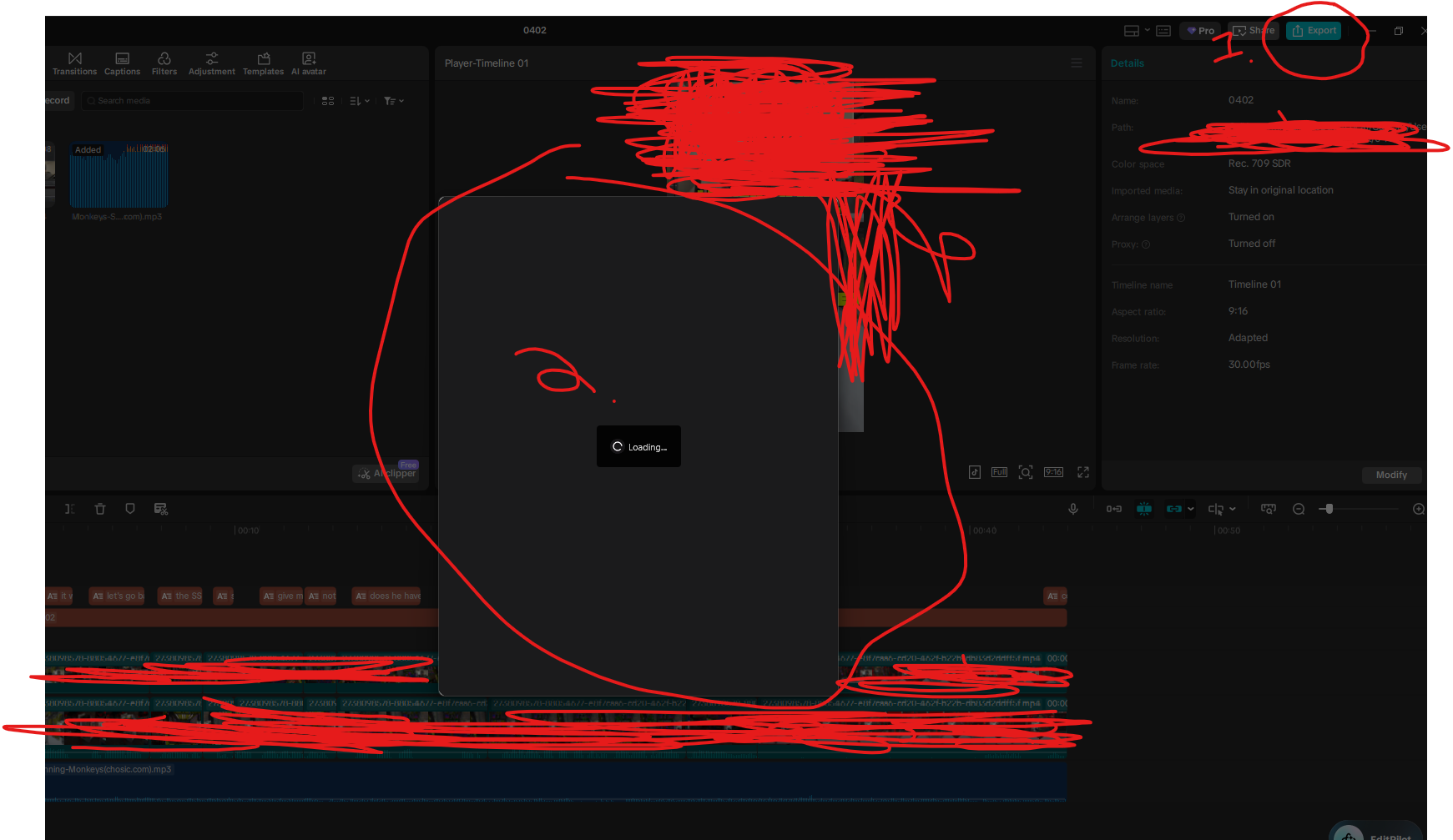
Upon clicking the export button on my video. capcut sits here LOADING forever and does nothing.
When trying to export a different video. it works flawlessly.
Only difference is that on the affected video I used Auto Caption, and not on the other. This was used with the free credit so no premium issues should be occurring.
I manually removed all text boxes produced by the captions and replaced them with standard boxes yet the issue persists.
I have made all changes to performance tab reccomneded by other issues and posts, still no resolution.
File size is less than 1gb.

Hi,
This is a known CapCut issue when Auto Captions were used at any point in the project, even if you later delete them.
What you are seeing (infinite “Loading…” on export) means something in the project timeline is silently failing to render.
Why this happens
From your description, the key trigger is:
- You used Auto Captions
- Then removed/replaced them
CapCut keeps hidden caption metadata or corrupted subtitle layers, which:
- don’t show visually
- but break export rendering
How to resolve this issue
Below we suggest these effective methods
1. Copy timeline into a NEW project
This fixes hidden corruption almost every time.
Steps:
- Create a new project
- Go back to the broken project
- Press Ctrl + A → Ctrl + C
- Paste into the new project (Ctrl + V)
- Try exporting again
This removes hidden caption artifacts in the project file.
2. Remove hidden caption tracks (even if invisible)
Sometimes captions still exist as a “track.”
Check:
- Timeline → look for Captions / Auto Captions
- Toggle track visibility
- Delete anything caption-related again
3. Render/export in parts
This helps isolate the issue.
Try:
- Export only first half of the video
- Then second half
If one part fails, you’ve found the corrupted segment.
4. Replace problematic clips
Auto captions sync to audio—so audio clips can cause the issue.
Try:
- Delete the audio track
- Re-import it fresh
- Re-align it
5. Turn OFF hardware acceleration
Even if you adjusted performance settings, double-check:
- Settings → Performance
- Turn OFF:
- Hardware encoding
- Hardware decoding
CapCut export bugs freeze on GPU encoding.
6. Export via “proxy workaround”
If it still hangs:
- Duplicate the project
- Lower resolution (e.g., 1080p → 720p)
- Export
- If it works → upscale later
7. Force re-encode trick
Make a tiny edit:
- Move one clip slightly
- Add/remove a frame
- Change export name
This forces CapCut to rebuild the render pipeline
If the above methods does not help you solve then:
Then your project file is corrupted specifically by captions.
Final workaround:
- Export XML/EDL-style recreation manually:
- Rebuild timeline in a new project using same assets
- (annoying, but guaranteed fix)
Important message
Even though you: “removed all text boxes”
CapCut still stores:
- timing data
- speech segments
- caption engine references
That’s what breaks export—not the visible text.
Most recommended fix based on my experience for your situation:
- Copy everything into a new project
- Disable hardware acceleration
- Export
That solves ~90% of cases like yours.
We can talk through your exact timeline setup and pinpoint the exact failing layer if you can describe more details after trying the above methods.