
Security Notice Bug...
 
Notifications
Clear all

Security Notice Bug Appearing on CapCut PC

37 Posts
6 Users
1 Reactions
4,342 Views
Posts: 0
 Jay
(@Jay)
Joined: 1 second ago

The only method that works for me is to format my computer and delete all files. Which is very hassle to do.


Reply
CapCut Edit
Posts: 926
Admin
(@admin)
Member
Joined: 2 years ago

This issue strongly points to a server/verification check that is failing when CapCut reaches the network.

Below we have complied targeted, advanced steps which you can try until CapCut developers fix this issue:

Quick checks to do..

  1. Make sure Windows time/date is exact and set to automatic (Settings → Time & language → Date & time). Many TLS / verification failures happen when the system clock is wrong.

  2. Disable any system-wide adblockers / Pi-hole / router DNS-blocking temporarily (these can hide CapCut/TikTok endpoints). These checks are fast and resolve server-verification errors.

Advanced network / system fixes to try:

Check & clean your hosts file

Open Notepad as Administrator, then open:

C:\Windows\System32\drivers\etc\hosts

Remove any lines that reference capcut, tiktok, bytedance, or any suspicious entries that redirect hosts to 127.0.0.1 or 0.0.0.0. Save file.

  • a hosts entry can silently block/redirect verification servers and trigger a security notice.

Flush DNS, reset Winsock and TCP/IP stack

Open Command Prompt as admin and run these three commands:

ipconfig /flushdns netsh winsock reset netsh int ip reset

Restart computer afterwards.

  • corrupt DNS cache or Winsock issues can make app-to-server handshakes fail even when browser works. CapCut network errors can be resolved through resets.

Use a public DNS as a test

Temporarily set your NIC DNS to Cloudflare or Google:

  • IPv4 DNS: 1.1.1.1 and 1.0.0.1 (Cloudflare) or 8.8.8.8 and 8.8.4.4 (Google).

  • Reboot and test CapCut while online.

    • sometimes local ISP/resolver blocks or misroutes CDN endpoints.

Disable proxy & VPN & any “network filtering” apps

  • Settings → Network & internet → Proxy → make sure everything is OFF.

  • Temporarily uninstall/disable VPN/third-party network/security tools (including system-level ad-blockers, Fiddler, and loopback proxy apps).

If CapCut PC is working offline a proxy/VPN/region filter interferes with verification.

Reset Microsoft Store / Store licensing if Store version also failed:

  1. Run wsreset.exe (Start → type wsreset, Run as admin).

  2. If that does not help, re-register Store packages (PowerShell as admin):

Get-AppxPackage -allusers Microsoft.WindowsStore | 
Foreach {Add-AppxPackage -DisableDevelopmentMode -Register "$($_.InstallLocation)\AppXManifest.xml"}
  1. Reinstall CapCut from the Store after doing the above.

The Store cache or package registration can block Store apps from performing license/online checks.

Add CapCut to Windows Firewall / AV allowlist and create outbound rule

  • If you use third-party antivirus, temporarily disable it.

  • Add an Outbound firewall rule to allow CapCut (CapCut.exe) full network access (or just remove restrictions).

  • Alternatively block CapCut’s network access as a test if it then no longer shows the Security Notice, the error is indeed coming from a specific verification call and you can work from there.

  • AV/firewall can interfere with the verification handshake.

Inspect what domains your CapCut app tries to contact

  • Use Resource Monitor (resmon.exe) → Network tab → launch CapCut and watch Network Activity to see the hostname/IP CapCut connects to.

  • Or use a simple tool like TCPView from Sysinternals to see active connections when you start CapCut.

That will show the endpoint that triggers the popup (example: CDN / verification host tied to ByteDance/TikTok). Once you have that hostname, you can:

  • Temporarily allow it through firewall, or

  • Search the hostname online to see if it’s blocked by your ISP/region.

This is how you find the exact failing endpoint rather than guess.

Update Windows Root Certificates & make sure TLS is enabled

  • Run Windows Update fully (sometimes root CA updates are required).

  • Ensure TLS 1.2 is enabled (most modern apps require it). You can check Internet Options → Advanced → ensure “Use TLS 1.2” is checked.

  • server verification requires valid certificate chains; expired/missing root certs or disabled TLS versions can break verification.

Workarounds for immediate continuity:

  1. Offline-first workflow — launch CapCut while offline, create your project, save it, then connect to the Internet only when necessary. This avoids the pop-up when you connect online but is not ideal long-term solution.

  2. Sandbox / VM — run CapCut inside a clean Windows VM or different user profile to test whether something in your main profile is causing the verification failure.

  3. Try a different network — tether to mobile data (phone hotspot) and test; if hotspot works, it's likely your router/ISP blocking endpoints.

If none of the above works

Please send us the results of quick diagnostic you can run now:

  1. Open an admin Command Prompt and run:

 
ipconfig /all > %userprofile%\desktop\network-info.txt
  1. While CapCut is running and connected, open Resource Monitor (resmon) → Network and list any remote hostnames that show for CapCut.exe (or take a screenshot of that Resource Monitor output).

Mainly this issue is primarily a network/verification failure and the next best step is to identify the endpoint.

If your CapCut works offline but errors when online, it is almost certainly failing a server/TLS/host verification which can be fixed by checking/cleaning the hosts file, flushing DNS + Winsock, disabling proxies/VPNs, resetting Microsoft Store cache, and either allowing or blocking the app in your firewall while you inspect which remote host is being contacted.


Reply
Posts: 3
(@akbar)
Joined: 2 months ago

i did everything (except VM) and still appear. 
https://imgur.com/a/HDNr3V5
https://imgur.com/a/Ufwy8xp


Reply
1 Reply
CapCut Edit
Admin
(@admin)
Joined: 2 years ago

Member
Posts: 926

Hi,

You have connections from CapCut to Google DNS (8.8.8.8) using TCP port 443.
This is not normal as CapCut should never talk to Google DNS over HTTPS and DNS is normally UDP/TCP 53, and HTTP-based DNS (DoH) uses domain endpoints, not raw IPs.

Seeing this pattern tells us that your PC is using forced or hijacked DNS-over-HTTPS routing

This is caused by one of three things:

A system-level VPN / privacy tool / DNS filter is still active even if you think it is disabled

Usually below are the problems:

  • Cloudflare WARP

  • NextDNS App

  • AdGuard Desktop

  • SimpleWall

  • Psiphon / HotspotShield leftovers

  • 360 Total Security / Avast privacy filters

  • Killer Intelligence Center / Intel Networking Services

  • Glary Utilities / SystemCare “web shield”

  • Old proxy entries left in the registry

These tools silently intercept all DNS and “upgrade” it to secure DNS via 8.8.8.8 or other resolvers. CapCut’s verification fails when DNS is intercepted, triggering the “Security Notice”.

Router-level DNS hijacking

Some ISPs, routers, or even malware override DNS and force 8.8.8.8, ignoring Windows settings.

A hidden Windows service doing DNS-over-HTTPS

Windows 11 sometimes enables DoH automatically, but CapCut does not support this path and fails verification.

Does the “Security Notice” appear even if you physically unplug the Ethernet cable, open CapCut offline, then plug the cable back only after the project loads?


How to proceed to fix this isseu?

The main reason of this problem seems to be forced DoH (DNS-over-HTTPS) through 8.8.8.8.

1 — Completely remove any hidden proxy settings

Open CMD as admin:

netsh winhttp reset proxy

Then:

Settings → Network → Proxy
Make sure:

  • Automatically detect settings = ON

  • Use setup script = OFF

  • Use a proxy server = OFF

Restart PC.

2 — Disable Windows DoH (DNS-over-HTTPS)

  1. Settings → Network & Internet → Properties

  2. Scroll to DNS server assignment

  3. Click Edit

  4. Set DoH = Off

  5. Preferred DNS: 1.1.1.1 or automatic

You MUST disable DoH because CapCut cannot complete its certificate handshake through DoH endpoints.

3 — Find & disable DNS-filtering services

Open services.msc and look for:

  • AdGuard Service

  • Cloudflare WARP

  • NextDNS

  • WFP Filters

  • AVAST Web Shield

  • Bitdefender TrafficLight

  • Fortinet / Cisco AnyConnect

  • GlassWire

  • SimpleWall

  • Kaspersky Secure Connection

  • NordVPN / SurfShark / ProtonVPN DNS services

If you see any of these:

  • Right-click → Stop

  • Startup type → Disabled

Reboot PC.

Even if you “never installed” them, they might remain from a previous tool or bundle.

4 — Check the HOSTS file again for DNS redirect entries

Open:

C:\Windows\System32\drivers\etc\hosts

Ensure there are no entries redirecting:

8.8.8.8 8.8.4.4 127.0.0.1 *.tiktok.com 127.0.0.1 *.bytedance.com

If yes then remove them.

5 — Force router to stop overriding DNS

Your router shows DNS = 8.8.8.8 from your ipconfig.
This might be overriding Windows DNS settings entirely.

Try:

  1. Log into router

  2. Navigate to WAN / LAN settings → DNS

  3. Change DNS to:

    • 1.1.1.1

    • 1.0.0.1

  4. Save + reboot router & PC

If the router was locking DNS, this single step fixes it instantly.

Why is this causing the problem:

CapCut attempts verification using ByteDance HTTPS endpoints.
When DNS is being intercepted through a resolver like Google DNS DoH, CapCut’s verification layer thinks it is under a MITM (man-in-the-middle) attack which triggers Security Notice.

Your TCPView shows:

  • 8.8.8.8:443 (DoH)

  • 23.215.35.131:443 (Akamai CDN)

  • 71.18.253.216:443 (AWS/ByteDance edge)

  • 74.125.200.94:443 (Google edge network)

This confirms DNS is not resolving normally.

Do you have any of these installed even in the past?

  • Cloudflare WARP

  • NextDNS app

  • AdGuard Desktop

  • Any VPN

  • “Web Shield” from antivirus

  • SimpleWall / Portmaster / GlassWire

  • Asus/Netgear router DNS filtering

After you run this command, what does it output?

Open CMD (admin):

netsh interface ipv4 show dnsservers

Reply
Posts: 3
(@akbar)
Joined: 2 months ago

ok i did all of that too
i didnt use Proxy, Vpn or DNS (i disable DoH on Network Setting ipv4 also on setting properties network), i even uninstall warp from Cloudflare. and its not from my Router because i install VM and capcut run fine there

https://imgur.com/a/we86zpB

new TCP
https://imgur.com/a/ydzRukC


Reply
1 Reply
CapCut Edit
Admin
(@admin)
Joined: 2 years ago

Member
Posts: 926

It looks like we can observe the below:

The DNS/DoH issue is gone

8.8.8.8:443 no longer appears in TCPView

CapCut now contacts only ByteDance/Akamai servers

23.40.63.37, 71.18.253.70, etc.

CapCut works inside a VM, but not on the host

The problem is not your router, ISP, network, DNS, DoH, VPN, or Cloudflare WARP anymore.

That means your host Windows installation has something tampering with HTTPS or certificates, something a clean VM does not have.

Your Windows host has a corrupted or modified certificate store

CapCut performs a certificate-based security check.
If a required root CA is missing or replaced then Security Notice appears.

This is the most common reason when the app works in a VM but not the host.

A system-level network filter is still active

Even if you think everything is uninstalled, these features sometimes remain:

  • Windows Filtering Platform (WFP) providers left by VPN/AV

  • LSP (Layered Service Provider) hooks left in Winsock

  • Old antivirus network inspectors still registered

  • Local machine certificate injection by ad-blocking tools

These survive uninstalls and do not show in normal Settings panels.

A clean VM doesn’t have these therefore CapCut works there.

We can try the following fixes now:

FIX 1 — Reset All Windows certificate stores

Your VM working strongly suggests this will help.

Step 1 — Rebuild root certificates

Open PowerShell as Administrator, run:

certutil -generateSSTFromWU roots.sst Import-Certificate -FilePath roots.sst -CertStoreLocation Cert:\LocalMachine\Root

Then:

certutil -verify -urlfetch roots.sst

Restart PC.

Step 2 — Remove untrusted injected certificates

Open:

certmgr.msc

Check these stores:

  • Trusted Root Certification Authorities

  • Intermediate Certification Authorities

If you see suspicious certificates from:

  • “AdGuard”

  • “Zscaler”

  • “Qustodio”

  • “Komodia”

  • “Fortinet”

  • “Kaspersky”

  • “Avast / AVG”

  • “Bitdefender”

  • “GlobalProtect”

  • “Blue Coat”

  • “Cisco Umbrella”

  • “ESET SSL Filter”

  • “Cloudflare WARP Root CA”

  • Or anything you don’t recognize

then Delete them.

A bad root CA breaks CapCut’s security verification.

FIX 2 — Reset Winsock AND remove stale LSP hooks

Run CMD as Admin:

netsh winsock reset catalog netsh int ip reset shutdown -r -t 0

After reboot, run:

netsh winsock show catalog > %userprofile%\Desktop\winsock.txt


FIX 3 — Remove WFP callouts and filters left by VPN/AV tools

These do not uninstall automatically and will break HTTPS verification.

Use this command:

netsh wfp show state > %userprofile%\Desktop\wfp.txt

You can post the contents and we can check which provider is interfering.

Common leftovers are:

  • wfp_callout_inspect

  • FortiNetWFP

  • avfwf.sys

  • symnet

  • bdnetfilter

  • warp

If present then we remove them safely.

FIX 4 — Create a new local Windows user as a test

This test is extremely important.

If CapCut works in a new Windows profile, then the problem is HKCU registry, not system-wide.

Try this:

  1. Settings → Accounts → Add a local user

  2. Log in

  3. Install CapCut

  4. Test launch

Please tell us whether it works under the new account.

Now that:

  • DNS is normal

  • No proxy

  • No DoH

  • Normal IPs appear

  • VM works perfectly

  • Host still fails

This almost guarantees certificate chain corruption or WFP/LSP interception.

The important thing to do is finding which one it is.

Please run these two commands:

netsh winsock show catalog > %userprofile%\Desktop\winsock.txt
netsh wfp show state > %userprofile%\Desktop\wfp.txt

Post the winsock.txt and wfp.txt outputs.

These will tell us:

  • Whether a leftover VPN/AV filter is still active

  • Whether an LSP is intercepting traffic

  • Whether a WFP provider is modifying TLS/HTTPS

  • Whether your certificate chain store was altered

Then we can proceed with the final fix for this issue.

Before proceeding:

Does CapCut show the Security Notice immediately when online, or only after you click something inside the app?

This detail helps pinpoint whether the failure is:

  • Startup authenticity check

  • Account/token check

  • Asset/CDN check


Reply
Posts: 0
(@DFREAL)
Joined: 1 second ago

Ha alguien ya le funciona?


Reply
Posts: 1
(@sferdous2025)
New Member
Joined: 2 months ago

I still have this problem. Was thinking of using paid pro version. 😤 😤 😤 
Help please.
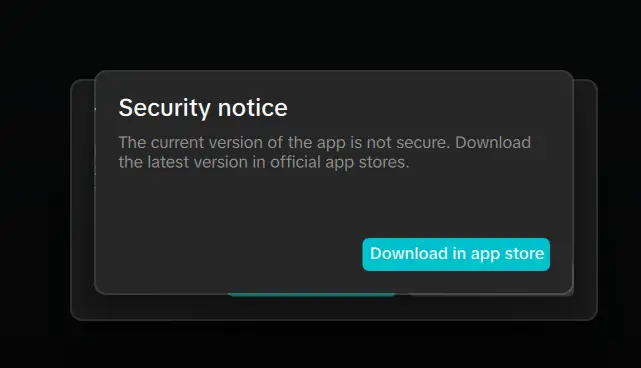
 

image
image

Reply
Posts: 1
(@김태양)
Joined: 2 months ago

7.5 버젼 이상 최근들어 이런 문제가 많이 발생한 것 같습니다. 해결방법을 부탁드립니다. It seems that this issue has been occurring frequently in versions 7.5 and above. Please let me know if there is any solution


Reply
1 Reply
CapCut Edit
Admin
(@admin)
Joined: 2 years ago

Member
Posts: 926

It seems like the latest version 7.5 has introduced this error. Until the time developers fix this issue you can try rolling back to an earlier version which was working fine for you.


Reply
Posts: 0
(@Anonymous)
Joined: 1 second ago

no method work for me, so i just rolling back to an earlier version.
you can try download the 7.3 version on uptodown
but be careful if you want to back up and restore your draft data, cause some cache data gonna trigger the notice.
try restore it one by one


Reply
Posts: 1
(@Unosells)
Joined: 2 months ago

All version have the same problem right now, this is so frustrating.


Reply
Posts: 1
(@Valmir)
Joined: 2 months ago

Estou enfrentando o mesmo problema, sempre usei versões oficiais do site do capcut, assinatura pro a mais de um ano e há pouco mais de 5 dias surgiu esse problema que parece impossível de resolver, já fiz todos os procedimentos que o suporte forneceu e nada corrigiu o problema, parece algo no próprio servidor do programa, um erro interno que eles que precisam resolver.


Reply
Page 2 / 3

Leave a reply

Author Name

Author Email

Title *

or drag and drop it here. Max file size 256MB
Preview 0 Revisions Saved
Share:
Scroll to Top
