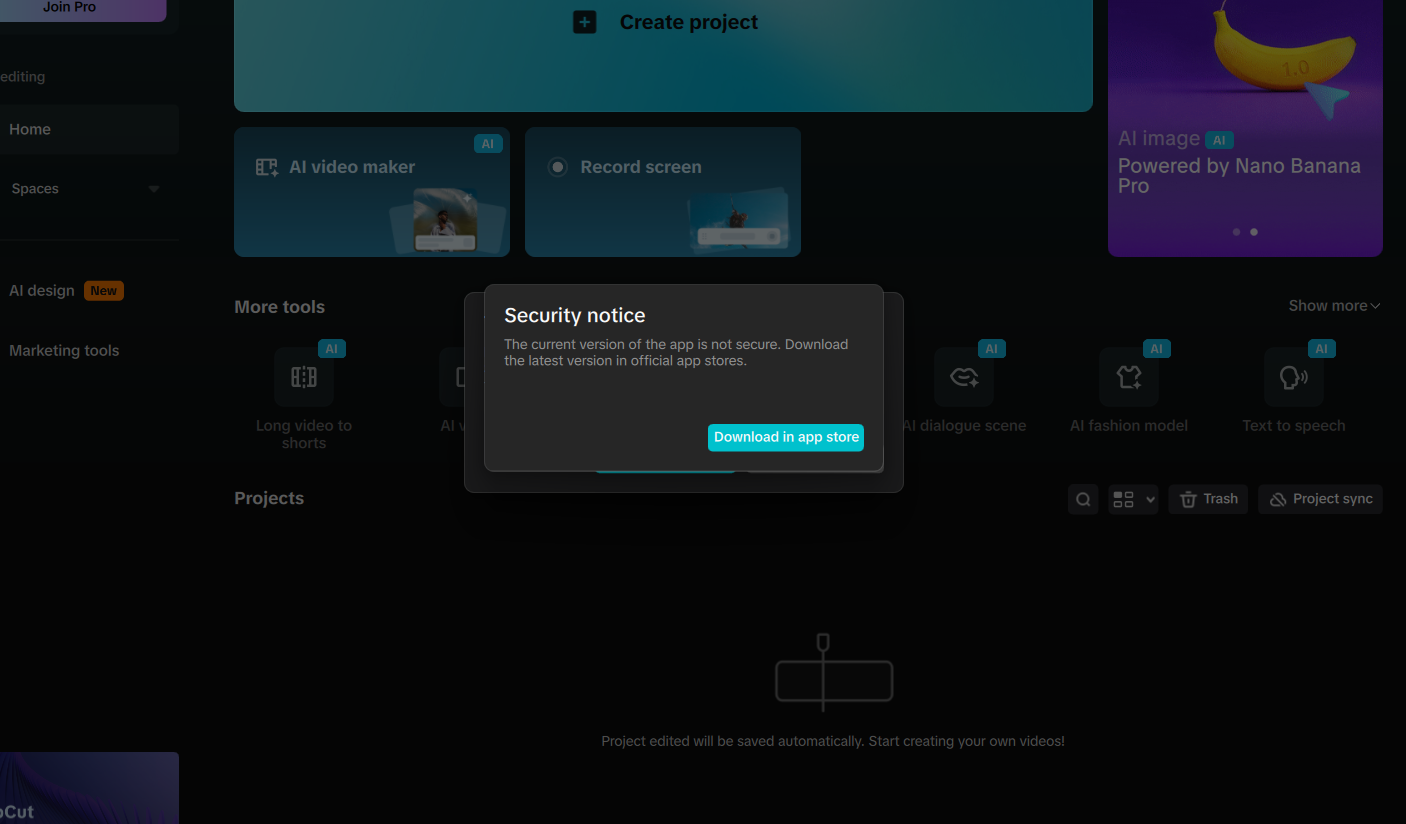
Security Notice Bug...
 
Notifications
Clear all

Security Notice Bug Appearing on CapCut PC

2 Posts
2 Users
0 Reactions
7 Views
254d6f9195185a3e8b625dba7e79d0a0d0f874e5af16046cf9714173649448aa?s=80&r=g
Posts: 1
Topic starter
(@Maxime)
Joined: 49 minutes ago

I’m experiencing a recurring issue with CapCut for PC. Each time I launch the program, a pop-up titled “Security Notice” appears, preventing me from using the software properly.

I have already tried several fixes, updating CapCut, restarting my computer, reinstalling the program, and checking my network and permissions, but the issue still persists.

Could anyone on this forum please help me resolve this problem or let me know what’s causing it?


Topic Tags
1 Reply
CapCut Edit
Posts: 850
Admin
(@admin)
Member
Joined: 2 years ago

Hi,

Below are the most common causes of CapCut’s recurring “Security Notice” pop-up on PC and the specific fixes that should resolve it. We have compiled the comprehensive list below to help you with this problem.

Try these in order (especially the ones you haven’t tried yet):

1. Run CapCut as Administrator (even if you already reinstalled)

Right-click CapCut.exe → Run as administrator.
If this removes the pop-up, set it permanently:

  1. Right-click CapCut → Properties

  2. Compatibility tab

  3. Check Run this program as an administrator

  4. Apply → OK

2. Disable Windows “App & Browser Control” SmartScreen temporarily

CapCut sometimes triggers Windows Defender SmartScreen.

  1. Open Windows Security

  2. Go to App & browser control

  3. Click Reputation-based protection settings

  4. Temporarily toggle off:

    • Check apps and files

    • SmartScreen for Microsoft Edge

  5. Launch CapCut

  6. If it works, you can turn SmartScreen back on as CapCut gets whitelisted automatically.

3. Delete CapCut’s Security Data Cache

The “Security Notice” can loop if a corrupted cache file remains after reinstalling.

Delete this folder:

C:\Users\<YourUserName>\AppData\Local\CapCut

AND this one:

C:\Users\<YourUserName>\AppData\Roaming\CapCut

Then launch CapCut again.

(These folders remain even after uninstalling unless manually deleted.)

4. Ensure TikTok Login/Online Verification is not Failing

CapCut sometimes performs an internal verification with TikTok/ByteDance.

Try:

  • Logging out of TikTok in CapCut, then logging back in

  • Switching network (Wi-Fi → hotspot, VPN off)

  • If you use a VPN, disable it

  • Try launching CapCut while disconnected from the internet, then reconnecting

5. Add CapCut to Antivirus / Firewall Allowlist

Your antivirus may be blocking CapCut’s verification files.

Add the following folders to “allowed” or “trusted”:

C:\Program Files\CapCut 

C:\Users\<YourName>\AppData\Local\CapCut

If you use:

  • Bitdefender

  • Avast / AVG

  • Kaspersky

  • McAfee

They often flag CapCut.

6. Check for Windows Blocked File Warning

Sometimes Windows marks CapCut’s EXE as unsafe after download.

  1. Right-click CapCut.exe

  2. Choose Properties

  3. If you see “This file came from another computer…”

  4. Check Unblock → Apply

7. Reset CapCut Using Windows Settings

Windows has a less-known reset function:

  1. Settings → Apps → Installed apps

  2. Find CapCut

  3. Click Advanced Options

  4. Press Reset

This resets internal configuration without removing the app fully.

8. Install the Microsoft Store Version (Different Build)

There are two builds of CapCut for Windows:

Search CapCut in the Microsoft Store → Install
This version rarely triggers the “Security Notice.”

If none of these work…

Please tell us:

What exactly does the “Security Notice” pop-up say?

(Exact text or screenshot description helps as CapCut has multiple different security warnings.)

Is your CapCut installed via EXE or Microsoft Store?

Do you use antivirus other than Windows Defender?

Are you using a VPN or work network?

We can pinpoint the exact cause and give the correct fix.


Reply

Leave a reply

Author Name

Author Email

Title *

The advanced attachments is disabled for guests
 
Preview 0 Revisions Saved
Share:
Scroll to Top