

Dear CapCut Support Team,
I hope you are doing well.
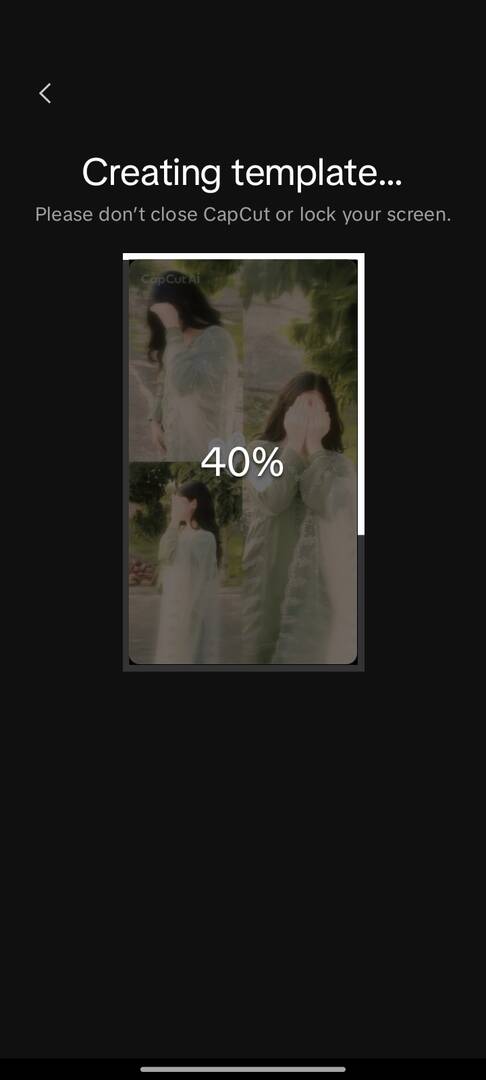
I am facing an issue while posting a template on CapCut. When I try to export or post the template, it starts loading but never completes. Even if I wait for a long time, it stops near the end and shows a "Retry" option. When I press retry, the same problem happens again and the template does not get posted.
I have already tried multiple times and also checked my internet connection, but the issue still persists.
Kindly look into this issue and guide me on how I can resolve it.
Thank you.
Best regards,
Usm
an Riaz

Hi,
It looks like your template creation is hitting a bottleneck during the final processing or upload phase. Since "Creating template" requires a consistent handshake with the servers to package and upload your assets, a small interruption can trigger that "Retry" loop.
Below we will provide you with a checklist to get that progress bar to 100%:
1. Stabilize the server connection
Template publishing is highly sensitive to network fluctuations. Even if your internet seems fast, the connection to the specific publishing servers might be unstable.
-
Toggle Connection: Switch from Wi-Fi to mobile data (or vice versa) to see if one path is more stable.
-
Connection Tools: If you are using a network tool or proxy to access certain features, ensure it is set to a stable region (like the US or Singapore) and has "Kill Switch" disabled so it doesn't drop mid-upload.
-
Airplane Mode Trick: Toggle Airplane Mode on for 10 seconds to reset your device's network stack.
-
Avoid VPN while uploading
-
Stay on the upload screen until it finishes
2. Clear CapCut’s Internal Cache
Over time, the app's temporary files can become corrupted, especially during heavy editing sessions.
-
Go to the CapCut Home Screen.
-
Tap the Settings (Hexagon icon) in the top right.
-
Find Clear cache and confirm. This won't delete your projects, but it will wipe temporary render files that might be causing the hang.
3. Check System Resources
If your device is low on RAM or storage, the app might "freeze" the background rendering process.
-
Storage Space: Ensure you have at least 5–10GB of free space. Even if your video is small, the template creation process generates large temporary cache files.
-
Close Background Apps: Force-close all other apps (especially other editors or high-RAM games) to give CapCut full priority.
-
Disable Battery Saver: Ensure "Low Power Mode" or "Battery Saver" is off, as these often throttle CPU performance and kill background uploads.
4. Check Template Requirements
CapCut fails to post if the template does not meet creator rules.
Check if:
-
Video length is not too long
-
No copyrighted music that isn't allowed
-
Clips are properly placed in template slots
-
Template preview loads correctly
5. Simplify and Sync
Sometimes a specific clip or effect is too complex for the template packager.
-
Lower Export Settings: Before clicking "Publish as Template," tap the resolution settings (usually 1080p) and try lowering the frame rate to 30fps or the resolution to 720p as a test.
-
The "Cloud" Workaround: Save the project to your CapCut Cloud/Space first. Once it's successfully synced to the cloud, try publishing the template from the Cloud version of the project rather than the local one.
-
Sometimes the project file is slightly corrupted.
-
Duplicate the project
-
Recreate the template
-
Export/post again
-
5. Update or Re-login
-
Check Version: Ensure you are on the latest build from your app store. Version mismatches can cause API errors during the "Creating template" phase.
-
Refresh Session: Sometimes your login token expires. Try logging out of your CapCut account and logging back in to refresh your creator permissions.
- Uploads failing around 40–90% usually mean network interruption or server delay from CapCut.
Starting from 2026, CapCut has tightened restrictions on what elements can be included in a public template.
The "AI Effect" Restriction
The most common cause for a template to fail at the very end is the presence of AI-generated elements. CapCut generally prohibits the following in templates because they cannot be easily "packaged" for other users to modify:
-
AI Stylize / AI Portrait: Effects that redraw the person's face or body.
-
AI Script / AI Voiceover: If you used the built-in AI writer or text-to-speech within the project.
-
Text-to-Image / AI Expand: Any clips generated or expanded by AI within the app.
Solution: Try duplicating your project and removing any AI-driven effects. If the duplicate posts successfully, you’ve found the culprit.
"Pro" Asset Compatibility
While being a Pro subscriber allows you to use Pro features, some newer Pro animations or transitions are occasionally buggy during the template "packaging" phase.
-
High-Resolution Assets: If your project contains multiple 4K clips or is exceptionally large (near 10GB+), the app may time out while trying to upload the project data to the template server.
-
Restricted Audio: If the background music is marked with "Copyright Protected" or is a "Pro" music track not licensed for template redistribution, the server might reject the upload at the final verification step.
Network Handshake
Depending on the country from which you are trying to upload, the "Retry" loop at 99% can also be a network issue. The final 1% is when your device sends the project manifest to the server.
-
DNS/ISP Blocks: Some ISP-level filters in certain countries like India can interfere with the specific ports CapCut uses for template publishing.
-
VPN Stability: If you use a VPN to access certain features, ensure it is set to a region where template publishing is fully supported (like the US, UK, or Philippines). A brief "hiccup" in the VPN connection during that final 1% will trigger the "Retry" button.