

Hello, for about two weeks now, I can no longer see the timeline in the transcript option of Capcut Pro for Mac. This is very annoying because I use it all the time to review footage before starting my video editing. I tried completely uninstalling and reinstalling the software, but it didn't solve the problem. Does anyone have a solution?
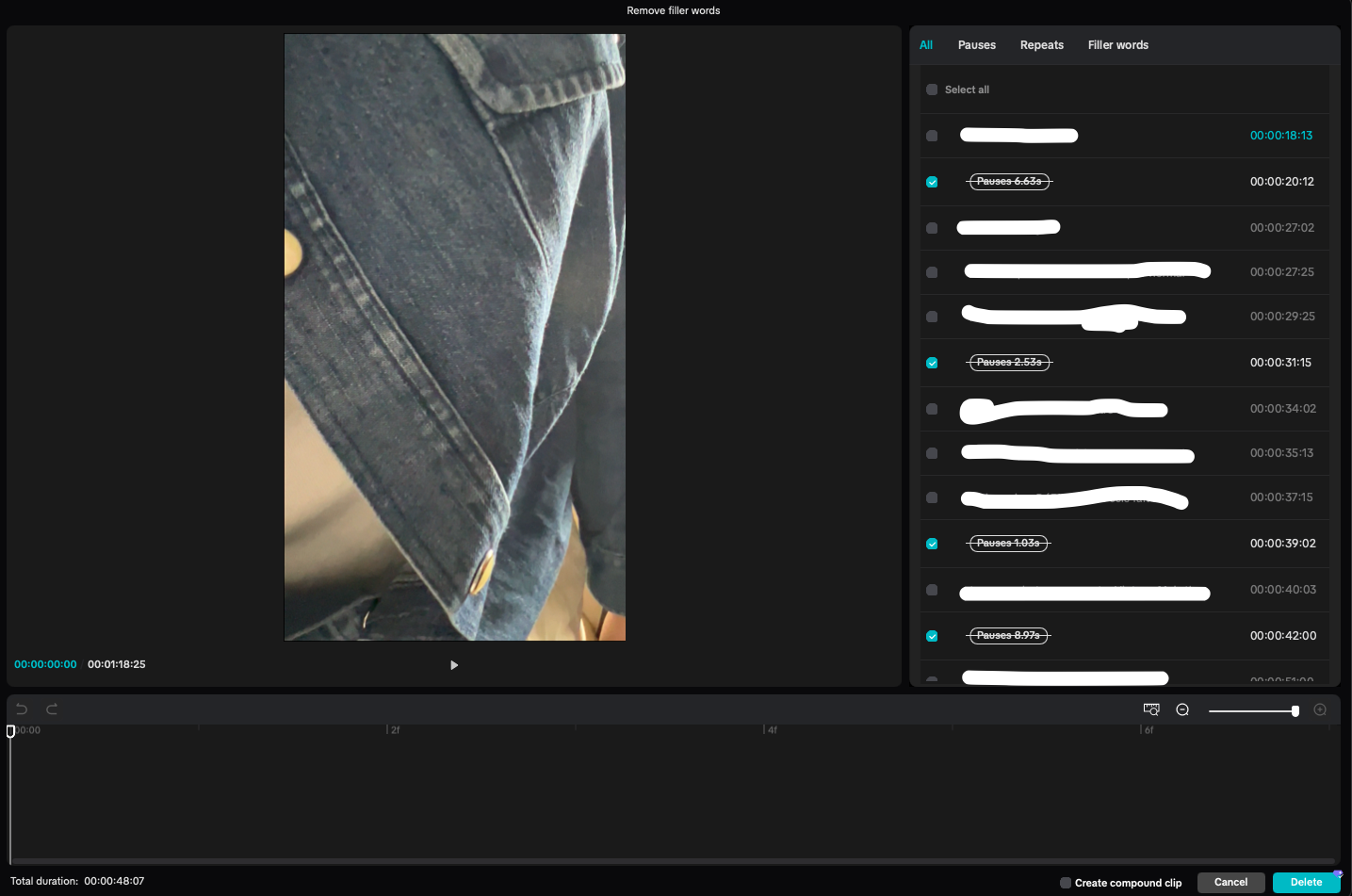

Hi,
The timeline preview inside the Transcript panel is missing in CapCut Pro for Mac. This issue has been discussed by other users also recently and is caused by one of three things: a UI layout bug, a disabled transcript feature, or a version glitch. Here are the fixes that should solve it.
Toggle the Transcript Panel Mode
Sometimes CapCut switches the transcript panel to list-only mode, hiding the timeline.
Try this:
-
Open Transcript panel.
-
Look for a small icon near the top right (often 3 dots or a layout icon).
-
Switch between:
-
Transcript
-
Captions
-
Text-based editing
-
-
Toggle them once and return to Transcript.
This forces the timeline strip to reappear.
Reset the Workspace Layout
Sometimes the individual modules (like the transcript timeline) get "stuck" in a hidden state within CapCut's configuration.
-
Go to the Menu in the top-left corner.
-
Select Layout.
-
Click Reset current layout.
-
Even if your main workspace looks fine, this forces CapCut to redraw every sub-module, including the transcript timeline.
Re-Generate the Transcript
If the transcript was generated before a recent update, the timeline markers can disappear.
Fix:
-
Delete the existing transcript.
-
Click Generate Transcript again.
-
Wait for it to rebuild.
Switch to the Dedicated "Transcript-based editing" Layout
CapCut recently separated the "Remove filler words" popup from a full Transcript-based editing layout. If the popup is glitching, the full layout should still work:
Go to Menu > Layout > Transcript-based editing.
This will change your entire workspace to prioritize the script and timeline side-by-side. This is more stable for reviewing long-form footage than the modal popup.
Downgrade or Update CapCut
Around recent builds, a bug has affected text-based editing timeline previews.
Check for updates:
-
CapCut → Check for Updates
If you are already on the newest version, installing the previous version sometimes restores it.
Clear the "Deep" App Data (macOS)
A standard "Move to Trash" uninstall on Mac often leaves behind the very configuration files that are causing the UI glitch. To do a true clean install:
-
Close CapCut.
-
Open Finder, press
Cmd + Shift + G, and paste:~/Library/Application Support/ -
Locate the CapCut folder and rename it to
CapCut_Backup(or delete it if you've synced everything to the cloud). -
Relaunch CapCut. It will act like a brand-new installation and should force the UI to pull fresh assets.
Hardware Acceleration Check
Since the timeline isn't rendering visual segments, it could be a GPU rendering issue:
-
Go to CapCut > Settings (or
Cmd + ,). -
Under the Performance tab, try toggling "Speed up hardware encoding" or "Speed up hardware decoding" off and then on again.
-
Sometimes a specific macOS update conflicts with CapCut’s hardware acceleration for UI elements.
Quick test:
Create a new project, import a short clip, generate transcript.
If the timeline appears there, the issue is project-specific, not the app.
Let us know how it goes after you follow each of the steps mentioned above. We will help you further.