

I need help with adding a mask to hide an item in the middle of a video. How do I start and stop a mask in a video? I'm using keyframes to start and stop the mask. I find the mask frame still exists in the video and keeps growing as the video is forwarded. Is there a way to keep that from happening? Thank you.

Hi,
Masking in CapCut can feel tricky at first especially with keyframes because masks don’t automatically “turn off.” What you are seeing that the mask continuing and growing is expected behavior unless you explicitly control it.
How Masks work in CapCut:
- A mask applies to the entire clip by default
- Keyframes only change the mask, not whether it exists
- So unless you “remove” or isolate it, it will persist through the clip
Best ways to start & stop a Mask
Method 1: Split the Clip which is the easiest & most reliable method
This is the method most video editors are using nowadays:
- Move playhead to where the mask should start
- Tap Split
- Move to where the mask should end
- Tap Split again
- Select the middle segment
- Apply your mask only to that segment
Result: The mask exists only in that section so that no weird growth or carryover appears.
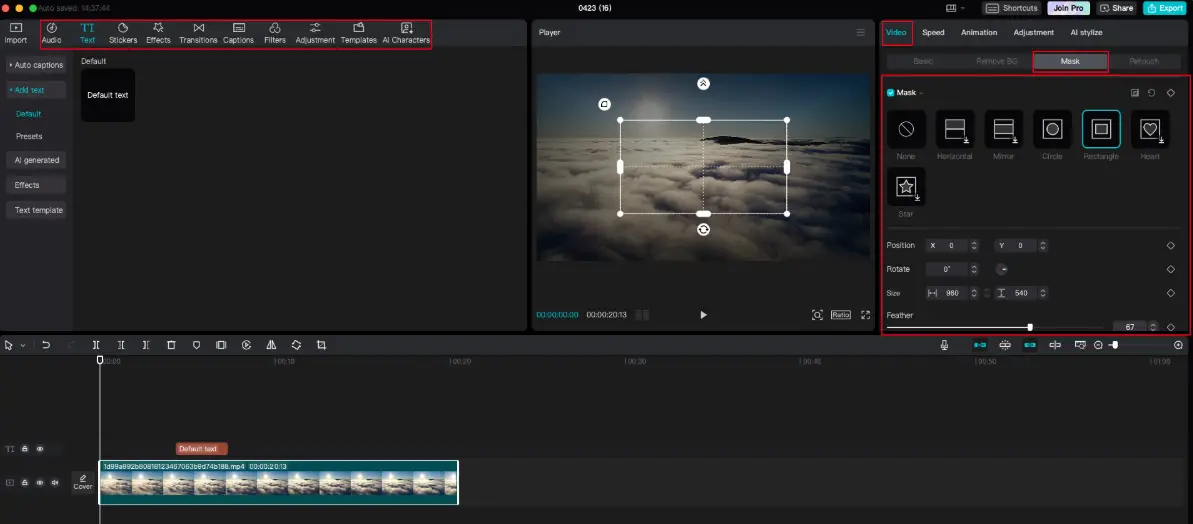
Method 2: Keyframe the Mask size to “Disappear”
If you really want to use keyframes:
- Go to the frame where mask should start
- Add a keyframe → set mask size/shape normally
- Go to the frame where mask should end
- Add another keyframe → shrink mask to:
- Extremely small size, OR
- Move it completely off-screen
- CapCut interpolates between keyframes, so if the mask is “growing,” it means it’s transitioning between sizes/positions
- To stop growth:
- Keep the same size/position across keyframes
- Add an extra keyframe right after the end point with the mask “hidden”
Method 3: Use Opacity trick (Overlay Method)
If masking an object:
- Duplicate clip as overlay
- Mask only the overlay
- Keyframe overlay opacity:
- 100% when mask needed
- 0% when not
- This gives you a true “on/off” feel
Why your Mask keeps growing?
This happens because:
- You set different mask sizes/positions across keyframes
- CapCut automatically creates a smooth transition (animation)
To fix this:
- Add a keyframe right before movement starts
- Keep values identical between keyframes where you want no change
If your goal is simply to hide something briefly, don’t fight keyframes as splitting the clip is cleaner, faster, and more predictable.
Can you tell us a little more details like what you are trying to hide like face, object, moving item, etc.? We can recommend a setup specifically based on your situation.