

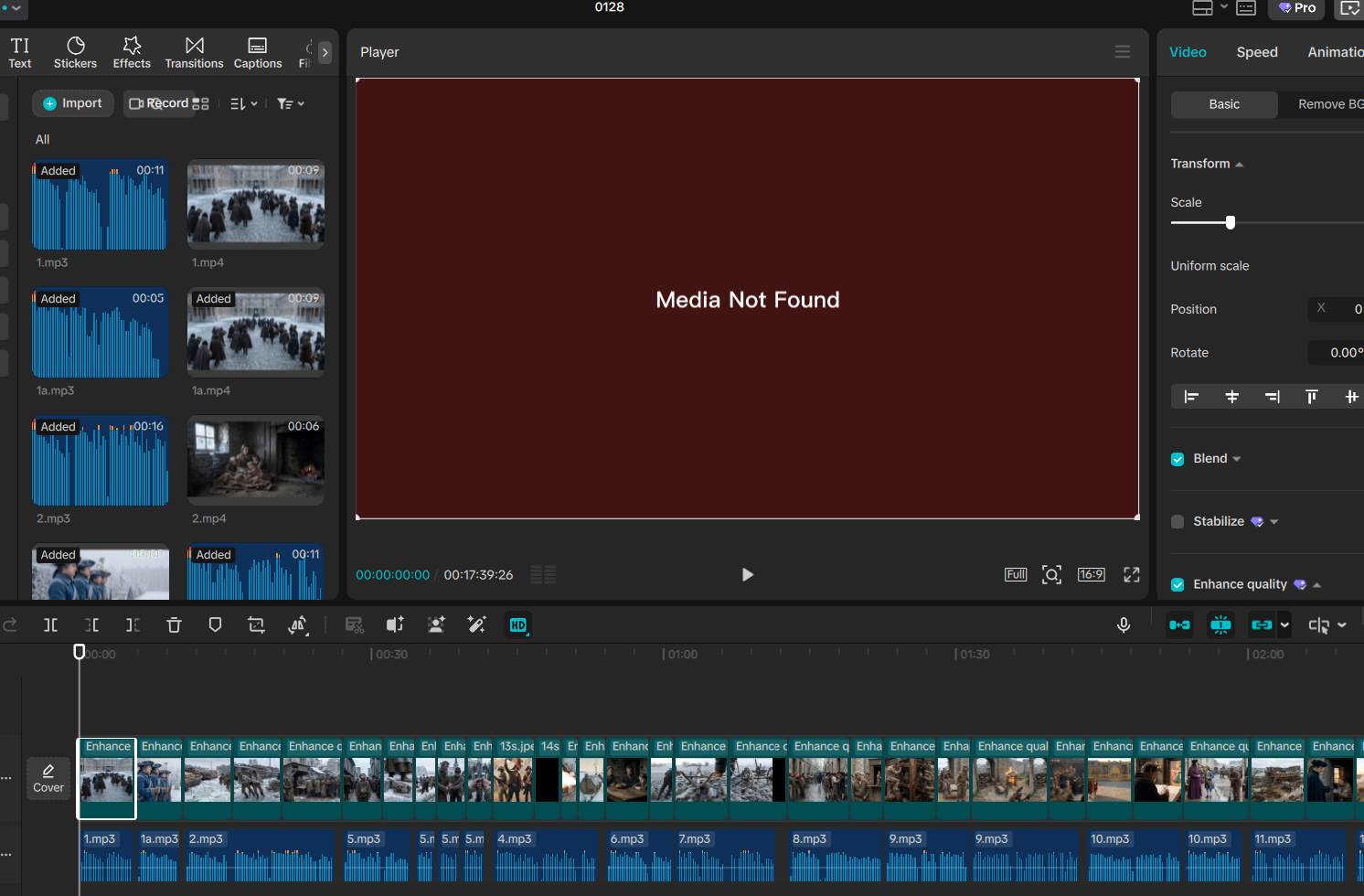
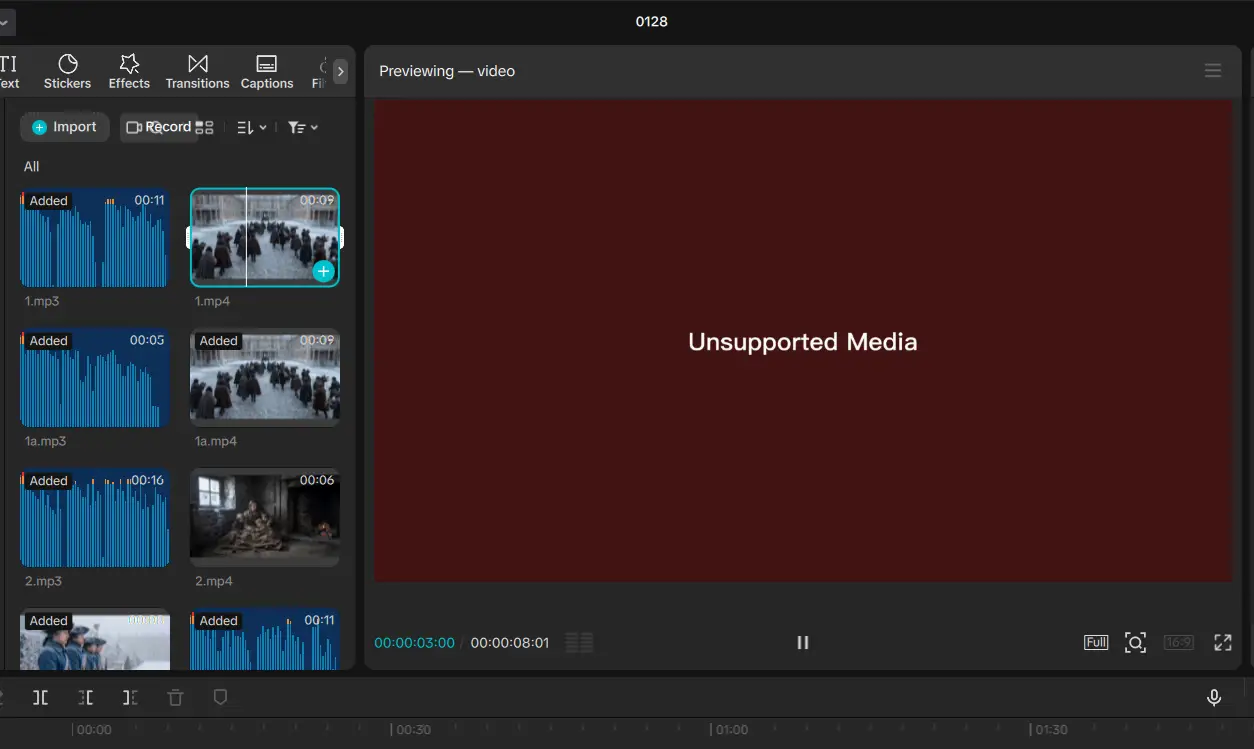
Hello, I’m having an issue where after exporting my video, CapCut suddenly shows an error and all of my videos become “Media Not Found.” and "Unsupported Media". Even though I can still see the files in the Import section and none of the clips are marked in red under the timeline, the Preview window still shows the error.
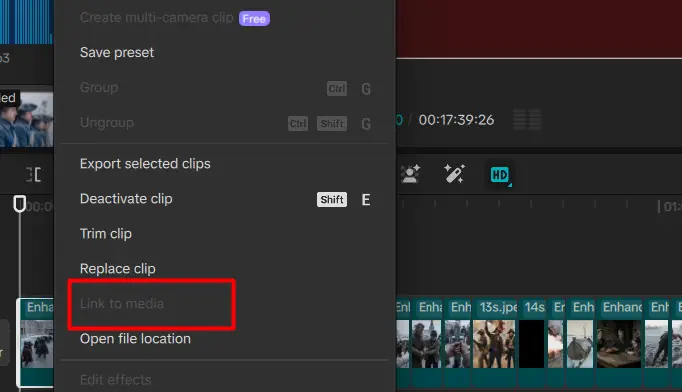
In addition, the “Link to media” button doesn’t appear, so I don’t know how to fix this. I will send you some images for reference. Please reply as soon as possible. Thank you.

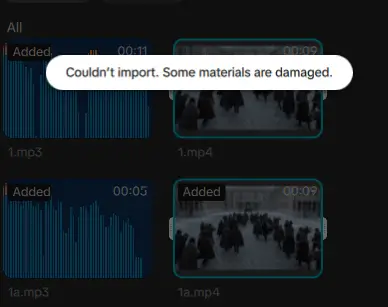
I just left my computer running While exporting the file and didn’t delete or move anything.

Hi,
Your errors together point to CapCut losing access to its internal media cache / project linkage during export:
-
“Media Not Found” in the preview
-
“Unsupported Media” after export
-
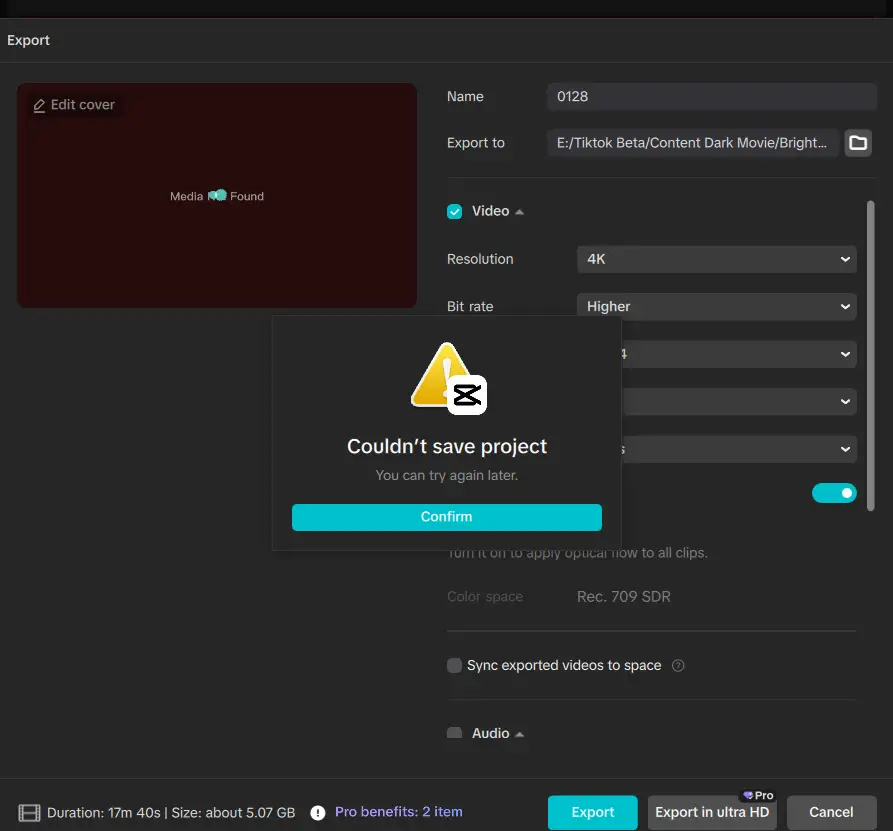
“Couldn’t save project” / “No access to save path”
-
“Couldn’t import. Some materials are damaged.”
-
No “Link to media” button
This combo means the project file itself became partially corrupted while CapCut was exporting, not that your original video files are gone.
That’s why:
-
Files still appear in Import
-
Timeline clips aren’t red
-
But playback + export are broken
CapCut thinks the media exists, but its internal references and cached decode files are busted.
Why this happened?
Based on your description “left my computer running while exporting”:
-
Export failed mid-write
-
Disk went to sleep
-
Drive permission hiccup
-
External drive briefly disconnected
-
Windows/macOS power or storage optimization kicked in
-
-
CapCut cache corrupted
-
Especially common with long exports or high bitrate
-
CapCut is terrible at recovering gracefully from this
-
-
Project save path became inaccessible
-
The warning you showed confirms this
-
Once CapCut can’t write the project file, things unravel fast
-
Why “Link to Media” doesn’t appear
CapCut only shows Link to Media when:
-
The file path is missing but
-
The project metadata is still intact
In your case, the metadata itself is damaged, so CapCut doesn’t even know what to relink. That’s why the button is gone.
Safe recovery steps to do now:
Duplicate the project immediately
Before touching anything else:
-
File → Save As
-
Save it to:
-
Desktop
-
Or another internal drive (not external)
-
-
New name (e.g.
Project_Recovery_v1)
If Save As fails → that confirms corruption, but still continue.
Clear CapCut cache (this is critical)
This fixes the majority of cases like yours.
In CapCut:
-
Settings → Cache
-
Click:
-
Clear video cache
-
Clear audio cache
-
-
Restart CapCut completely
-
This does NOT delete your original media.
Re-open the project and test playback
After restart:
-
Open the duplicated project
-
Scrub the timeline
-
See if preview comes back
If yes → export immediately to a new folder.
If that doesn’t fix it, do these next:
Rebuild media references manually
This sounds scary, but it’s safe.
-
Close CapCut
-
Move all original media files (videos, audio) into one single folder
-
Reopen CapCut
-
Open the project
CapCut may suddenly recognize paths again once everything is unified.
Create a NEW project and re-import timeline
If preview still says Unsupported Media:
-
Create a brand-new project
-
Import the same media files
-
Copy-paste the entire timeline from the old project
If clips play here → your old project file is corrupted, not the media.
Export safety tips so this doesn’t happen again
CapCut is fragile during export, so:
-
Export to an internal SSD, not external
-
Disable:
-
Sleep
-
Disk power saving
-
-
Avoid exporting directly to synced folders (OneDrive, iCloud, Google Drive)
-
After long edits, Save As → new version before exporting
Worst-case recovery
If nothing above works:
-
Your media files are almost certainly fine
-
Only the
.capcutproject is damaged -
Rebuilding via copy-paste or re-edit is the only option (painful, but not total loss)
Can you provide more details such as below to help you further:
-
Windows or macOS
-
Internal or external drive
-
Approx video length + resolution
We can help you with the fix exactly to your setup and tell you which step has the highest chance of saving it.