

I'm trying to find the Object Option for effects but i'm not using the android's version but i'm using the pc version, can you help me please?

Hi,
The “Object” option you are looking for doesn’t really exist on CapCut PC the same way it does on mobile.
Why you can’t find “Object” (CapCut PC vs Android)
- On CapCut mobile, there’s an “Object / Background / Person” toggle inside Effects (especially in Body/Video effects).
- On CapCut PC, that specific button/menu is not there or limited.
- Instead, CapCut PC uses a different workflow which is more manual control based.
So you are not doing anything wrong as the feature just isn’t in the same place.
What to use instead on CapCut PC:
1. Apply effect to a specific clip
- Go to Effects tab
- Drag the effect directly onto the clip in the timeline
- This applies the effect only to that clip (not globally)
2. Use Mask + Keyframes which comes closest to “Object” effect
If you want effects on just a person/object:
- Select your clip
- Go to Video → Mask
- Choose a shape (circle, custom, etc.)
- Adjust it over your subject
- Add keyframes to follow movement
This is how PC replaces the “Object” targeting feature
3. Use Cutout / Background removal
- Select clip
- Look for:
- Cutout
- Auto Cutout / Remove background
- Then add effects to the separated layer
- This isolates the object so effects only apply there
4. Use Overlay method
- Duplicate your clip
- Put one layer on top
- Apply effect to only one layer
- Use mask/cutout to separate object vs background
Video tutorial for PC method:
- Mobile = automatic “Object” button
- PC = manual tools (mask, cutout, layers)
PC is actually more powerful but just less beginner-friendly.
Lets say if you are blurring the background in CapCut PC which is totally doable, just a bit more manual than mobile. Below we will show you a way
Method 1: Auto Cutout (Easiest)
This is the closest to the “Object” feature from mobile.
Steps:
- Add your clip to the timeline
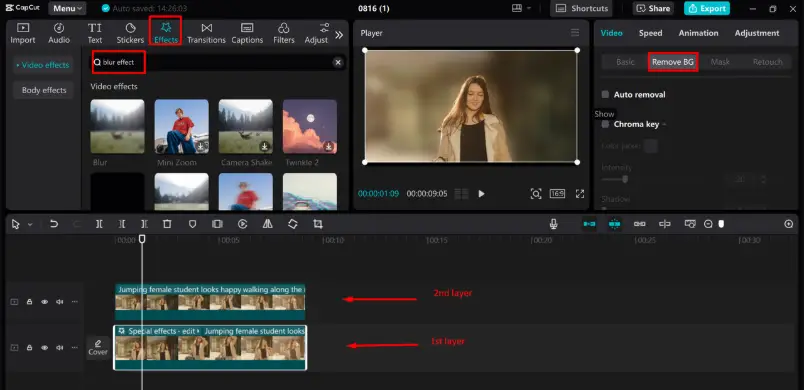
- Right-click → Copy (duplicate it)
- Place the duplicate on top layer
- Select the top clip
- Go to Video → Cutout → Auto Cutout
- Now select the bottom clip
- Go to Effects → Blur and apply a blur effect
Outcome:
- Top layer = subject (sharp)
- Bottom layer = background (blurred)
What this looks like
Method 2: Mask + Blur (Manual but precise)
Use this if Auto Cutout doesn’t detect your subject well.
Steps:
- Duplicate your clip (same as above)
- Select top clip
- Go to Video → Mask
- Choose a shape (circle or custom)
- Position it over your subject
- Feather the edges for smooth blending
- Apply blur effect to the bottom clip
- Add keyframes if your subject moves.
Method 3: Use Body Effects
CapCut PC versions include:
- Body Effects → Background Blur
- Just drag it onto your clip
- It auto-detects the subject (like mobile)
Note that it might not be available in all versions yet. So you will need to update CapCut PC to the latest version.
Tips for better results
- Increase feather → makes blur look natural
- Use Gaussian Blur for realistic background
- Slightly scale up the blurred layer to avoid edges showing
- If Auto Cutout flickers → switch to Mask + keyframes
CapCut PC works like this: Put your subject on top, blur the layer behind it
If you can share more details with us we can help you on your exact video (like if your subject is moving, low light, etc.).