

Capcut has a new problem. My workspace has been deleted off from capcut, and i'm unable to access it, leading to my legacy text effects being deleted from my presets folder. HOW DOES THIS HAPPEN!?!?!?! I'm already connected to a Wi-Fi connection, restarted my pc, downloaded the latest version, nothing works. so what the hell happened?????

Hi,
This is a recent CapCut desktop change + cloud sync issue, not something you broke. From your screenshots we can see three important things:
-
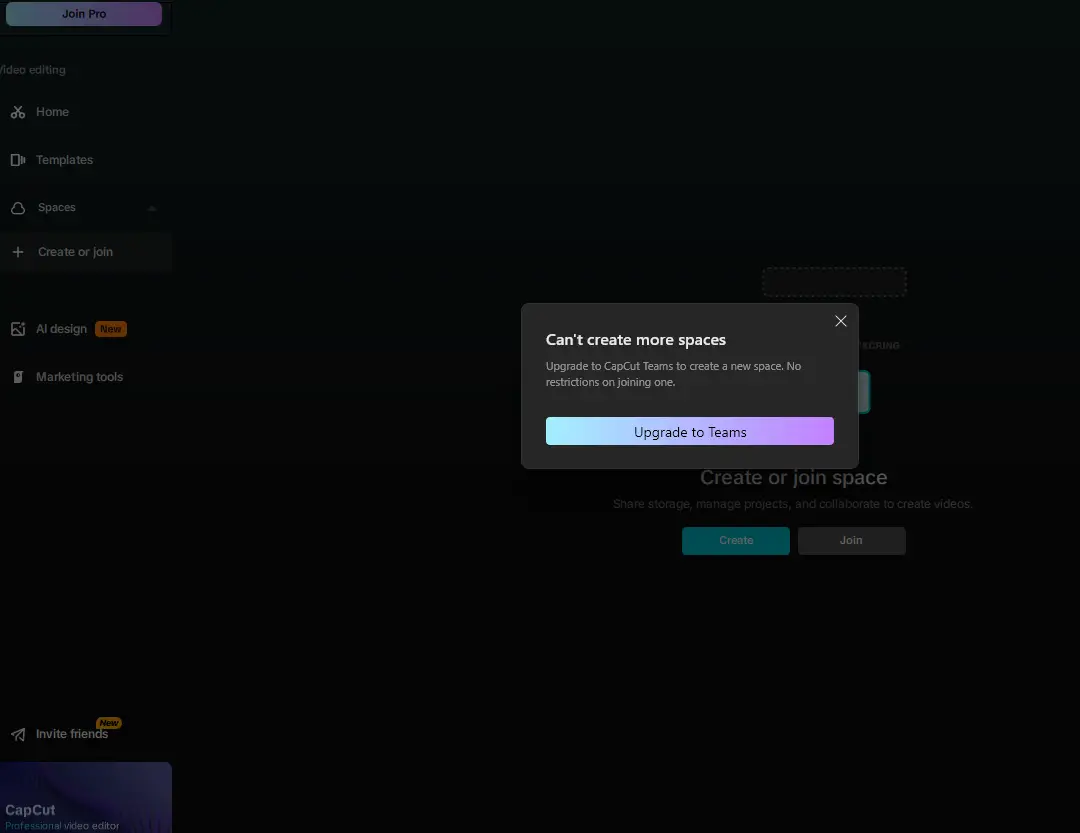
“Can’t create more spaces – Upgrade to CapCut Teams”
-
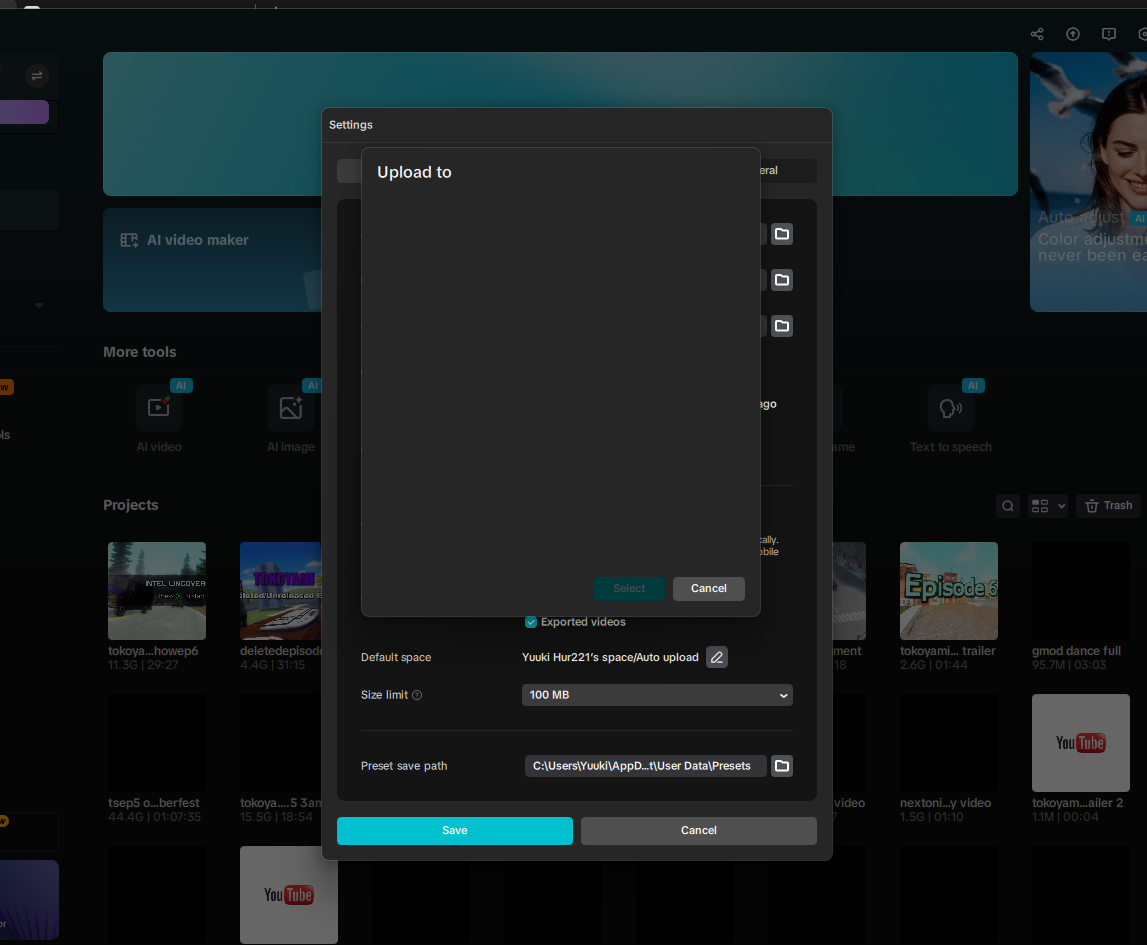
Your “Upload to / Default space” selector is empty
-
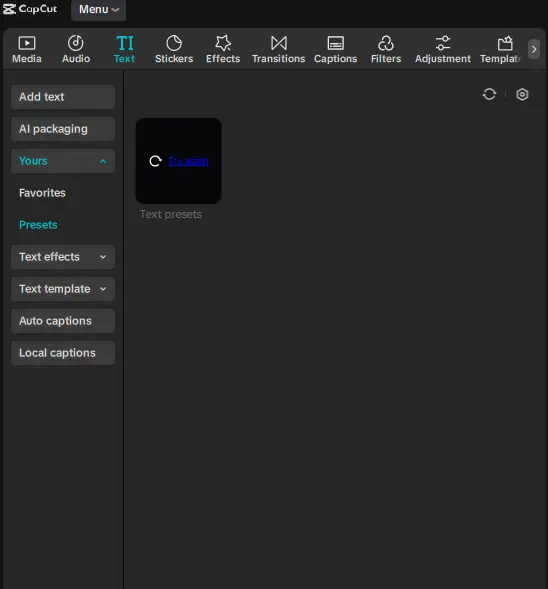
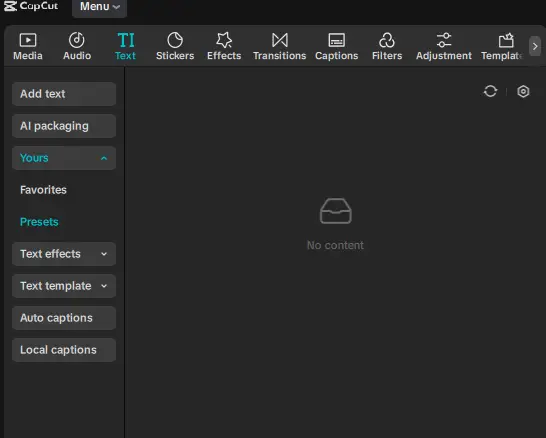
Your Text → Yours → Presets folder suddenly shows “No content”
That combination happens when CapCut loses connection to the cloud workspace that stored your presets. Your text effects weren't necessarily deleted but the workspace that stored them is missing.
CapCut changed how “Spaces” work
Recently CapCut moved many cloud features to CapCut Teams / Spaces.
When this happens:
-
Old collaborative spaces detaches
-
Presets stored in cloud spaces disappear locally
-
You can't create new spaces without Teams (which is the popup you see)
So your presets might still exist in the cloud account, but your app lost the connection to that space.
You logged into a different CapCut account
CapCut can sign you in using:
-
TikTok
-
Google
-
Email
-
Apple
If you accidentally logged in with a different method, your cloud workspace will look empty.
Check:
Top-right → Profile icon → Account
If it's different from what you used before, that explains everything.
CapCut reset your local preset folder
Your screenshot shows this path:
C:\Users\Yuuki\AppData\...\User Data\Presets
If CapCut updated or reinstalled, sometimes it:
-
creates a new Presets folder
-
leaves the old one unused
Your presets still exist in another directory.
Check these folders:
C:\Users\Yuuki\AppData\Local\CapCut\User Data\Presets
C:\Users\Yuuki\AppData\Roaming\CapCut\User Data\Presets
C:\Users\Yuuki\Documents\CapCut\User Data\Presets
If files exist there, the presets can be restored manually.
CapCut servers bug and this happens a lot
Sometimes the Spaces server fails to sync, causing:
-
empty presets
-
missing workspace
-
broken upload destination
If that's the case, it usually fixes itself after re-logging.
Try this in order:
-
Log out of CapCut
-
Close the app
-
Restart PC
-
Log back in
Cloud presets were removed from free plan
CapCut has been slowly moving features to Pro / Teams, including:
-
shared spaces
-
collaborative storage
-
some preset syncing
So if your presets were saved inside a collaborative space, the app may no longer show them.
But usually they are still on the server, just not attached to your account anymore.
Things you should try now:
Log out and log back in
Top right profile → Sign out
Clear CapCut cache
Delete this folder:
C:\Users\Yuuki\AppData\Local\CapCut
Then restart CapCut.
Check if your presets still exist locally
Open:
C:\Users\Yuuki\AppData\Local\CapCut\User Data\Presets
If files are there, they can be recovered.
Try switching workspace
Left sidebar:
Spaces → Join
Your old space appears there.
Good news
Your projects are still visible in your screenshot.
That means your account is not wiped, only the workspace connection broke.
So your presets might still exist.
Follow below steps carefully for recovering your legacy CapCut text presets:
Step 1 — Open the hidden CapCut data folder
-
Press Windows + R
-
Paste this:
%LOCALAPPDATA%\CapCut
-
Press Enter
This opens CapCut’s internal data folder.
Step 2 — Look for the Presets folders
Check inside these paths:
User Data\Presets
User Data\TextPreset
User Data\Projects
User Data\Cache
You are looking for files or folders like:
text_preset
text_templates
user_text
custom_text
If the presets still exist, they’ll usually be .json files or folders with random IDs.
Step 3 — Check the Roaming folder
Sometimes CapCut stores presets here instead.
Press Windows + R again and paste:
%APPDATA%\CapCut
Then check:
User Data
Presets
TextPreset
Why this happens
CapCut updates sometimes:
-
create a new blank preset directory
-
leave the old presets in another folder
-
stop reading them
So the files may still exist but are ignored by the app.
Step 4 — Restore them manually if you find them
If you find your preset files:
-
Copy the entire preset folder
-
Paste it into:
C:\Users\Yuuki\AppData\Local\CapCut\User Data\Presets
Restar CapCut.
Sometimes the presets instantly reappear.
Important thing about your screenshot
Your screenshot also shows:
"Can't create more spaces – Upgrade to CapCut Teams"
This means CapCut changed the collaborative space system.
Many users have recently lost:
-
presets
-
shared assets
-
workspace folders
because CapCut moved them to Team spaces.
So your presets may have been stored in the old cloud workspace, which got detached.
One more thing to try:
-
Open CapCut
-
Click Profile (top right)
-
Go to Settings
-
Turn Cloud Sync OFF
-
Restart CapCut
-
Turn it back ON
This sometimes re-links the workspace.
If the folders are empty
Then CapCut probably:
-
wiped the preset index
-
moved them to another location
-
or they were stored only in the cloud workspace
But even then they can sometimes still be recovered.
Can you share one screenshot of your CapCut folder after opening %LOCALAPPDATA%\CapCut and check if your presets are saved in a backup folder which usually survives updates.