

My team and I are having a problem that is seriously delaying our social media content, and we really can't find a solution. Pro customer service isn't responding either, so I'm posting here hoping for a miracle, but we're about to give up on CapCut.
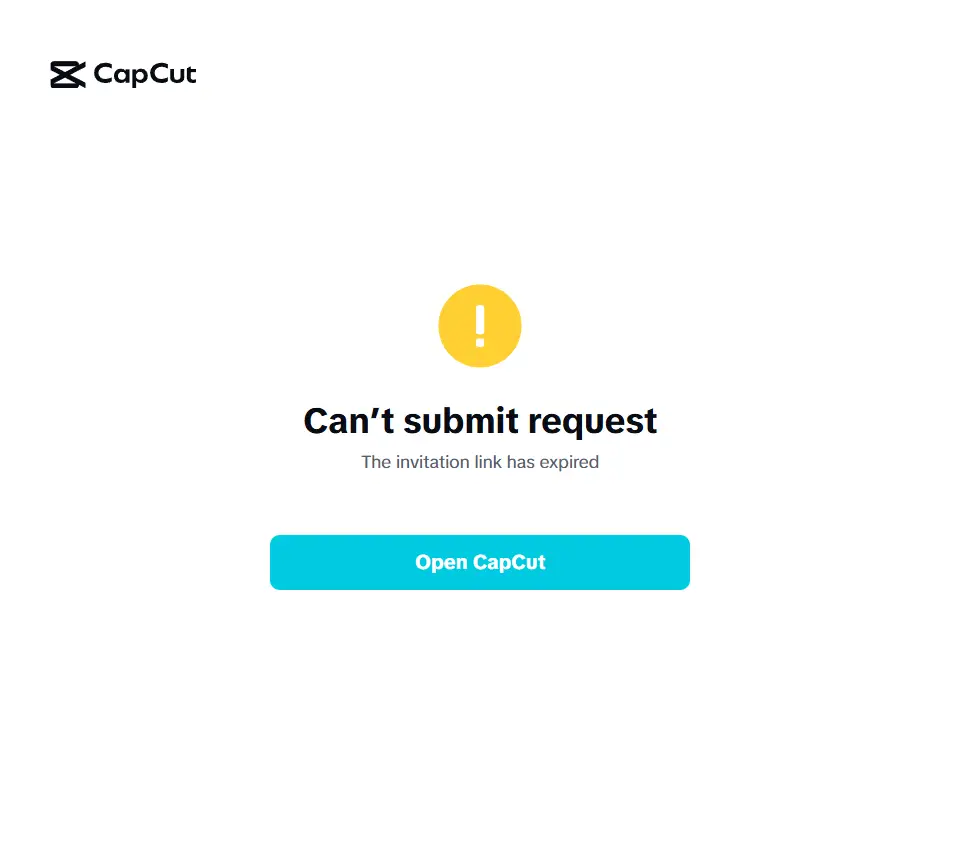
My boss paid for the Pro plan and wants to add me to his space, but nothing works: the invitation link, no matter how many times we refresh it to try, always says it's expired. Neither the normal link nor the link sent by email works. We've been trying to get me in for over a week and we can't. This is the message that pops up when I try to log in. If anyone knows how to fix this or even knows of another way for me to log into a Pro space, I would really appreciate it if you could share it.

Hi,
In CapCut, Pro access is linked to accounts + regions + platform type (web/mobile), and the invite links are very fragile. When something doesn’t line up, the system keeps generating links that look valid but are already dead on arrival.
That “invitation link has expired” screen almost always means one of these mismatches:
1. You are logged into a different account than the invite
This is the #1 cause.
CapCut treats these as different accounts:
-
Google login vs email/password
-
TikTok login vs email
-
Apple ID vs email
-
Even the same email logged in via different methods
How to fix this:
-
Log out of CapCut everywhere
-
Open an incognito/private window
-
Have your boss resend the invite
-
Click the link before logging in
-
When prompted, log in using the exact same method your boss used when inviting you
If they invited [email protected] but you usually log in with “Continue with Google” → it will fail every time.
2. Web vs Mobile mismatch
Some Pro spaces are created on desktop/web but invites are opened on mobile, or vice versa.
Fix
-
If the space was created on desktop → accept on desktop
-
If created on mobile → accept on mobile
-
Don’t switch platforms during the process
This sounds dumb, but it works.
3. Region / country mismatch
CapCut Pro spaces are linked to specific region
If:
-
Your boss subscribed while traveling
-
Used a VPN
-
Paid via App Store / Google Play in a different country
…the invite can always show as expired.
Fix
-
Both of you disable VPNs
-
Log in from the same country
-
If possible, both use desktop web while accepting
Workarounds to bypass the broken invite system
Option A: Add you manually inside the workspace
Have your boss do this inside CapCut, not via link:
-
Open CapCut
-
Go to Space / Team / Members
-
Click Add member
-
Enter your email exactly
-
Set role
-
Save
This sometimes works even when links don’t.
Option B (most reliable): Temporary login workaround
Not ideal, but effective when deadlines are burning
-
Boss logs out
-
You log in on their machine/browser
-
Accept the Pro space internally
-
Log out
-
Boss logs back in
Once you are attached to the space, future logins usually work fine.
Option C: Create a fresh account just for the team
Annoying, but many teams do this to survive CapCut:
-
You create a brand-new email
-
Boss invites that email
-
Accept immediately
-
Use that account only for Pro work
This avoids all legacy-account bugs.
Option D: The "Web Browser" Bypass
CapCut often fails to process deep links correctly. Instead of using the app to join, try this:
-
Log in to CapCut Web: Go to capcut.com on a computer (using the account you want to join with).
-
Open the link there: Copy the invitation link and paste it directly into your browser's address bar while you are already logged in.
-
Accept on Web: If it works, you will be added to the space immediately. Then, simply refresh your mobile or desktop app, and the space should appear in your sidebar.
Option E: The "Region Sync" Fix
CapCut and its parent TikTok are very strict about regional data. If your boss set up the Pro account in one country and you are in another (or using a VPN/different App Store region), the link will auto-expire for "security."
-
Check Time/Date: Ensure both your and your boss's devices are set to "Set Automatically" for date and time. If your clocks are off by even a minute, the security token in the link will think it's expired.
-
Sync Regions: Make sure both of you have the same region selected in your account settings. If one of you is using a VPN, turn it off (or ensure you are both on the same server).
QR Code: If you are in the same building, have your boss pull up the Invite QR Code on their screen. Scan it directly with your phone's camera. This generally bypasses the browser "handshake" issues that kill links.
Check the Member Limit
Even with a Pro plan, some "Spaces" are capped at 4 members unless you have a specific "CapCut for Business" tier. If your boss has already invited 4 people (even if they haven't accepted yet), the link will show as expired because the "slots" are technically pending. Ask him to cancel all previous pending invites and try sending a fresh one just to you.
Direct collaboration method:
If you still can't get in and the deadline is urgent, you can ask your boss to "Share for Review" on the specific project.
He can give you "Editing Permission" on a single file without you being a full member of the Space. It is a temporary band-aid, but it gets the video edited. Below is how this is done:
You don’t actually need to be a member of the official Pro Space to edit your boss's project he can send you a Direct Collaboration Link for that specific file.
1. The "Project Link" Method (Bypasses the Space)
This is the "miracle" fix. Instead of inviting you to the room, your boss invites you to the file.
-
On Desktop/Web: Your boss opens the specific project. In the top right, he clicks "Share" > "Share to collaborate."
-
Settings: He must change the setting from "Anyone with the link can view" to "Anyone with the link can edit."
-
The Link: He sends you that link. When you open it, CapCut will ask to "Save to your Space" or "Open in Editor." You will be able to edit the timeline immediately without needing to be part of his Pro Space.
2. "Transfer Editing Permission" (Web Version)
CapCut has a "one editor at a time" rule. If you are already looking at the project but can't move anything:
-
Your boss needs to click the three dots (...) at the top right of the editor.
-
Select "Transfer editing permission."
-
He selects your name/account.
-
Note: If your name isn't appearing because the Space invite failed, stick to Method 1 above it’s much more reliable for external collaborators.
3. The "Manual Export" (The Last Resort)
If the CapCut cloud is being completely buggy (which happens during high-traffic updates), you can move the project file manually like it's 2005. It’s clunky, but it works 100% of the time.
-
Boss Side: In the CapCut Desktop "Project List," he should Right-click the project > Export Project Package. This creates a
.cpkg(or a folder) containing all the footage and the timeline. -
Transfer: He sends that file to you via WeTransfer or Google Drive.
-
Your Side: You open CapCut, click "Import," and select that package. Now the project is local on your machine. You finish the edit, export the package again, and send it back.
Why the link is "Expired"
Just so you can tell your boss: This usually happens because of a Region Mismatch. If he is using a VPN or if his account was created under a different country’s App Store than yours, CapCut’s security "kills" the link the moment a different IP region tries to access it.
If you want to abandon CapCut
If you are at the “we’re done” stage, here are solid replacements teams actually use:
-
Adobe Premiere Pro + Team Projects (expensive, but reliable)
-
DaVinci Resolve Studio (one-time payment, very powerful)
-
VEED.io (good for social, browser-based, less buggy)
-
Descript (amazing for short-form + captions)