

I use AI HD and export in Ultra HD very frequently; these are two very important features for me. However, why is it that in the same version (7.7.0), my old computer has these two features, but when I switched to a new computer (same version), both features disappeared? How can I restore them? Of course i have Pro Plan
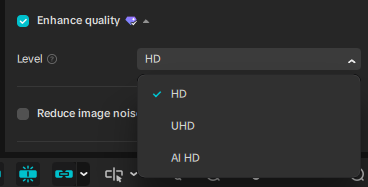
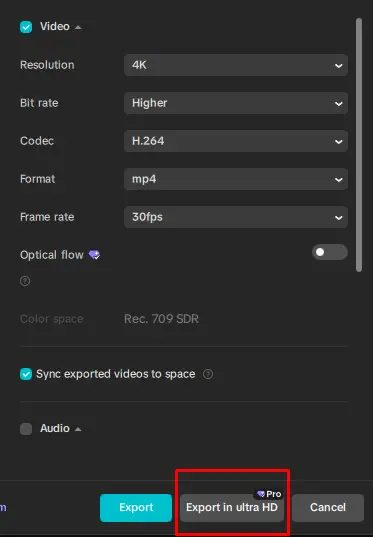
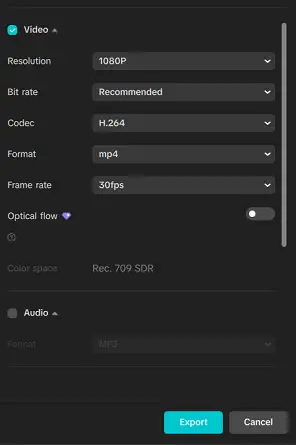
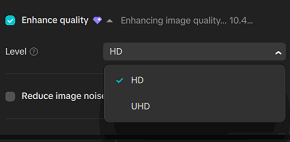
and this is my new computer capcut, there's none of the features mentioned above.

Hi,
What you have mentioned is a CapCut Desktop issue when moving to a new computer, and it is not a bug in your project. It is caused by device-based feature gating, not your Pro account.
Below we will inform you the reason and how to fix it.
Even though:
-
Same CapCut version (7.7.0)
-
Same Pro account
-
Same project
CapCut does not unlock AI HD / Ultra HD export purely by account.
These features are enabled only if your computer passes CapCut’s local hardware + system checks.
Your old computer passed, your new one likely has not passed this test.
Below are the reasons why this happens
GPU not supported or not detected correctly
CapCut’s AI HD & Ultra HD export require GPU acceleration.
CapCut checks:
-
Dedicated GPU (NVIDIA / AMD / Apple Silicon)
-
Driver version
-
Compute capability (CUDA / Metal / DirectX)
If CapCut falls back to integrated graphics, those options disappear.
Typical causes on a new PC:
-
GPU drivers not installed
-
Windows using iGPU instead of dGPU
-
Laptop set to power-saving mode
GPU drivers are missing or outdated
New computers often ship with basic Microsoft drivers, not full GPU drivers.
CapCut silently disables:
-
AI HD
-
UHD export
-
Optical Flow (sometimes)
Different OS or OS version
Some CapCut AI features are:
-
Windows-only
-
macOS-only
-
Or require Windows 10/11 specific builds
Example:
-
Windows “N” editions can break AI features
-
Older macOS versions disable AI HD
CapCut installed from Microsoft Store (Windows)
The Microsoft Store version of CapCut often:
-
Has missing AI modules
-
Lags behind the official installer
-
Fails GPU detection
- You can download the latest version of CapCut PC offline installer.
CapCut AI modules not downloaded
AI HD is a local AI model, not cloud-based.
On new systems it may never download automatically.
How to restore AI HD & Ultra HD Export (Step-by-step)
STEP 1 — Check if CapCut sees your GPU
In CapCut:
If you see:
-
“Integrated Graphics”
-
Empty / Unknown
That is the problem.
STEP 2 — Install the correct GPU driver
NVIDIA
Download from:
Choose:
-
Studio Driver (recommended for CapCut)
AMD
Intel (Arc / Iris Xe)
Restart after installation.
STEP 3 — Force CapCut to use the dedicated GPU (Windows)
Windows 11 / 10
-
Add
CapCut.exe -
Set to High performance
-
Save
-
Restart CapCut
STEP 4 — Reinstall CapCut
Do not use Microsoft Store.
-
Uninstall CapCut
-
Download the offline installer (link provided above)
-
Install
-
Log into Pro account
This alone fixes the issue as reported by our other forum members.
STEP 5 — Trigger AI model download
After reinstall:
-
Open any project
-
Apply Enhance Quality
-
Wait 1–2 minutes (internet required)
-
Restart CapCut
If models download successfully:
-
AI HD
-
UHD
-
Export in Ultra HD
will reappear
Quick checklist
✔ Dedicated GPU installed
✔ Latest GPU driver
✔ CapCut not from Microsoft Store
✔ CapCut set to High Performance GPU
✔ Restarted after driver install
If after all these it still does not appear
Just post these below information as a reply to this thread:
-
Your OS (Windows 10/11 or macOS + version)
-
GPU model (e.g., RTX 3060, Iris Xe, M1, etc.)
-
Laptop or desktop?
-
Does Optical Flow appear or not?
We will debug further and suggest more pointed solutions.
Is the configuration of this laptop good enough? Because my old laptop didn’t even have a graphics card, yet it still showed those feature
Hp Zbook Fury 15 G8
i7-11850H
RAM 16GB
SSD 512GB
Nvidia Quadro T1200 4GB
15,6 inch FHD IPS Win 11 Pro
Yes, I do see Optical Flow
Yes your HP ZBook Fury 15 G8 is more than powerful enough.
The issue is not performance, it is how CapCut classifies and enables AI features on different GPUs.
Let us explain clearly why your OLD laptop (no GPU) had AI HD / Ultra HD and your new laptop doesn’t
CapCut does not enable AI HD / Ultra HD purely by:
-
GPU power
-
VRAM size
-
Pro subscription
Instead, it uses internal feature flags based on:
-
GPU type
-
Driver branch
-
Compute backend CapCut expects (CUDA vs DirectX vs CPU AI)
-
Whether the device is tagged as consumer or workstation
Your old laptop likely:
-
Used CPU-based AI fallback
-
Was whitelisted for consumer AI HD
-
Didn’t expose conflicting GPU constraints
-
That’s why it “worked without a GPU”.
The issue on your ZBook: Quadro T1200
Your specs are excellent:
| Component | Status |
|---|---|
| i7-11850H | Excellent |
| 16 GB RAM | Enough |
| NVMe SSD | Fine |
| Windows 11 Pro | Supported |
| Optical Flow visible | GPU acceleration works |
| Quadro T1200 | This is the problem |
Why?
CapCut treats Quadro / workstation GPUs differently from:
-
GeForce RTX / GTX
-
Consumer laptops
-
Apple Silicon
Even though:
-
Quadro T1200 ≈ GTX 1650-level power
-
CUDA-capable
-
Perfectly capable of AI upscaling
CapCut generally:
-
Disables AI HD
-
Hides Export in Ultra HD
-
Enables Optical Flow only
This is intentional behavior, not a bug.
Why Optical Flow appears but AI HD doesn’t?
This is actually an important clue
| Feature | Backend |
|---|---|
| Optical Flow | GPU compute (generic) |
| AI HD / Ultra HD | AI model + feature whitelist |
So:
-
GPU works
-
Driver works
-
AI module does not load (blocked by device profile)
How to fix this issue:
FIX #1 — Install NVIDIA Studio Driver (NOT Quadro driver)
This fixes it for many Quadro users.
-
Go to NVIDIA site
-
Choose:
-
GPU: Quadro T1200
-
Driver Type: Studio Driver
-
-
Clean install
-
Restart
-
Open CapCut → Settings → Performance
Do not use HP’s OEM driver.
FIX #2 — Force CUDA backend
After Studio Driver install:
-
Windows Graphics → CapCut → High performance
-
NVIDIA Control Panel → CapCut → Prefer NVIDIA GPU
Then restart CapCut twice.
FIX #3 — Reset CapCut AI profile
-
Close CapCut
-
Delete:
-
Reopen CapCut
-
Sign in
-
Apply Enhance Quality → wait
This forces a fresh AI capability check.
If it still does not appear
Then it means CapCut currently deprioritizes workstation GPUs.
If none of the above works, then CapCut is classifying your Quadro T1200 as unsupported for AI HD / UHD export
This is common with Quadro T-series, Older Quadro RTX and some AMD Pro GPUs
Workarounds and guaranteed fixes
TEMP GPU OVERRIDE
If your CPU has Intel UHD / Iris Xe:
-
Disable NVIDIA GPU temporarily (Device Manager)
-
Launch CapCut
-
Check Enhance Quality → AI HD appears
-
Re-enable GPU
CapCut re-caches AI permissions.
- Your laptop is absolutely powerful enough
- The issue you are facing is CapCut’s device gating, not your hardware
- Quadro GPUs are treated worse than consumer GPUs
- Optical Flow confirms your system is healthy
Can you give us more details like below:
-
Are you using HP OEM driver or NVIDIA Studio?
-
Does CapCut list CUDA in Performance settings?
We can tell you whether your system can be permanently unlocked or if it’s a CapCut software side limitation.