

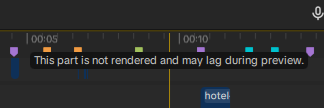
When the project gets large (many effects and added media), the player preview doesn't follow the timeline needle, causing a significant delay. This happens even when selecting a low playback quality. A yellow line on the timeline indicates that the project hasn't yet been rendered, causing playback lag with a significant drop in frames. Why isn't the project rendering when automatic rendering is enabled? Am I using it incorrectly, or is it not working as I think it should?
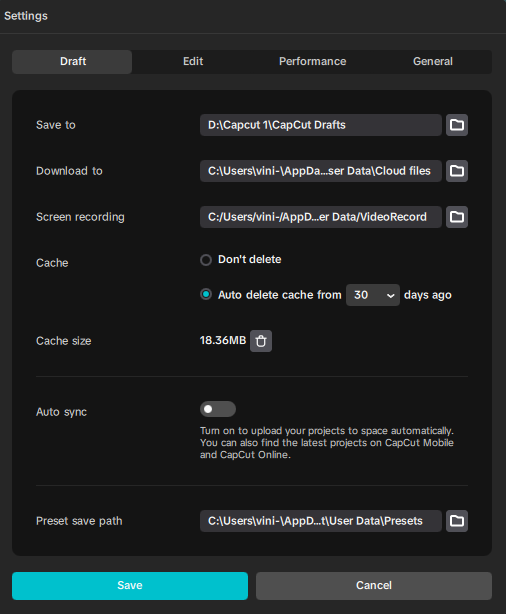
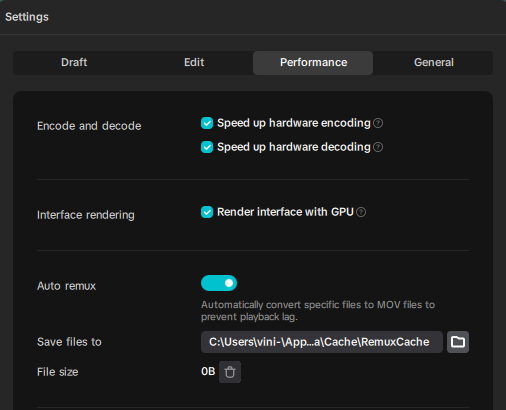
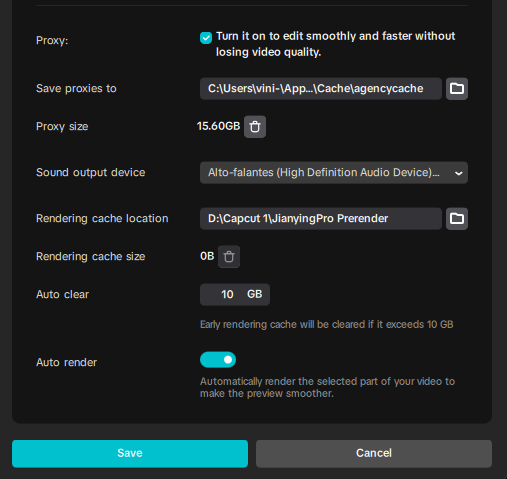
I'm attaching screenshots of my settings, maybe I configured them incorrectly.

Hi,
You are not using CapCut wrong the confusion comes from what CapCut means by “Auto render” vs. what video editors expect it to do.
CapCut does not pre-render the timeline in the background the way Premiere Pro, DaVinci Resolve, or Final Cut do.
The yellow line does not mean “waiting to be rendered later”; it means this section is currently unrendered and will stay that way until playback forces it.
What does “Auto render” do in CapCut?
-
Renders temporary preview frames on demand
-
Only renders what is needed for immediate playback
-
Stores small chunks of preview cache
-
Helps slightly with smoothness when scrubbing the same section repeatedly
What it does not do
-
Pre-render the entire timeline in advance
-
Render effects when you are idle
-
Turn the yellow line into green like other NLEs
-
Guarantee real-time playback on heavy timelines
So when you see: “This part is not rendered and may lag during preview”. That is normal behavior in CapCut, even with Auto Render ON.
Why large projects break preview sync timeline vs. playhead?
When your project grows, CapCut struggles because:
Heavy effects are GPU-bound
Even with:
-
Hardware encoding
-
Hardware decoding
-
GPU UI rendering
CapCut still:
-
Applies many effects live
-
Doesn’t cache them deeply
-
Recalculates effects every frame during playback
Once the GPU can’t keep up:
-
Audio continues
-
Timeline needle moves
-
Video preview falls behind → desync
Lowering preview quality helps decoding, but:
-
Effects (blur, glow, tracking, masks, transitions) are still full-cost
-
So lag remains
Why the yellow line never “finishes rendering”?
In CapCut:
-
Yellow = not cached
-
Green = currently cached
-
Cached sections are:
-
Short-lived
-
Easily invalidated
-
Deleted when memory pressure increases
-
Things that instantly invalidate cache:
-
Moving the playhead far
-
Changing any effect
-
Adding media
-
Timeline edits
-
RAM/VRAM pressure
So on large projects, CapCut is constantly:
Render → drop cache → render again → drop cache
That’s why you never see it “catch up.”
Your settings are mostly correct for CapCut but expectations aren’t
From your screenshots:
Below are the correct settings
-
Hardware encode & decode ON
-
GPU rendering ON
-
Auto render ON
-
Proxy enabled
-
Cache locations set
-
Cache size reasonable
Below are limitations (not misconfigurations)
-
Cache size doesn’t matter much — CapCut won’t fill it proactively
-
Auto render is reactive, not proactive
-
Proxy only helps raw media, not effects
-
Render cache ≠ timeline pre-render
So: this is not a configuration issue.
Why CapCut behaves this way?
CapCut is designed as:
-
A consumer / social-media editor
-
Optimized for short-form projects
-
Not intended for long, effect-heavy timelines
As a result:
-
No manual “Render In/Out”
-
No background timeline rendering
-
No persistent render cache
-
No effect baking per section
This is a design limitation, not a bug.
What can you do as practical workarounds:
Best options inside CapCut
-
Split projects
-
Edit in sections
-
Export intermediate videos
-
Re-import for final assembly
-
-
Bake heavy sections
-
Export effect-heavy clips
-
Replace them in the timeline
-
-
Disable effects while editing
-
Turn off heavy effects until final pass
-
-
Avoid stacked effects
-
Multiple blurs, glows, motion effects compound fast
-
If smooth preview is critical
If you need:
-
Long timelines
-
Many layered effects
-
Reliable real-time playback
You might want to explore other tools such as Premiere Pro / Resolve which should handle this much better due to true render caching.
So why is your project not rendering automatically?
Because CapCut does not pre-render timelines, even when Auto Render is enabled.
Auto Render only creates temporary, on-demand preview cache, which is constantly discarded on large projects.
You are not using it incorrectly as it’s working exactly as CapCut designed it to.
We can suggest very specific changes to reduce preview lag as much as CapCut allows. If you can tell us:
-
Your GPU / CPU
-
Approx project length
-
Types of effects you are stacking